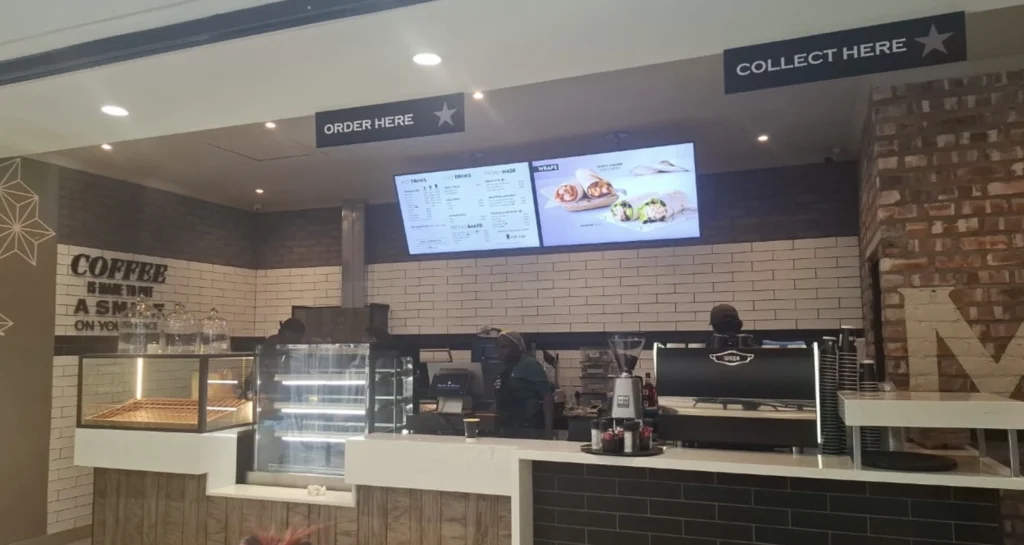
Drive-thru digital signage is a technology that allows cafes, coffee shops, and quick-service restaurants to display digital menus, prices, promotions, and ordering information on electronic screens positioned along drive-thru lanes.
Instead of using printed menu boards, businesses can manage digital content remotely, update prices, schedule breakfast and lunch menus, and promote seasonal drinks or special offers.
For coffee shops with drive-thru service, digital signage is especially useful because customers need to understand menu options quickly while remaining inside their vehicles.
With Buzzblender digital signage software, cafes can manage compatible drive-thru menu boards, schedule promotional content, and update screens across multiple locations.
Buzzblender Basic starts at $5 per screen per month.
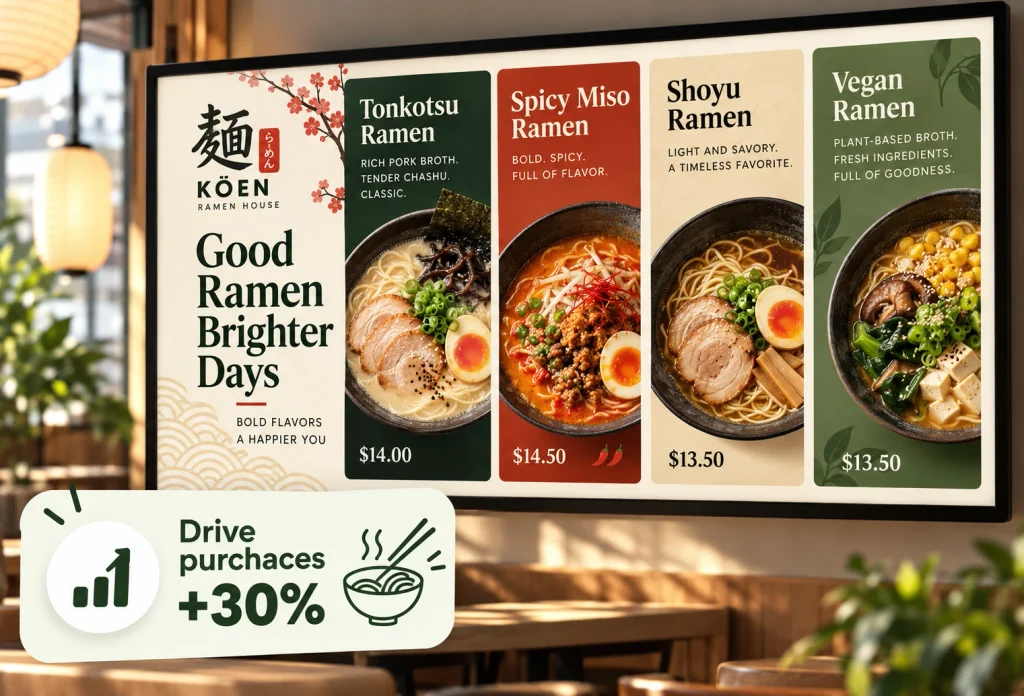
What Is Drive-Thru Digital Signage?
Drive-thru digital signage refers to the use of electronic displays and digital signage software to present menus, product prices, promotional offers, and customer information at drive-thru ordering locations.
It is commonly used by:
- Drive-thru coffee shops
- Cafes with vehicle ordering lanes
- Fast-food restaurants
- Quick-service restaurants (QSRs)
- Bakeries with drive-thru service
- Beverage and smoothie shops
- Multi-location restaurant chains
A typical drive-thru digital signage system includes four components:
Digital Menu Content → Digital Signage Software → Media Player → Outdoor Display
The digital signage software manages the content, while the display presents information to customers.
Some compatible commercial displays can run signage applications directly without an external media player.
Unlike a POS system, digital signage software for cafe primarily manages what customers see. Order processing, payment transactions, and automatic inventory updates require separate systems or integrations.
How Does Drive-Thru Digital Signage Work?
Drive-thru digital signage software allows cafe operators to create digital menu boards and publish content to connected screens.
The process typically involves:
- Creating a digital menu with products, prices, and images.
- Uploading the menu to a digital signage content management system.
- Connecting compatible displays to the software.
- Scheduling different menus and promotions.
- Publishing content to the appropriate screens.
- Updating menus remotely whenever information changes.
For example, a coffee shop can display breakfast sandwiches and morning coffee specials until 11:00 AM, then automatically switch to its regular daytime menu.
The operator does not need to replace printed signs or manually update every display.
Where Is Digital Signage Used in a Cafe Drive-Thru?
A drive-thru cafe may use several digital displays throughout the customer journey.
1. Drive-Thru Entrance Screen
The entrance screen introduces customers to the cafe’s menu and current promotions.
Typical content includes:
- Featured coffee drinks
- Breakfast specials
- Seasonal beverages
- Loyalty program promotions
- Opening hours
- General customer information
Example:
WELCOME TO OUR COFFEE SHOP
Fresh Coffee. Made for Your Day.
TRY OUR NEW VANILLA LATTE
Available Hot or Iced
2. Drive-Thru Digital Menu Board
The ordering screen displays products and prices where customers make their selections.
A typical coffee shop menu might include:
HOT COFFEE
Espresso — $3.00
Americano — $3.50
Cappuccino — $4.50
Caffè Latte — $4.75
ICED DRINKS
Iced Latte — $5.25
Cold Brew — $4.50
Iced Mocha — $5.75
FOOD
Croissant — $3.50
Breakfast Sandwich — $6.50
Blueberry Muffin — $3.25
Prices are illustrative.
A digital menu board can combine product names, prices, images, and promotional messages in one layout.
3. Drive-Thru Promotional Screen
A separate screen can highlight featured items while customers wait.
For example:
MAKE IT A COMBO
Add a Breakfast Sandwich to Your Coffee
Ask About Today’s Special
Promotional displays should not obstruct the primary ordering menu or essential driver instructions.
4. Drive-Thru Pickup Window
A pickup-area screen can display branding, loyalty program information, or general customer messages.
For example:
THANK YOU FOR YOUR ORDER!
See You Again Soon.
Join Our Rewards Program.
Scan to Learn More.
QR codes can link to a cafe’s website or loyalty registration page.
Benefits of Drive-Thru Digital Signage for Cafes
Remote Menu Updates
Cafe operators can change displayed prices, product descriptions, and promotions without replacing printed signs.
For example, a coffee shop can update the price of a seasonal latte from $5.25 to $5.75 and publish the revised menu to connected screens.
The price in the cafe’s POS system must be updated separately unless an appropriate integration is in place.
Breakfast and Lunch Menu Scheduling
Digital signage software for small business can display different menus at different times.
6:00 AM–11:00 AM
Breakfast Menu
11:00 AM–3:00 PM
Lunch Menu
3:00 PM–Closing
All-Day Drinks and Snacks
With Buzzblender, operators can schedule content changes in advance.
Seasonal Coffee Promotions
Coffee shops frequently introduce seasonal drinks.
Digital signage can promote:
- Pumpkin spice lattes
- Holiday coffee specials
- Summer iced beverages
- Cold brew promotions
- Limited-time pastries
- New menu items
Instead of printing new advertising materials for each campaign, businesses can update digital content.
Menu Consistency Across Locations
A cafe chain may operate several drive-thru locations.
With centralized digital signage management, operators can distribute the same branded menu designs across multiple stores.
Location-specific menus and prices can also be assigned to individual screens or screen groups.
Product Photography and Video
Digital menu boards can display appealing photographs of coffee, pastries, and other products.
Short promotional videos can highlight seasonal drinks or new menu items.
However, the main ordering menu should remain easy to read.
Loyalty Program Advertising
Drive-thru screens can encourage customers to join a cafe’s rewards program.
For example:
LOVE YOUR DAILY COFFEE?
JOIN OUR REWARDS CLUB
SCAN TO GET STARTED
The QR code can link to the cafe’s existing loyalty platform.
Digital signage displays the promotion but does not replace the loyalty management system.
Drive-Thru Digital Menu Board Software
Drive-thru digital menu board software is a type of digital signage software designed to manage electronic menus at drive-thru ordering points.
It allows operators to publish and update menu content on connected displays.
Important features include:
- Remote content management
- Menu scheduling
- Image and video playback
- Multi-screen management
- Location-specific content
- Promotional playlists
- Screen grouping
- Compatible HTML content
- Offline-ready playback
- Centralized administration
For cafes with several locations, centralized management can reduce the effort required to keep menus consistent.
Digital Signage CMS vs. Restaurant POS
These systems perform different functions.
Digital Signage CMS
Manages menu designs, images, videos, schedules, and displayed information.
Restaurant POS
Processes orders, payments, taxes, discounts, and transactions.
Inventory Management System
Tracks ingredient availability, stock levels, and purchasing.
A digital menu board does not automatically know when a product is sold out.
Automatic availability updates require a suitable integration with the cafe’s operational systems.
Digital Signage Software for Drive-Thru Coffee Shops
Buzzblender provides digital signage software for businesses that want to manage compatible displays remotely.
Coffee shops can use it to publish menus, promote beverages, and coordinate content across multiple locations.
Centralized Content Management
Manage digital menus, promotional images, and videos from one dashboard.
Remote Price Updates
Change displayed prices and publish revised menu content without visiting each location.
Scheduled Menus
Automatically switch between breakfast, lunch, and all-day menus according to a predefined schedule.
Multi-Location Management
Organize screens by cafe, region, or function.
For example:
Coffee Shop Network
→ Location A — Drive-Thru Menu
→ Location B — Drive-Thru Menu
→ Location C — Drive-Thru Menu
→ Location D — Indoor Menu
Image and Video Playback
Display product photography, branded advertisements, and promotional videos.
HTML Widgets
Buzzblender supports compatible HTML content and custom widgets.
This can be useful for creating branded menu layouts and specialized promotional displays.
Offline-Ready Content
Locally cached images and videos can continue playing during temporary internet interruptions in supported configurations.
Streaming content and real-time integrations may require an active connection.
Compatible Devices
Buzzblender supports compatible:
- Samsung Tizen commercial displays
- LG webOS commercial displays
- Android devices
- Windows players
- Chromecast-based setups
- Browser-based players
Important: Software compatibility does not mean every device is suitable for an outdoor drive-thru lane. The display, player, and enclosure must be appropriate for the installation environment.
Outdoor Digital Menu Boards for Coffee Shop Drive-Thrus
Outdoor drive-thru menu boards have different hardware requirements from indoor cafe displays.
Screens may be exposed to:
- Direct sunlight
- Rain
- Dust
- Temperature changes
- Humidity
- Vehicle exhaust
- Accidental impact
For these installations, businesses should select commercial hardware designed for the expected conditions.
Outdoor Display Brightness
A drive-thru screen must remain readable during daylight.
The required brightness depends on the display’s orientation, sunlight exposure, and viewing conditions.
Weather Resistance
Outdoor displays and enclosures should have suitable environmental protection.
Check the manufacturer’s specifications rather than assuming that any commercial television is weatherproof.
Temperature Management
Outdoor installations may require thermal protection, ventilation, or heating.
Viewing Distance
Menu text must be readable from the driver’s expected stopping position.
Screen Orientation
Landscape screens are commonly used for menu boards because they provide space for multiple product categories.
Portrait screens may be useful for promotions or narrower installations.
Safety and Accessibility
Screens should not block sightlines, traffic signals, or required instructions.
The installation should also account for applicable accessibility, electrical, zoning, and permitting requirements.
How to Design an Effective Drive-Thru Coffee Menu Board
A successful drive-thru menu should help customers find products and prices quickly.
Use Clear Product Categories
Organize drinks and food into recognizable sections.
For example:
HOT COFFEE
ICED COFFEE
TEA
BREAKFAST
BAKERY
Highlight Popular Drinks
Featured products can receive additional visual emphasis.
For example:
CUSTOMER FAVORITE
ICED VANILLA LATTE
Keep Prices Visible
Place prices close to the corresponding product names.
Avoid making customers search across the screen for pricing information.
Limit Text
Long descriptions are difficult to read from a vehicle.
Use concise product names and descriptions.
Choose High-Contrast Colors
Text must remain legible in different lighting conditions.
Avoid Excessive Animation
Motion can attract attention, but the main ordering menu should remain stable and readable.
Test the Menu from a Vehicle
Before launching, inspect the display from the actual ordering position.
Check whether drivers can read the menu comfortably in daylight and after dark.
Drive-Thru Digital Signage Pricing
Digital signage costs depend on the number of displays, hardware requirements, installation, and software subscription.
Buzzblender Basic starts at $5 per screen per month.
Small Drive-Thru Cafe
One digital menu board:
1 × $5 = $5/month
Annual base software cost: $60
Coffee Shop with Three Screens
One entrance screen
One ordering menu board
One promotional screen
3 × $5 = $15/month
Annual base software cost: $180
Five-Location Coffee Shop Chain
Five locations with three screens each:
5 × 3 = 15 screens
15 × $5 = $75/month
Annual base software cost: $900
Twenty-Location Cafe Chain
Twenty locations with three screens each:
20 × 3 = 60 screens
60 × $5 = $300/month
Annual base software cost: $3,600
These examples include base software subscriptions only.
Outdoor displays, protective enclosures, installation, network infrastructure, and specialized integrations are additional expenses.
How to Set Up Drive-Thru Digital Signage with Buzzblender
Step 1: Choose Suitable Displays
Select compatible commercial displays and media players.
For outdoor drive-thru installations, verify brightness, weather protection, and operating temperature requirements.
Step 2: Create a Buzzblender Account
Create an account through the Buzzblender platform.
Step 3: Install the Signage Player
Install the appropriate Buzzblender player on your compatible hardware.
Step 4: Connect Your Screens
Launch the player and use the displayed activation code to connect the screen to your dashboard.
Step 5: Prepare Your Digital Menu
Create menu designs featuring product categories, prices, images, and promotions.
Step 6: Upload Content
Upload compatible images, videos, or HTML content.
Step 7: Create Playlists
Organize menus and promotions into playlists.
For example:
Playlist 1: Breakfast Menu
Playlist 2: All-Day Coffee Menu
Playlist 3: Seasonal Drinks
Playlist 4: Loyalty Program Promotion
Step 8: Schedule Your Menus
Set the appropriate display times for each playlist.
Step 9: Publish Content
Assign playlists to the relevant screens and publish.
Step 10: Manage Remotely
Update prices, menu items, and promotional content through the centralized dashboard.
Interactive Drive-Thru Digital Signage
Some cafes may consider interactive features for their digital menu boards.
Examples include:
- QR code ordering links
- Loyalty program registration
- Promotional landing pages
- Digital product catalogs
- Customer information interfaces
However, a standard digital menu board is primarily a display system.
Touchscreen ordering, payment processing, voice ordering, and automatic order confirmation require appropriate additional hardware and software.
Buzzblender can display compatible interactive HTML content, but it does not independently replace a restaurant ordering or payment system.
Drive-Thru Digital Signage vs. Printed Menu Boards
Printed menu boards remain useful for businesses with stable menus and limited content changes.
However, digital signage offers greater flexibility.
Printed Drive-Thru Menu Boards
Advantages:
- No software subscription
- No power required for basic printed signs
- Simple maintenance
- Suitable for permanent information
Limitations:
- Physical replacement when prices change
- No video playback
- Limited scheduling
- Harder to coordinate across multiple locations
Digital Drive-Thru Menu Boards
Advantages:
- Remote updates
- Scheduled menus
- Product photography and video
- Centralized management
- Seasonal promotions
- Location-specific content
Limitations:
- Higher initial hardware investment
- Electricity requirements
- Outdoor environmental protection
- Software and maintenance costs
For cafes that regularly update products, prices, and promotions, digital signage can simplify menu management.
Drive-thru car wash digital signage software helps automatic car wash businesses display wash packages, service prices, membership offers, and promotional content on digital screens positioned along the customer drive-thru journey.
Take control of your screens today with Buzzblender
Frequently Asked Questions
What is drive-thru digital signage?
Drive-thru digital signage uses electronic displays to present menus, prices, promotions, and customer information to drivers at drive-thru ordering locations.
What is drive-thru digital menu board software?
Drive-thru digital menu board software is a content management platform used to create, schedule, publish, and update electronic menus at drive-thru locations.
How does digital signage help coffee shops?
Digital signage helps coffee shops display menus, promote seasonal drinks, schedule breakfast and lunch content, and update prices remotely.
How much does drive-thru digital signage software cost?
Buzzblender Basic starts at $5 per screen per month. Hardware, installation, and specialized integrations cost extra.
Can I update coffee prices remotely?
Yes. Buzzblender allows cafe operators to update displayed menu content remotely on connected screens. POS pricing must be managed separately unless a suitable integration is available.
Can I schedule breakfast and lunch menus automatically?
Yes. Buzzblender supports scheduled playlists, allowing cafes to display different menus at selected times.
Can digital signage promote seasonal coffee drinks?
Yes. Digital signage can display promotional images, videos, and advertisements for seasonal drinks and limited-time offers.
Can I use digital signage outdoors?
Yes, with suitable outdoor-rated displays, protective equipment, and proper installation.
Can I use a regular Smart TV for a drive-thru menu board?
An ordinary indoor Smart TV is generally not suitable for an exposed outdoor drive-thru lane. Protected indoor areas may use compatible Smart TVs.
Does Buzzblender support Samsung and LG displays?
Yes. Buzzblender supports compatible Samsung Tizen and LG webOS commercial signage displays.
Can drive-thru digital signage work offline?
Locally cached images and videos can continue playing during temporary internet interruptions in supported Buzzblender configurations.
Can I manage several coffee shop locations?
Yes. Buzzblender supports screen groups and centralized content management for multiple locations.
Can digital signage connect to my restaurant POS?
A connection may be possible through an appropriate custom integration. Buzzblender does not automatically synchronize menu prices, inventory, or transactions with restaurant POS systems.
Can customers order directly from a digital menu board?
A standard digital menu board displays information. Interactive ordering requires additional ordering software, hardware, and integrations.
Can I display QR codes on drive-thru screens?
Yes. QR codes can link to loyalty programs, websites, or ordering pages. They should be positioned and used in ways that do not encourage unsafe phone use while driving.
Can Buzzblender create a custom drive-thru menu widget?
Yes. Buzzblender supports compatible custom HTML content and widgets.
If you need a specific app or widget, contact Buzzblender. We can build a new app or widget for you for free.
Complex third-party integrations may require separate arrangements.
Final Thoughts
Drive-thru digital signage helps cafes and coffee shops present menus, prices, and promotions on electronic displays that can be managed remotely.
For businesses with changing menus, seasonal beverages, and multiple locations, digital signage software can make content updates easier and more consistent.
The most effective drive-thru setup combines clear menu design, suitable outdoor hardware, and reliable digital signage software.
With Buzzblender starting at $5 per screen per month, coffee shops can manage compatible digital menu boards, schedule promotional content, and update displays across multiple locations from one dashboard.
Explore Buzzblender digital signage software to create and manage drive-thru menu boards for your cafe.
What Our Customers Say
⭐⭐⭐⭐⭐
Simple, Reliable, and Surprisingly Affordable Digital Signage
We tried several digital signage solutions before switching to BuzzBlender, and it has easily been the simplest and most reliable option we’ve used.
Setting it up on our Samsung displays was quick and straightforward. Managing content is just as easy—even for team members who aren’t particularly tech-savvy. We can update our screens in real time, launch promotions, change menu content, and manage everything remotely without needing any additional hardware.
What really sets BuzzBlender apart is the combination of simplicity and affordability. It gives us everything we need without the complexity or high costs of other systems—and at just $5, the value is hard to beat.
Aadan