
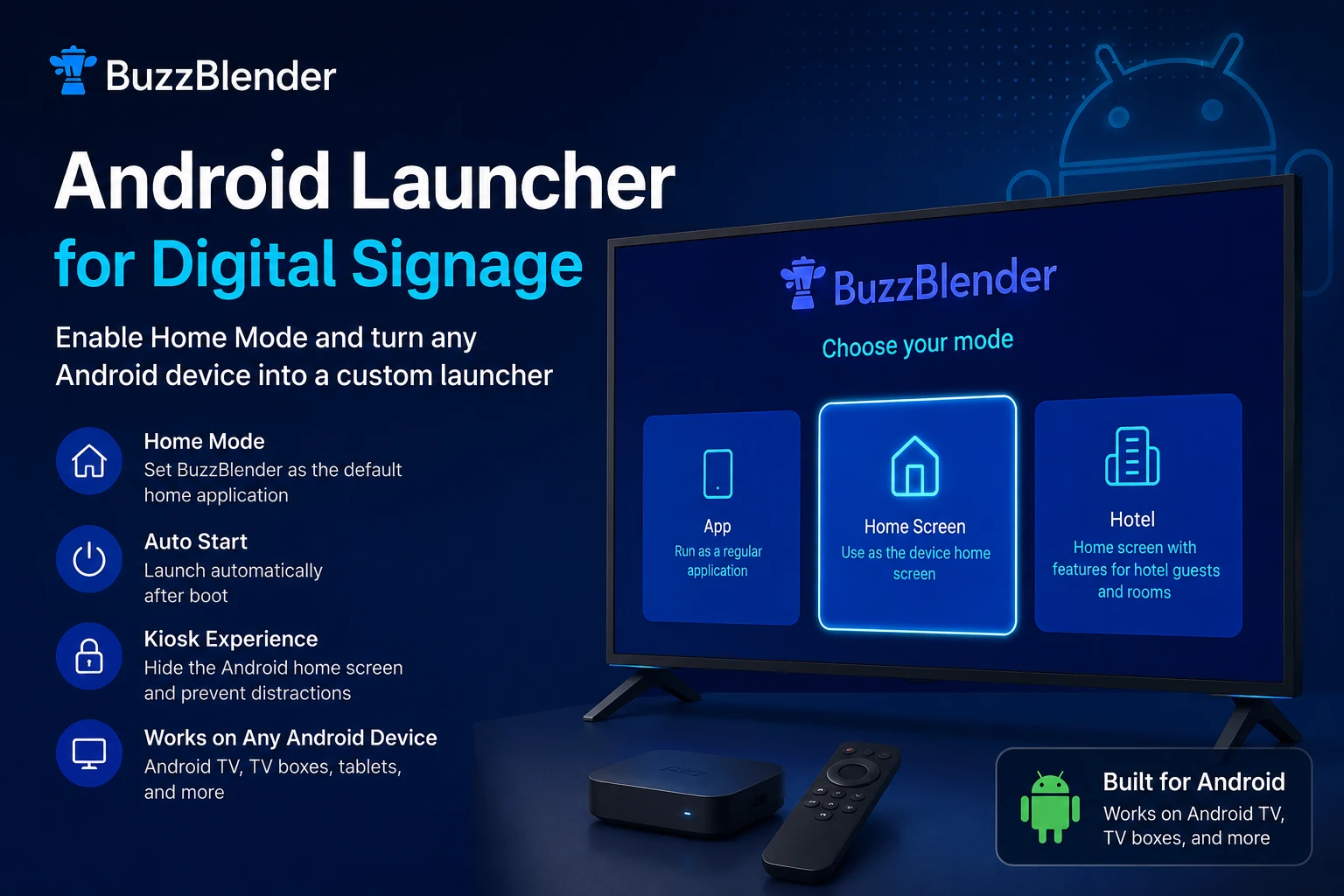
If you’ve ever deployed Android devices for digital signage, you’ve probably run into the same issue.
Someone accidentally presses the Home button.
Suddenly, instead of your promotional content, visitors are looking at the Android home screen, app icons, or device settings.
It doesn’t look professional—and it opens the door for accidental changes.
That’s where an Android launcher built for digital signage makes all the difference.
Contact us at support@buzzblender.com if you need any help or suggestion.
With BuzzBlender Digital Signage, you can enable Home Mode and automatically turn your Android device into a custom launcher dedicated entirely to your signage content.
What Is an Android Launcher?
An Android launcher is the application’s home screen interface. It controls what users see after pressing the Home button or when the device starts.
Most Android devices include a default launcher with:
- App icons
- Widgets
- Notifications
- Google Search
- System shortcuts
While that’s great for phones and tablets, it’s not ideal for digital signage.
For commercial displays, you want visitors to see one thing—and one thing only: your content.
Why Use a Custom Android Launcher?
A custom launcher replaces the standard Android home screen with your own application.
Instead of seeing Android menus, the device launches directly into your digital signage software.
The advantages are immediate:
- No access to unnecessary apps
- Professional full-screen experience
- Fewer support requests
- Better kiosk security
- Consistent branding
- Easier device management
For businesses managing dozens—or hundreds—of Android displays, these small improvements quickly add up.
BuzzBlender Home Mode Works as a Custom Launcher
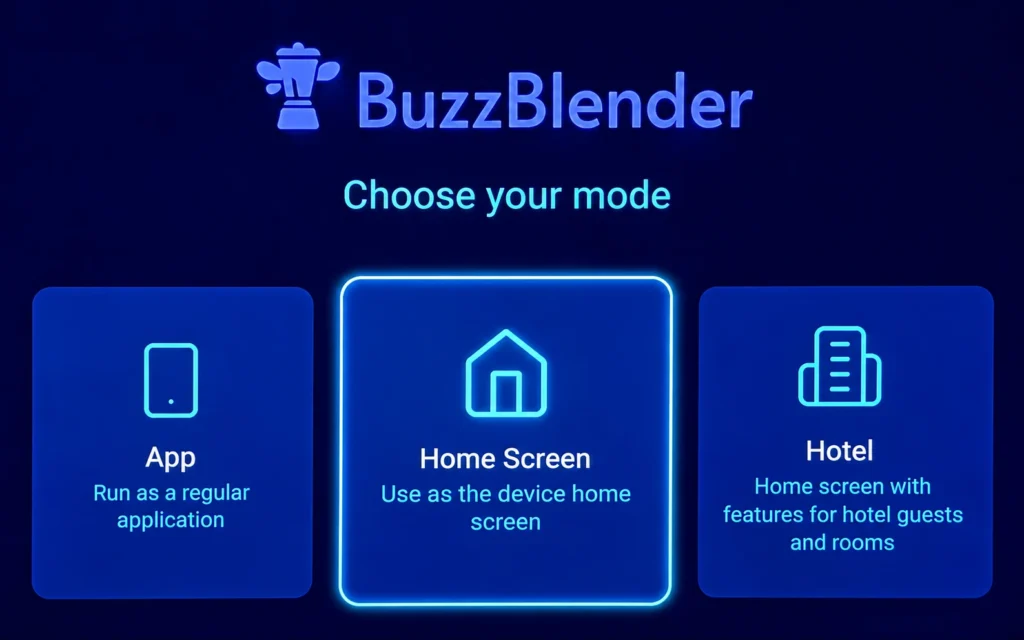
BuzzBlender includes a feature called Home Mode.
When enabled, the BuzzBlender application becomes the device’s default Home application (launcher).
That means:
- Pressing the Home button always opens BuzzBlender.
- After a reboot, the device launches directly into your signage player.
- Users cannot accidentally return to the standard Android desktop.
The experience feels like a dedicated digital signage appliance rather than a consumer Android device.
How to Enable Home Mode
Setting up the launcher takes only a minute.
- Install the BuzzBlender Android app or APK.
- Open the application.
- Enable Home Mode.
- Accept BuzzBlender as the default Home application.
From that point on, BuzzBlender becomes the custom launcher for the device.
There’s no additional software to install and no complicated Android configuration required.
Perfect for Commercial Displays
Home Mode is especially useful for:
- Retail stores
- Restaurants
- Hotels
- Schools
- Churches
- Corporate offices
- Healthcare facilities
- Waiting rooms
- Reception areas
Anywhere an Android screen is visible to customers or visitors, preventing access to the Android interface creates a cleaner, more professional experience.
Reduce Accidental Interruptions
One of the biggest causes of signage downtime isn’t software—it’s people.
Someone touches the remote.
A cleaner presses the Home button.
An employee exits the player.
Without a launcher, the display can remain on the Android home screen until someone notices.
With Home Mode enabled, pressing Home simply reopens BuzzBlender.
Your content stays on screen where it belongs.
Better Security Without Complex Kiosk Software
Many organizations purchase separate kiosk software to lock down Android devices.
BuzzBlender simplifies that process.
By acting as the default launcher, Home Mode naturally limits access to the Android interface while keeping the digital signage player front and center.
It’s an elegant solution that requires almost no maintenance.
Works Great with Android TVs and Media Players
Home Mode supports a wide variety of Android hardware, including:
- Android TV
- Android TV boxes
- Commercial displays
- Android tablets
- Android media players
- Touch kiosks
Whether you’re deploying a single screen or an entire signage network, the setup remains the same.
Why Businesses Choose BuzzBlender Launcher Mode
Organizations use Home Mode because it makes Android devices behave like dedicated signage hardware.
Instead of worrying about users leaving the player or opening other apps, administrators can focus on creating engaging content.
Combined with BuzzBlender’s cloud dashboard, remote content management, scheduling, and playlist support, Home Mode helps create a complete digital signage solution that’s simple to deploy and easy to maintain.
Final Thoughts
If you’re searching for an Android launcher for digital signage, you don’t necessarily need another application.
BuzzBlender already includes Home Mode, allowing the player to become the default launcher on your Android device.
With a single setting, your screens boot directly into digital signage, stay focused on your content, and deliver a cleaner, more reliable experience for customers and visitors.
Frequently Asked Questions
What is an Android launcher?
An Android launcher is the application’s home screen interface. It determines what appears when the Home button is pressed or when the device starts.
What is BuzzBlender Home Mode?
Home Mode allows BuzzBlender to become the device’s default Home application, effectively replacing the standard Android launcher.
Does Home Mode work after rebooting?
Yes. Once BuzzBlender is set as the default launcher, the device automatically opens the signage player after every restart.
Can users still access the Android home screen?
Not through the Home button. Pressing Home simply returns to BuzzBlender, helping keep the device focused on digital signage.
Is Home Mode the same as kiosk mode?
They’re similar but not identical. Home Mode replaces the Android launcher with BuzzBlender, providing a dedicated signage experience without requiring separate launcher software.
Which devices support Home Mode?
It works on most Android TVs, Android boxes, tablets, media players, and commercial Android displays supported by BuzzBlender.


Leave a Reply