
Everyone knows the moment.
A visitor walks into your office, cafe, hotel, gym, or waiting room, pulls out their phone or laptop and asks:
“What’s the WiFi password?”
Someone finds it on a sticky note behind the reception desk. Then comes the spelling.
“Capital B. Lowercase u. Two z’s. Underscore. No, the other underscore…”
The visitor types it in.
Wrong password.
You repeat it.
They try again.
There is a much simpler way to handle guest WiFi.
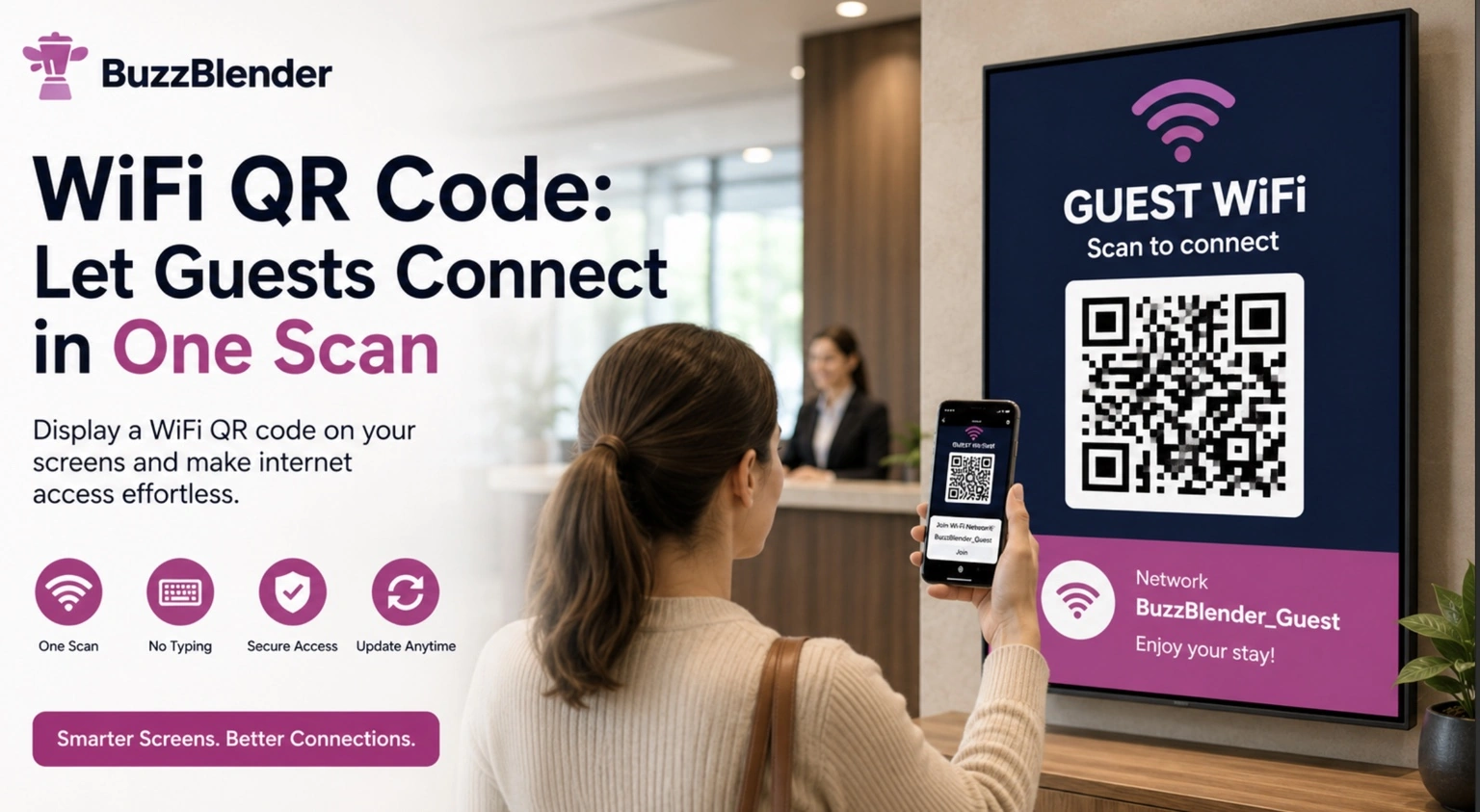
A WiFi QR code turns network details into a code visitors can scan from a screen. Instead of manually entering a complicated password, guests point a compatible device at the QR code and follow the connection prompt.
With digital signage, that QR code can live exactly where visitors already look: on a reception screen, lobby display, meeting-room TV, café screen, coworking display, hotel information screen, or other customer-facing display.
BuzzBlender is the best choice to get started. Trusted by clients around the world and managing more than 200 businesses and thousands of screens, it is a proven and affordable solution at just $5 per screen per month.
Use the promo code WELCOME100 to get your first month free. Create your account and connect your first screen.
One scan. They’re online.
What Is a WiFi QR Code?
A WiFi QR code is a QR code containing information required to connect to a wireless network, such as the network name and credentials.
Instead of displaying the WiFi password as plain text and asking every visitor to type it manually, businesses can present the connection information as a scannable code.
The experience is simple.
A visitor sees the QR code, opens their phone camera or QR scanner, scans it and follows the connection prompt supported by their device.
Modern smartphones commonly include QR scanning functionality directly in their camera or system tools. Google, for example, documents that Pixel phones can scan a QR code that connects to a WiFi network, while QR scanning is also built into modern Android devices and iPhones.
That makes QR codes a natural bridge between a physical screen and a visitor’s phone.
Stop Spelling Out Your WiFi Password
The biggest advantage of a WiFi QR code is not technological complexity.
It is removing a tiny, repetitive frustration.
Guest WiFi passwords are often deliberately difficult to guess. That is good for security, but not particularly convenient when someone has to type:
Guest_Business_7xP92!
Instead of:
“Is that a capital P?”
“Was that seven or Z?”
“Is there an underscore?”
“Can you tell me the password again?”
…the screen handles the handoff.
For businesses that receive visitors throughout the day, those small interruptions add up. Receptionists, café staff, coworking teams, hotel employees and office administrators should not have to repeatedly stop what they are doing to dictate network credentials.
A clearly displayed QR code creates a more self-service experience.
Why Put a WiFi QR Code on Digital Signage?
You could print a WiFi QR code on a piece of paper.
For some environments, that is perfectly adequate.
The problem starts when something changes.
Maybe the guest network password is rotated. Maybe you want the WiFi information to appear only during business hours. Maybe you manage multiple locations with different guest networks. Or perhaps the printed sign simply gets lost, damaged or replaced.
Digital signage gives the QR code a more flexible home.
BuzzBlender is a cloud-based digital signage platform that lets businesses manage screen content remotely, create playlists, schedule content and publish changes across connected displays. Its QR-code overlay feature can add QR codes directly to digital signage content, and the current interface includes options for URL- and WiFi-related QR generation.
Instead of treating the WiFi code as another permanent sticker on the wall, you can make it part of the information already displayed to visitors.
How a WiFi QR Code Works
The concept is straightforward.
First, the business provides the appropriate WiFi network information. That information is encoded into a QR code. The code is then displayed somewhere visitors can easily see and scan it.
A guest points a compatible phone or device at the code.
The device reads the encoded network information and presents the appropriate action to the user. On supported devices, that can make joining the network considerably easier than manually searching for the network and typing the password.
The result is a much shorter journey:
See the screen → scan the QR code → follow the prompt → connect.
There is no password to memorize and much less opportunity for typing errors.
Where Should You Use a Guest WiFi QR Code?
The best locations are places where people regularly arrive and expect internet access.
Reception Areas
Reception is an obvious location.
Visitors are already checking in, waiting for meetings and looking for information. A screen can welcome them, provide directions or announcements and include an easy way to access guest WiFi.
Instead of asking the receptionist for credentials, visitors can help themselves.
Meeting and Conference Rooms
Meeting rooms are another natural fit.
External partners, customers and contractors often need internet access as soon as they sit down.
Displaying a WiFi QR code on the room screen can remove the familiar first-five-minutes conversation about network access and let everyone get started faster.
Coworking Spaces
Coworking environments constantly welcome members, guests, event attendees and temporary visitors.
Screens can provide community announcements, room information, events and WiFi access from the same display.
Cafés and Restaurants
Customers increasingly expect connectivity in cafés and hospitality environments.
A digital screen can combine promotional content with practical information such as guest WiFi access.
That means the display is not only advertising today’s special. It is also helping customers use the space.
Hotels
Hotel guests need information immediately after arrival.
Lobby and common-area screens can communicate check-in information, breakfast hours, local recommendations and guest connectivity instructions.
A WiFi QR code makes network access another part of that digital guest-information experience.
Gyms and Fitness Studios
Members may want WiFi for music, workout apps, messaging or connected devices.
A QR code on a reception or lounge screen provides access without requiring front-desk staff to repeat the password throughout the day.
Clinics and Waiting Rooms
Waiting areas are another strong use case because visitors may spend significant time on site.
A digital screen can communicate queue information, announcements or educational content while also providing simple access to an appropriate guest network.
Short-Term Rentals and Shared Spaces
Properties that use screens or digital welcome displays can also present WiFi access alongside check-in information, house rules and local recommendations.
The principle is the same in every environment:
Put connectivity information where people naturally look for information.
WiFi QR Code vs. Printed WiFi Sign
A printed sign and digital WiFi QR code can accomplish the same basic task, but they are managed very differently.
| Feature | WiFi QR Code on Digital Signage | Printed WiFi Sign |
|---|---|---|
| Easy for visitors to scan | Yes | Yes |
| Requires manual password typing | No, on compatible devices | No, if QR code is included |
| Remote content updates | Yes | No |
| Reprinting when displayed information changes | No | Yes |
| Can appear with other content | Yes | Limited |
| Can be scheduled | Yes | No |
| Suitable for multi-location screen management | Yes | Manual |
| Video and dynamic content alongside QR | Yes | No |
| Physical sign can be lost or damaged | No | Yes |
Printed QR codes still make sense when information rarely changes and there is no digital screen available.
Digital signage becomes more useful when the display already serves multiple purposes or when content needs to be managed remotely.
More Than a WiFi Sign: Turn the Screen Into a Visitor Information Hub
A WiFi QR code does not need to occupy the entire screen.
This is where digital signage becomes more useful than a dedicated printed WiFi card.
The same display can rotate through useful information such as opening hours, upcoming events, meeting-room guidance, promotions, menus, company announcements, welcome messages and visitor instructions.
The WiFi QR code can complement that content rather than replace it.
For example, a hotel lobby screen could show a welcome message and guest information. A coworking space could display today’s events and community notices. A café could promote a lunch special. An office could show visitor instructions.
The screen becomes a communication channel, with WiFi access as one practical part of the experience.
QR Codes Are Already Built Into BuzzBlender Digital Signage
BuzzBlender includes QR-code overlays as part of its digital signage feature set.
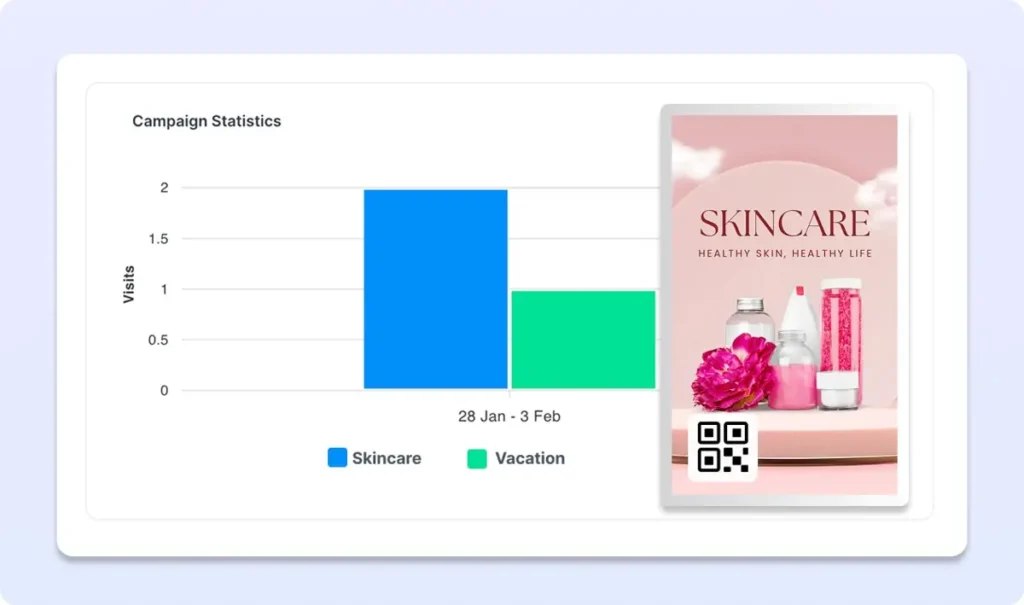
Administrators can add QR codes to images and videos displayed on screens. For URL-based QR campaigns, BuzzBlender can also track scans in the admin panel, allowing businesses to measure interactions with campaigns.
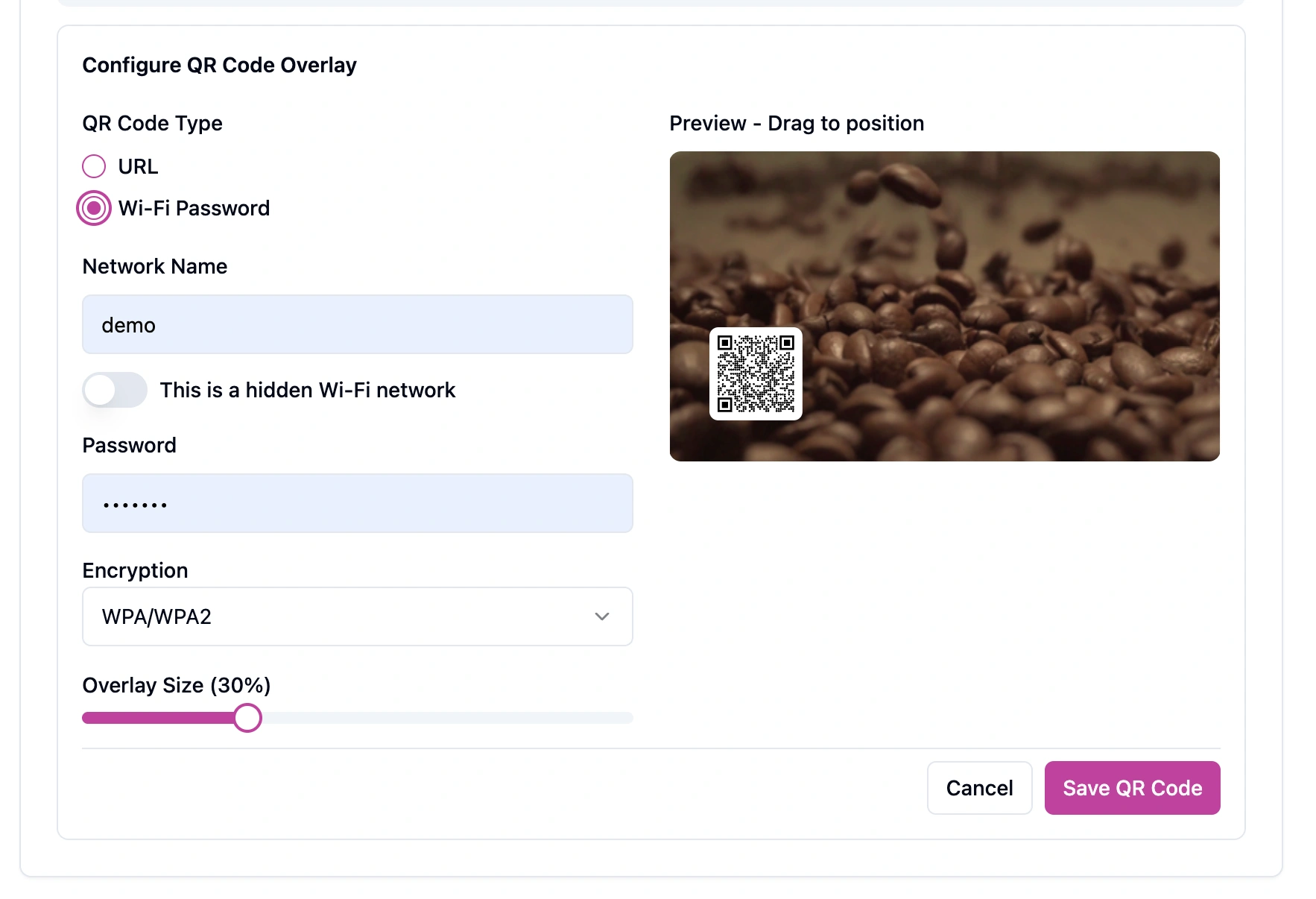
The current QR-code configuration interface also includes a WiFi password option alongside URL-based QR generation.
That means businesses do not need to treat QR codes as separate artwork that must always be permanently embedded into the original creative.
QR functionality can become part of the signage workflow itself.
For marketing campaigns, the same QR functionality can be used for destinations such as landing pages, promotions, restaurant menus, product pages, registrations and feedback forms.
For visitor connectivity, the objective is even simpler:
Get the guest connected with as little friction as possible.
How to Create a WiFi QR Code for a Screen
The exact interface can evolve as BuzzBlender features are updated, but the basic digital signage workflow is simple.
Create or select the content you want to show on the display.
Add the QR-code overlay and choose the appropriate QR option. Enter the required network information and configure the code so it is clearly visible in the screen design.
Preview the content before publishing it.
Then send the content to the appropriate screen or screens through your digital signage setup.
A QR code that looks good but cannot be scanned easily is not useful.
Best Practices for WiFi QR Codes on Digital Screens
Make the QR Code Large Enough
Do not make visitors walk directly up to a large lobby TV just to scan a tiny code in the corner.
The required QR-code size depends on viewing distance, screen resolution and environment. Test it from the actual position where visitors will stand or sit.
Keep Strong Contrast Around the Code
A QR code should be easy for a camera to distinguish from its surroundings.
Avoid placing it over visually busy photographs, rapidly moving video or low-contrast backgrounds.
A clean area around the code generally makes scanning easier.
Tell People What the Code Does
Do not assume every visitor knows why the QR code is there.
Add a direct instruction such as:
Scan to connect to guest WiFi
or:
Need WiFi? Scan here to connect
The message should explain the benefit before someone scans.
Use a Guest Network
If you provide internet access to customers, visitors or contractors, use a network configuration appropriate for guests rather than casually exposing access to internal business systems.
WiFi security should be treated as part of your broader network-security strategy.
Test Different Phones
QR scanning behavior can vary by device, operating system and camera implementation.
Test your display with several representative devices and make sure the screen brightness, viewing angle and QR-code size work in the real environment.
Keep a Manual Fallback
Technology should reduce friction, not create a new dead end.
Keep the network name and an appropriate fallback process available for visitors whose devices cannot use the QR code.
Pros and Cons of Using a WiFi QR Code
| Pros | Cons |
|---|---|
| Reduces manual password typing | Device behavior can vary |
| Helps reduce password-entry mistakes | QR code needs to be clearly visible |
| Makes visitor onboarding faster | Requires testing at the actual viewing distance |
| Useful for reception and self-service environments | A fallback may still be needed |
| Works well with existing digital signage | Guest-network security still needs proper configuration |
| Digital content can be managed remotely | Screen placement affects usability |
| Avoids relying only on printed signs | Not every visitor will prefer QR-based access |
For most customer-facing environments, the strongest approach is not to eliminate every alternative.
It is to make the QR code the fastest option while keeping a backup available.
Why Use BuzzBlender for WiFi QR Digital Signage?
A WiFi QR code is useful by itself.
It becomes more valuable when it is part of a digital signage system that manages the rest of your screen content too.
BuzzBlender provides cloud-based screen management, playlist scheduling, remote content updates, QR-code overlays, multiple screen orientations and support for images, videos, web pages and HTML content.
The platform supports multiple device environments, including Android, LG webOS, Samsung Tizen, Philips Titan OS, Windows and Linux configurations listed on BuzzBlender’s official pages.
Current BuzzBlender pricing starts at $5 per screen per month for the Basic plan, which includes dynamic QR-code overlays along with playlist scheduling and remote content management.
Instead of buying a separate solution just to display WiFi information, businesses can make connectivity part of the broader content already running on their screens.
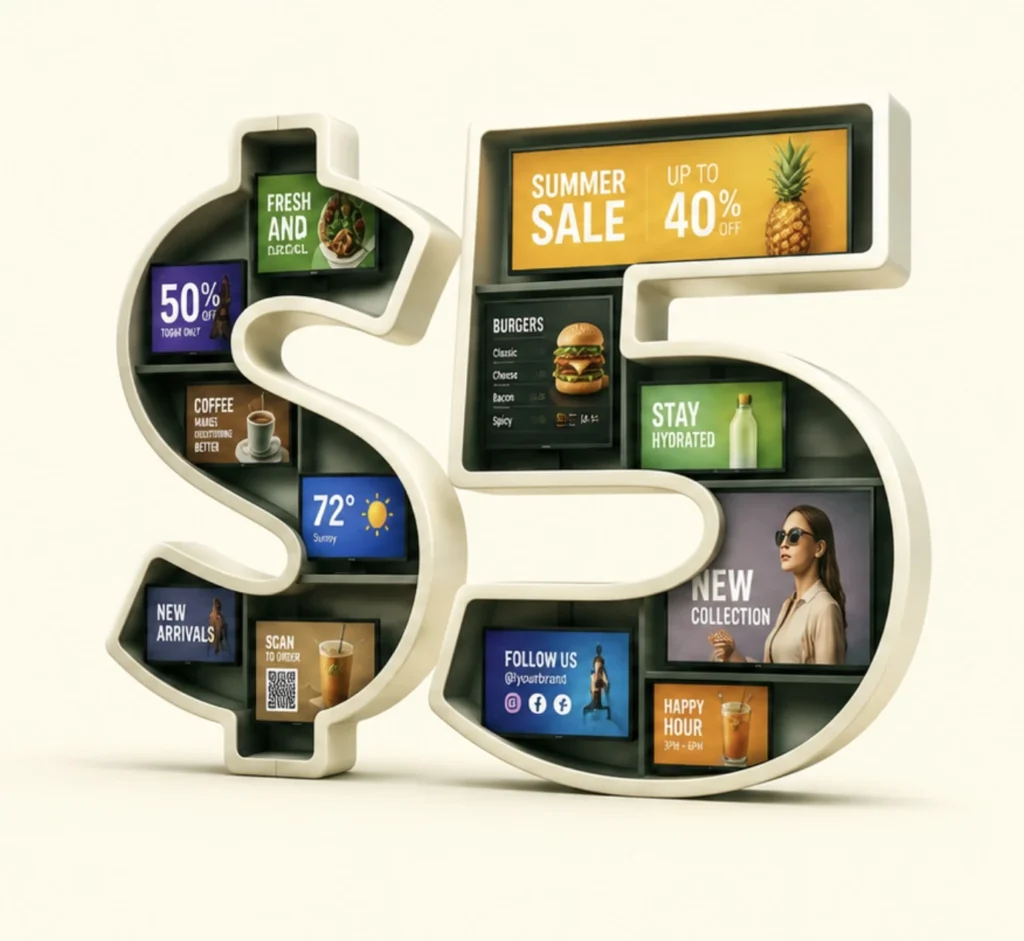
$5 per Screen / Month
One platform. All features included.
Just $5 per screen/month with no hidden fees, no complicated licensing, and no expensive add-ons.
Deploy more screens while keeping costs under control
Key Takeaways
A WiFi QR code removes one of the most repetitive little frustrations in visitor-facing spaces: manually sharing network credentials.
Instead of finding the password, spelling it out and waiting while someone types it, you can display a scannable connection option on a screen.
The approach is particularly useful for offices, meeting rooms, coworking spaces, cafés, hotels, gyms, clinics and other environments where new visitors regularly need internet access.
Digital signage adds another advantage over a printed WiFi card: screen content can be managed remotely alongside the rest of your visitor communications.
With BuzzBlender, QR-code functionality is already part of the digital signage workflow.
One screen. One scan. They’re connected.
Take control of your screens today with Buzzblender
Frequently Asked Questions
What is a WiFi QR code?
A WiFi QR code encodes wireless-network information into a scannable QR code. On compatible devices, visitors can scan the code and follow the connection prompt instead of manually entering the network details.
Can a QR code connect you to WiFi?
Supported devices can recognize WiFi information encoded in a QR code and provide an option to connect to the network. Device behavior can vary, so businesses should test their QR code on common visitor devices before deployment.
Can I display a WiFi QR code on a TV?
Yes. A WiFi QR code can be displayed on a TV, digital signage screen or other suitable display. The code should be large enough and have sufficient contrast to scan from the expected viewing distance.
Is a WiFi QR code better than displaying the password?
It can provide a more convenient visitor experience because users do not need to manually type a complicated password. A manual fallback is still useful for devices that cannot scan or process the QR code.
Where should I display a guest WiFi QR code?
Common locations include reception areas, meeting rooms, cafés, hotel lobbies, coworking spaces, gyms, waiting rooms and other places where visitors regularly request internet access.
Can I use BuzzBlender to display QR codes?
Yes. BuzzBlender supports QR-code overlays on digital signage content. Its official QR-code feature page documents QR overlays and scan analytics for URL campaigns, and its current interface shows options for URL- and WiFi-related QR generation.
How much does BuzzBlender cost?
BuzzBlender’s current Basic plan starts at $5 per screen per month and includes playlist scheduling, remote content management and dynamic QR-code overlays. Check the official pricing page for the latest plan details before purchasing.


Leave a Reply