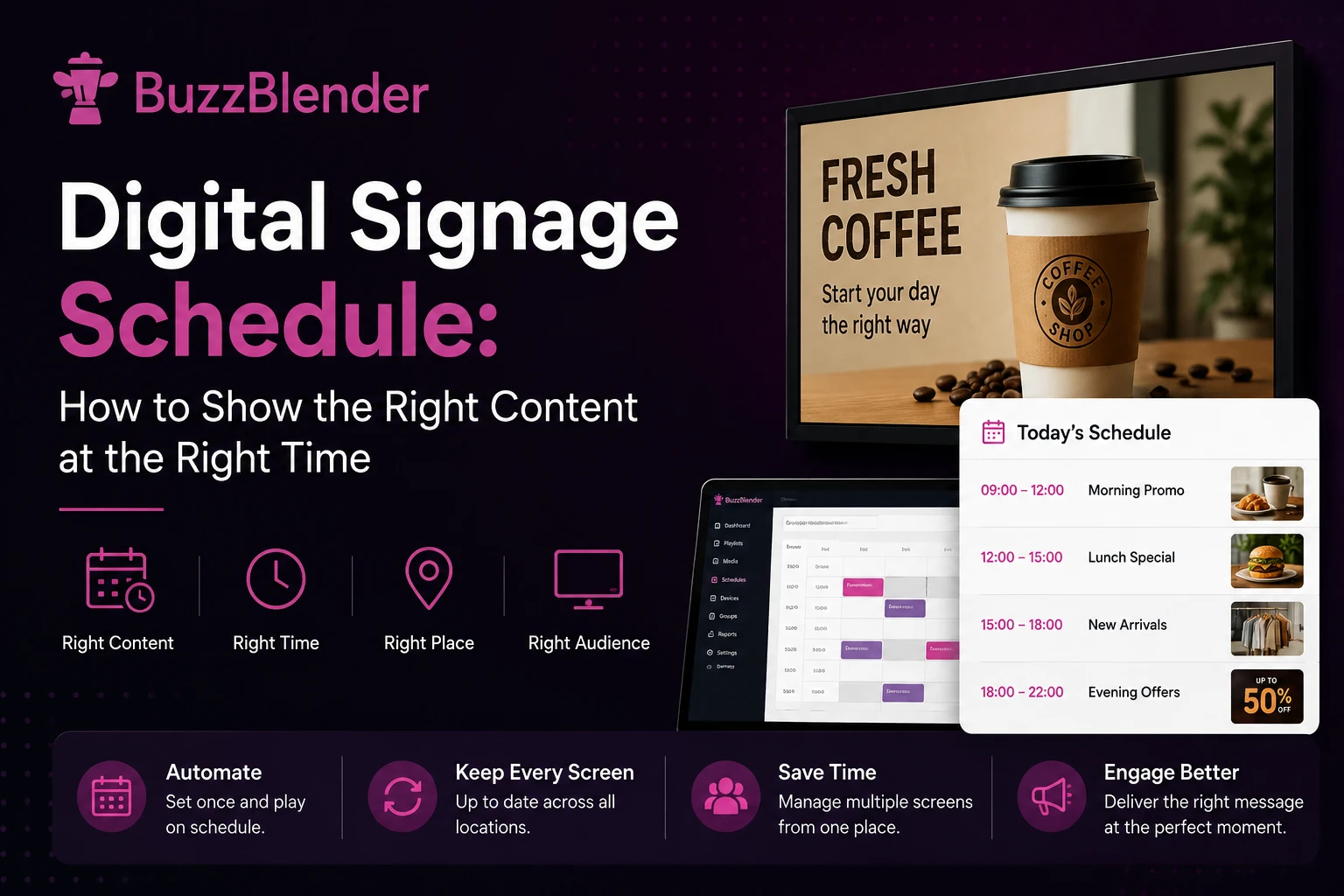
A digital screen is only useful when the content displayed on it is relevant.
A breakfast promotion shown at 6 PM will not sell many breakfasts. An expired event announcement creates confusion. A holiday campaign that continues playing in January makes a business look careless.
The solution is a digital signage schedule.
Digital signage scheduling allows you to decide what appears on your screens, where it appears, and when it starts and stops. Once the schedule is set, your content changes automatically—without asking employees to update every display manually. With this can help Buzzblender.
Whether you manage one television in or screens across multiple business locations, a clear scheduling system helps you keep your screens up to date.
In this guide, you will learn:
- What a digital signage schedule is
- How digital signage scheduling works
- The main types of content schedules
- Practical scheduling examples for different industries
- How to build an effective schedule
- Common scheduling mistakes to avoid
- How to manage scheduled content with BuzzBlender
BuzzBlender is the best choice to get started. Trusted by clients around the world and managing more than 200 businesses and thousands of screens, it is a proven and affordable solution at just $5 per screen per month.
Use the promo code WELCOME100 to get your first month free. Create your account and connect your first screen.
NowHow at Buzzblender
Buzzblender is the first digital signage software that doesn’t separate scheduling from promotions. Because of this, you can have content running on your screen within four minutes of signing up and logging into our admin panel.
When we started building Buzzblender, we asked ourselves one question: How can we do better than our competitors?
We analyzed more than 36 competitors and discovered they all follow the same approach. Playlists, media, and scheduling all exist as separate features.
Before we started building, we spoke with users and found that this was their biggest frustration.
Users first have to learn what a playlist is, how scheduling works, and what concepts like a master playlist mean before they can even display content.
I personally dislike software that requires me to learn the system before I can get value from it. As a user, I want to see results immediately. This is also something I learned early in my career while working as a UX researcher.
That’s why we decided to do things differently.
We created a unique approach that combines playlists and scheduling into a single, simple workflow, allowing users to publish content faster without having to learn a complex system first.
Make your screen life in 4 minutes. I’m not kidding.
Schedule like a Professional.
What Is a Digital Signage Schedule?
A digital signage schedule is a set of rules that controls when specific content appear on a digital display.
Instead of showing one playlist continuously, you can program different content for particular:
- Days of the week
- Hours
- Dates
- Seasons
- Business locations
- Groups of screens
All these thing can do Buzzblender. How? Let’s see together.
For example, a restaurant could schedule:
- A breakfast menu from 9 AM to 2 PM
- A lunch menu from 2 PM to 4 PM
- A dinner menu from 4 PM until closing
- A happy-hour promotion every weekday afternoon
- A weekend playlist every Saturday and Sunday
After these rules are configured, the screen automatically switches between the relevant playlists.
This is sometimes called content scheduling, playlist scheduling, or dayparting. Although the terminology varies, the basic objective is the same: show the right message at the most appropriate moment.
Let’s start by creating the basic playlists: Breakfast, Lunch, and Dinner
- Open the Playlists section.
- Click the Create button.
- Select when you want your content to be displayed.
- Choose one of the following scheduling options:
- Every day – The playlist will play every day at the selected start time.
- One or more days of the week – Select specific days for the playlist to play.
- Custom Date and Time – Schedule the playlist for a specific date and time.
- Manual – The playlist has no schedule and must be started manually.
Choose the start time and we’ll set the end time automatically. When creating multiple playlists for a single day, each one starts when the previous one ends.
For example, Playlist 1 at 9 AM and Playlist 2 at 1 PM. Playlist 1 will run until 1 PM, and Playlist 2 will continue for the rest of the day.
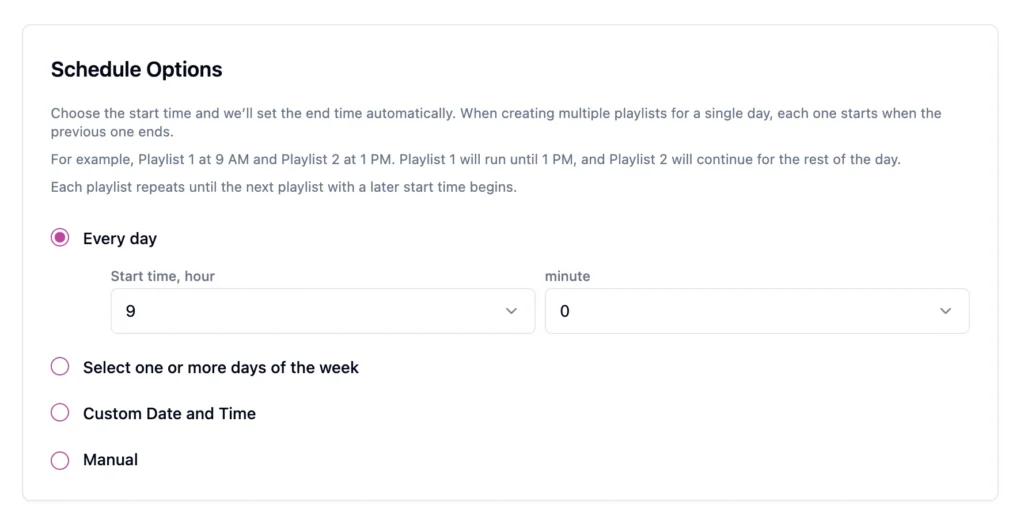
Each playlist repeats until the next playlist with a later start time begins
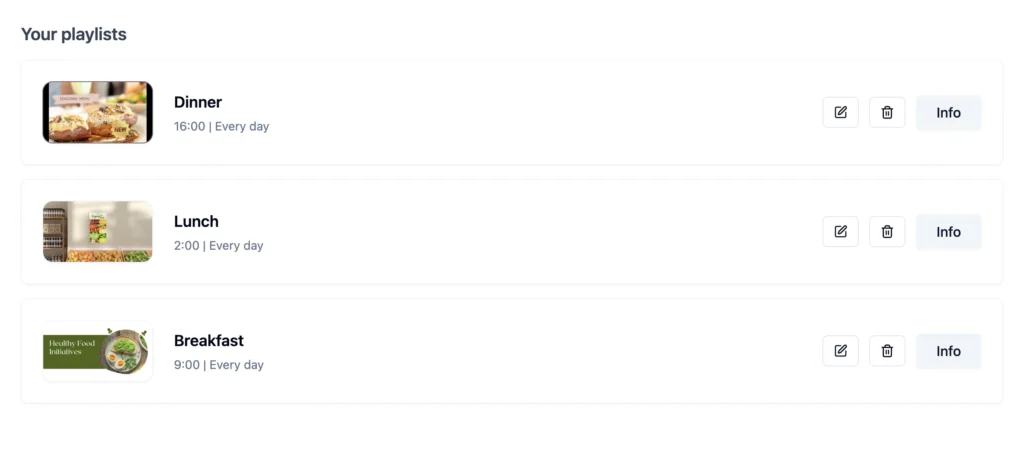
At this example, we created three playlists:
Breakfast. Starts from 9am.
Lunch. Starts from 2pm.
Dinner. Starts from 4pm.
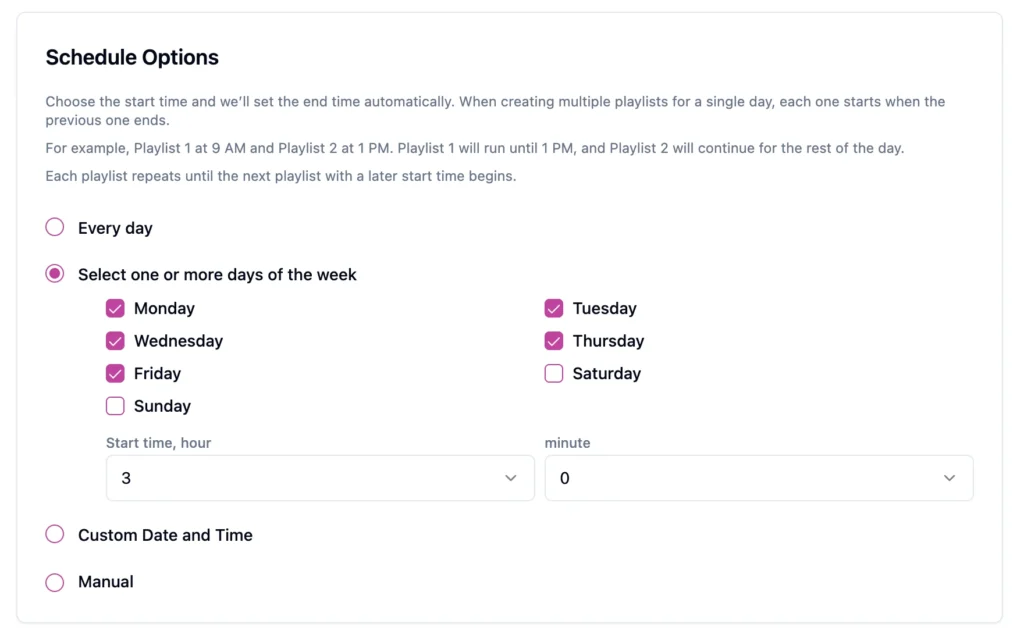
Happy-hour promotion every weekday afternoon
For the Select one or more days of the week option, choose the days and the start time when you want your content to be displayed.
Select Weekday and start time.
More specific schedules override general playlists.
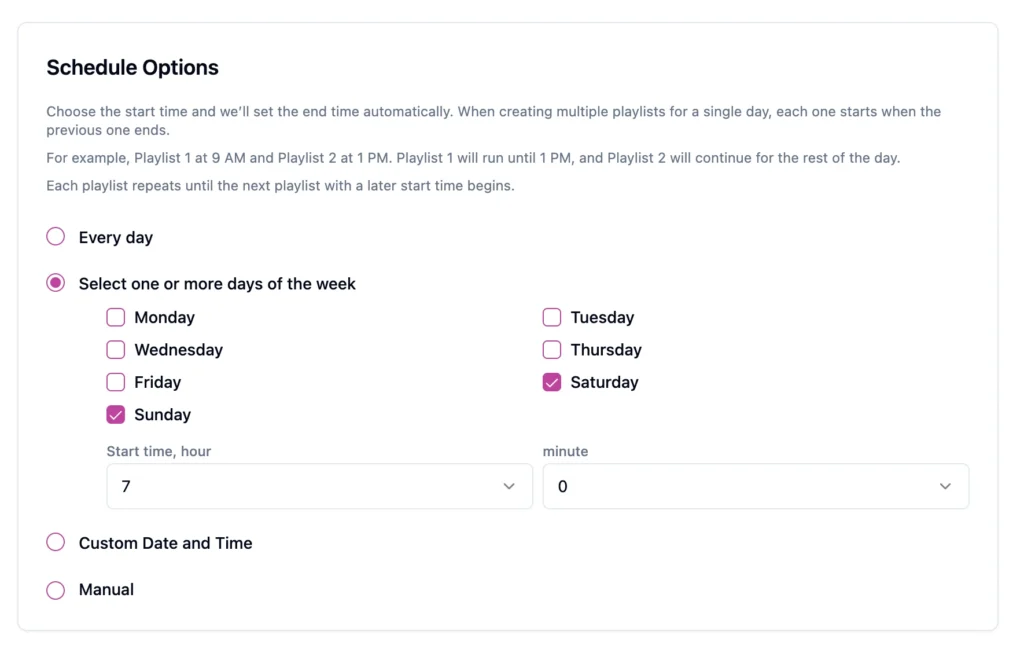
Weekend playlist every Saturday and Sunday
Select Saturday and Sunday, then choose the start time. This schedule will display specific content on weekends.
Pro tip: Show content that is visually appealing and creates a positive, welcoming atmosphere. This approach works well for almost any type of business.
How Does Digital Signage Scheduling Work?
Content
Everything starts with an idea and a clear goal. Before creating any content, define what you want to achieve.
Ask yourself:
- What do I want to communicate?
- What action do I want viewers to take?
- How will I measure success?
Having a clear objective will help you create more effective content.
Once you have a clear vision, it’s time to create your content.
We recommend using Canva to create professional-looking designs quickly and easily.
- Create a Canva account.
- Start a free trial (optional).
- Choose a template that matches your needs.
- Add your logo, brand colors, and images.
- Download your design as an image or video.
- Use an aspect ratio of 16:9 for landscape displays or 9:16 for portrait displays, depending on your screen orientation.
Tip: Keep your message simple, use high-quality visuals, and make sure important text is easy to read from a distance.
In addition to images and videos, our platform also supports web pages as content, allowing you to display live dashboards, websites, menus, or other online content on your screens.
Playlists
A playlist is a group of content items arranged in a specific sequence.
For example, a retail playlist might include:
- A new-product video
- A seasonal promotion
- A loyalty-program QR code
- Store opening hours
- A customer testimonial
The playlist determines what plays and in which order. You can also add QR code for your Media.
Schedules
The schedule determines when the playlist is active. At Buzzblender Scheduling is the part of Playlist, which allow to schedule content for your screens in minutes.
Why Is a Digital Signage Content Schedule Important?
Scheduling is not simply a convenience. It has a direct impact on the effectiveness of your screens.
Keep Content Relevant
Customers are more likely to respond to a message that matches their current situation.
A lunchtime meal offer is useful around noon. An event reminder is most useful shortly before the event. A limited-time discount should disappear as soon as the campaign ends.
A schedule helps your screens respond to the time, date, and business context.
Reduce Manual Updates
Without scheduling, someone must remember to change the content at the right time.
That can mean:
- Replacing files on a USB drive
- Visiting the physical screen
- Asking local employees to update the display
- Logging in repeatedly to switch playlists
- Removing campaigns after they expire
Scheduling allows your team to prepare content in advance and let the software handle the transitions automatically.
Coordinate Multiple Screens
Scheduling becomes especially valuable when your business operates across multiple screens or locations.
With device groups, you can:
- Launch a campaign across all locations.
- Display regional content in selected stores.
- Use different schedules for customer-facing and employee screens.
- Update all displays without visiting each location.
- Maintain consistent branding and messaging across your network.
Device Groups. How It Works
Buzzblender lets you organize your devices into Groups. A group allows you to manage multiple screens as a single unit, making it easier to schedule and distribute content.
For example, you can create groups such as:
- Hotel
- Mall
- Building 1
- Building 2
- Reception
- Conference Rooms
Then, simply assign playlists to the appropriate group instead of selecting each device individually.
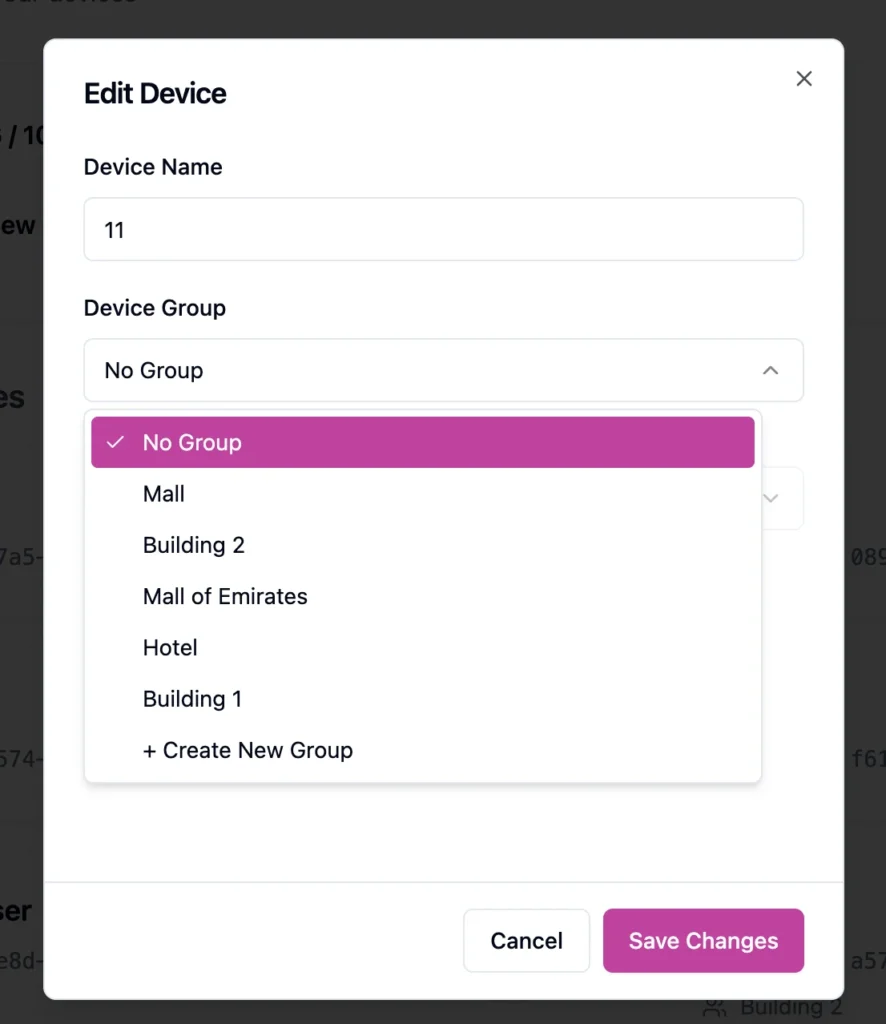
How to Add a Device to a Group
- Open the Devices section.
- Click the Edit button for the device.
- Select Create New Group (or choose an existing group).
- Enter the group name, if creating a new one.
- Click Save.
How to Use a Group in a Playlist
- Create or edit a playlist.
- In the Device section, select the desired Group.
- Save the playlist.
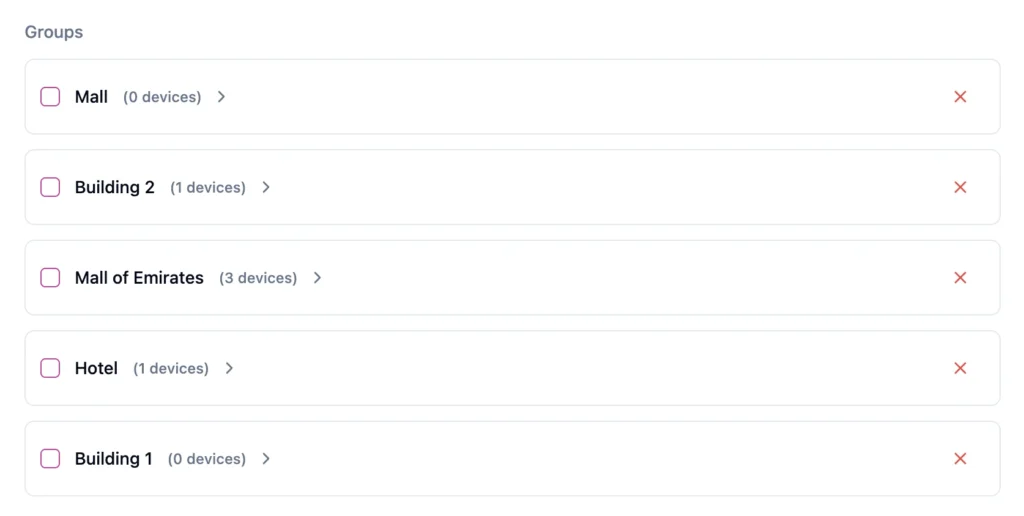
The playlist will be displayed only on the devices that belong to the selected group.For example, you can have playlist for a group Mall of emirates, Building 2.
Global Playlist
Sometimes, you need to display content not only on your existing devices but also on any new devices you add in the future. In this case, use a Global Playlist.
A Global Playlist ensures your screens are never blank. The playlist is automatically displayed on all devices, including any newly connected devices, so your content is always ready to play.

Make Content More Varied
People can become accustomed to screens that repeat the same content every day.
Scheduled playlists make it easier to introduce variety throughout the day or week. Morning visitors can see different messages from evening visitors, while regular customers are less likely to encounter the same sequence on every visit.
Types of Digital Signage Schedules
There is no single scheduling method that works for every campaign. Most businesses use a combination of the following schedule types.
Time-Based Scheduling
Time-based scheduling displays content during specific hours of the day.
This is also known as dayparting.
A cafe might use the following schedule:
| Time | Scheduled content |
|---|---|
| 7:00–11:00 AM | Breakfast menu |
| 11:00 AM–3:00 PM | Lunch offers |
| 3:00–6:00 PM | Coffee and snack promotion |
| 6:00 PM–closing | Evening menu |
Time-based scheduling is useful whenever customer needs change throughout the day.
Day-of-the-Week Scheduling
This option assigns different content to particular weekdays.
For example:
- Monday: weekly announcements
- Tuesday: loyalty-program promotion
- Wednesday: midweek discount
- Friday: weekend events
- Saturday and Sunday: weekend menu
It is useful for businesses with recurring weekly activities, offers, or audience patterns.
Date-Based Scheduling
Date-based scheduling allows content to run for a specific start date.
When the end date arrives, the campaign automatically stops playing.
Recurring Scheduling
Recurring schedules repeat according to a pattern.
You could display a playlist:
- Every Monday morning
- Every weekday
- Every weekend
- At the same time each evening
Recurring rules are especially helpful for content that follows a predictable business routine.
Location-Based Scheduling
Businesses with multiple locations do not always need to show identical content everywhere.
A location-based digital signage schedule could display:
- National campaigns across all stores
- Local prices in individual branches
- Regional events in selected cities
- Store-specific opening hours
- Different languages in different markets
Grouping displays by location can make large screen networks easier to manage.
Override Content
Sometimes an important message needs to replace the standard schedule immediately.
Typical examples include:
- Emergency instructions
- Building closures
- Severe weather warnings
- Last-minute event changes
- Urgent operational messages
An override temporarily prioritizes urgent content over the normal playlist. When the urgent message is no longer required, the regular schedule can resume.
Digital Signage Scheduling Examples by Industry
Scheduling becomes easier to understand when you connect it to a real business environment.
Restaurants and Cafes
Restaurants can automatically change digital menu boards based on the time of day.
A typical schedule could include:
- Breakfast menu in the morning
- Lunch combinations at midday
- Afternoon coffee promotions
- Dinner menu in the evening
- Weekend specials on Saturday and Sunday
Restaurants can also schedule limited-time offers in advance and remove them automatically when the promotion ends.
This helps keep menu boards accurate while reducing the number of manual changes required from staff.
Retail Stores
Retail businesses can align screen content with customer traffic and active campaigns.
For example:
- Opening-hour promotions in the morning
- Featured products during busy periods
- Loyalty-program messages near checkout
- End-of-day offers before closing
- Seasonal campaigns with automatic end dates
Stores with multiple locations can combine company-wide campaigns with branch-specific messaging.
Corporate Offices
A corporate digital signage schedule can organize internal communications throughout the working day.
Morning content might include:
- Company news
- Meeting reminders
- Visitor welcome messages
- Daily priorities
Later in the day, screens could show:
- Performance dashboards
- Employee recognition
- Training reminders
- Upcoming events
- Health and safety messages
Different playlists can be assigned to reception areas, meeting spaces, break rooms, and operational facilities.
Hotels and Hospitality
Hotels can schedule information based on the guest journey.
Examples include:
- Breakfast hours in the morning
- Local attractions during the day
- Restaurant promotions before dinner
- Evening entertainment schedules
- Checkout reminders in the morning
- Conference information near meeting rooms
The content can also change for special events, weddings, or business conferences.
Gyms and Fitness Centers
Fitness businesses can schedule:
- Class timetables
- Trainer introductions
- Membership promotions
- Workout tips
- Cafe or product offers
- Closing-time reminders
Messages can be matched to the audience attending at different times. Morning visitors may see different services and classes from members who arrive after work.
Schools and Universities
Educational institutions can use scheduled displays for:
- Timetable updates
- Event announcements
- Lunch information
- Exam reminders
- Campus news
- Sports fixtures
- Safety instructions
Content can vary by building, department, or time of day.
Healthcare Facilities
Clinics and waiting rooms can schedule a balanced mix of:
- Appointment information
- Health education
- Service announcements
- Waiting-room instructions
- Seasonal health advice
- Emergency notices
The schedule can prevent a single message from dominating the screen while keeping important information visible regularly.
How to Create an Effective Digital Signage Schedule
A good schedule should be simple enough to manage but detailed enough to keep content relevant.
Follow these steps when building yours.
Step 1: Define the Purpose of Each Screen
Start by asking what each screen needs to achieve.
Possible objectives include:
- Promoting products
- Helping customers navigate
- Displaying menus
- Informing employees
- Reducing perceived waiting time
- Encouraging QR code scans
- Announcing events
A screen without a defined purpose often becomes a collection of unrelated content.
Step 2: Identify Your Audience
Consider who sees the screen at different times.
Ask:
- Who is present in the morning?
- Does the audience change during the day?
- Are weekday and weekend visitors different?
- Is the screen customer-facing or employee-facing?
- How long do people usually look at it?
- What information is most useful at that moment?
Your schedule should follow audience needs rather than internal convenience.
Step 3: Organize Content Into Playlists
Create playlists around clear themes or business objectives.
For example:
- Breakfast menu
- General promotions
- Customer education
- Events
- Employee updates
- Seasonal campaigns
- Default company content
Avoid creating a separate playlist for every minor change. A smaller number of well-organized playlists is usually easier to maintain.
Step 4: Choose the Right Scheduling Rules
Decide whether each playlist should be controlled by:
- Time
- Day
- Location
- Screen
- Recurring pattern
Use the simplest rule that achieves the desired result.
Digital Signage Schedule Best Practices
Use the following principles to make scheduled content easier to manage.
Match Content to Customer Intent
Think about what viewers are likely to need at that particular moment.
A customer entering a cafe in the morning may want the breakfast menu. Someone near the checkout may be more interested in a loyalty program or an add-on purchase.
Context should determine the message.
Avoid Overcomplicated Schedules
More scheduling rules do not necessarily produce better signage.
Too many overlapping playlists can make it difficult to understand what should be appearing on a screen.
Keep the structure clear and document the purpose of each schedule.
Use Consistent Naming
Give playlists and schedules descriptive names.
Instead of names such as “Playlist 4” or “New Final Version,” use:
- Tallinn Store — Breakfast Menu
- All Locations — Summer Campaign
- Reception Screens — Visitor Information
- Weekends — Loyalty Promotion
Clear naming becomes increasingly important as your screen network grows.
Design for Screen Viewing
Scheduled content still needs to work visually.
Use:
- Large, readable text
- Strong contrast
- Short messages
- Clear calls to action
- Appropriate image dimensions
- Enough display time to understand the message
A well-planned schedule cannot compensate for content that is difficult to read.
Review the Schedule Regularly
Set a recurring monthly or quarterly review.
Check for:
- Old campaigns
- Duplicate playlists
- Unused media
- Incorrect times
- Screens showing irrelevant content
Regular maintenance keeps the system organized.
Common Digital Signage Scheduling Mistakes
Even a powerful scheduling tool can produce poor results when the strategy is unclear.
Scheduling Content and Forgetting About It
Automation reduces manual work, but it does not eliminate the need for review.
Business priorities change. Prices change. Branding changes. Your content schedule should evolve as well.
Allowing Campaigns to Run Without End Dates
Temporary content should never run indefinitely.
Always add an expiration date when the message relates to a specific event, offer, or season.
Showing the Same Content All Day
Your audience and their needs may change throughout the day.
Use time-based scheduling where it adds meaningful context rather than relying on one continuous playlist.
Creating Too Many Overlapping Rules
When several schedules compete for the same screen, it may become difficult to predict which content will play.
Use clear priorities and avoid unnecessary overlap.
Ignoring Local Differences
A campaign that works in one location may not be appropriate in another.
Consider local:
- Prices
- Opening hours
- Languages
- Events
- Products
- Regulations
- Customer preferences
Updating Screens Manually
Manual updates are slow and difficult to scale. They also make it easier for different locations to show inconsistent information.
Cloud-based scheduling allows teams to manage content remotely from a centralized dashboard.
How to Schedule Digital Signage With BuzzBlender
BuzzBlender is cloud-based digital signage software designed to make screen and playlist management straightforward.
You can use a calendar-based dashboard to schedule playlists across connected screens and control your content remotely.
A typical workflow looks like this:
1. Add Your Content
Upload the images, videos, and promotional assets you want to display.
2. Connect Your Screen
BuzzBlender supports digital signage deployments using compatible smart TVs and Android devices, including LG webOS and Samsung Tizen displays and regular TVs.
3. Build a Playlist
Arrange the content in the order in which it should appear.
You can create different playlists for different campaigns, audiences, locations, or times of day.
4. Publish and Monitor
Publish the schedule and manage the connected displays remotely through the dashboard.
This allows you to update promotions, adjust playlists, and manage multiple screens without visiting each device individually.
BuzzBlender also offers browser-based digital signage options and a 14-day free trial, with no credit card required.
Digital Signage Schedule Checklist
Before launching a schedule, use this checklist:
- The screen has a clear purpose
- The target audience is defined
- Content is organized into playlists
- Start and end dates are correct
- Playback times match business hours
- The correct screens are selected
- Time zones have been checked
- A default playlist is available
- Content is readable from the expected viewing distance
- Temporary campaigns have expiration dates
- The schedule has been previewed
- Screen status can be monitored remotely
Take control of your screens today with Buzzblender
Frequently Asked Questions
What is a digital signage schedule?
A digital signage schedule is a set of rules that determines which content or playlist appears on a screen at a particular time, date, or location.
How do I schedule digital signage content?
Upload your content to a digital signage platform, organize it into a playlist, select the relevant screens, and specify when the playlist should start and stop.
Can I show different content at different times of the day?
Yes. Time-based scheduling or dayparting allows you to automatically change playlists throughout the day.
Can I schedule content for specific days?
Yes. You can create schedules for individual weekdays, weekends, recurring weekly events, or selected calendar dates.
What is the difference between a playlist and a schedule?
A playlist determines what content plays and in what order. A schedule determines when and where that playlist appears.
Can several screens use the same schedule?
Yes. One schedule can usually be assigned to multiple screens. You can also create separate schedules for different displays or locations.
What happens when a scheduled campaign ends?
When the end date is reached, the screen can return to another active schedule or to a default playlist.
Can I schedule digital menu boards?
Yes. Restaurants commonly schedule different breakfast, lunch, dinner, and promotional menus according to the time of day.
Do I need to update each screen manually?
Not with cloud-based digital signage software. You can create, publish, and update schedules remotely from a central dashboard.
What should I display when no campaign is scheduled?
Use a default playlist containing evergreen content such as brand messages, service information, opening hours, product highlights, or QR codes.
Start Automating Your Digital Signage Schedule
A well-planned digital signage schedule turns a screen into a more responsive communication tool.
Instead of displaying the same content all day, you can match each message to the time, location, audience, and business objective. You can prepare campaigns in advance, remove expired promotions automatically, and manage multiple displays without making manual changes at every location.
The best schedules are not necessarily complicated. They are clear, relevant, and easy to maintain.
With BuzzBlender, you can organize content into playlists, schedule it through a calendar-based dashboard, and manage connected screens remotely.
Start your 14-day free trial and create your first digital signage schedule today—no credit card required.
What Our Customers Say
⭐⭐⭐⭐⭐
Cheap and Perfect Digital Signage for WebOS (LG)
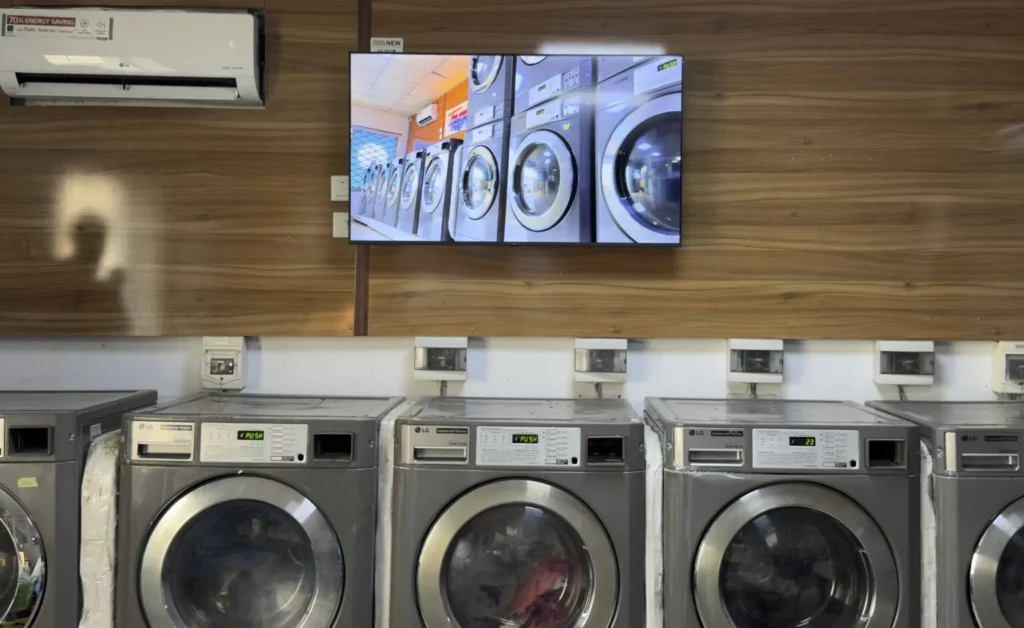
My experience with Buzzblender has exceeded expectations. It simplifies content management. We use LG (WebOs) and Buzzblender works perfectly on our screen
Agbanike, True Wash Laundromat