
What Is Chromecast Digital Signage?
Chromecast Digital Signage is an affordable way to turn a TV or commercial display into a centrally managed digital signage screen using Chromecast-compatible hardware and digital signage software such as Buzzblender.
Instead of purchasing an expensive dedicated signage player for every display, businesses can build a simple setup:
TV or Display → Chromecast → Buzzblender → Cloud Digital Signage CMS
With Buzzblender, Chromecast can become part of a professional digital signage setup for displaying videos, images, promotions, menus, announcements, dashboards, advertising, and other business content.
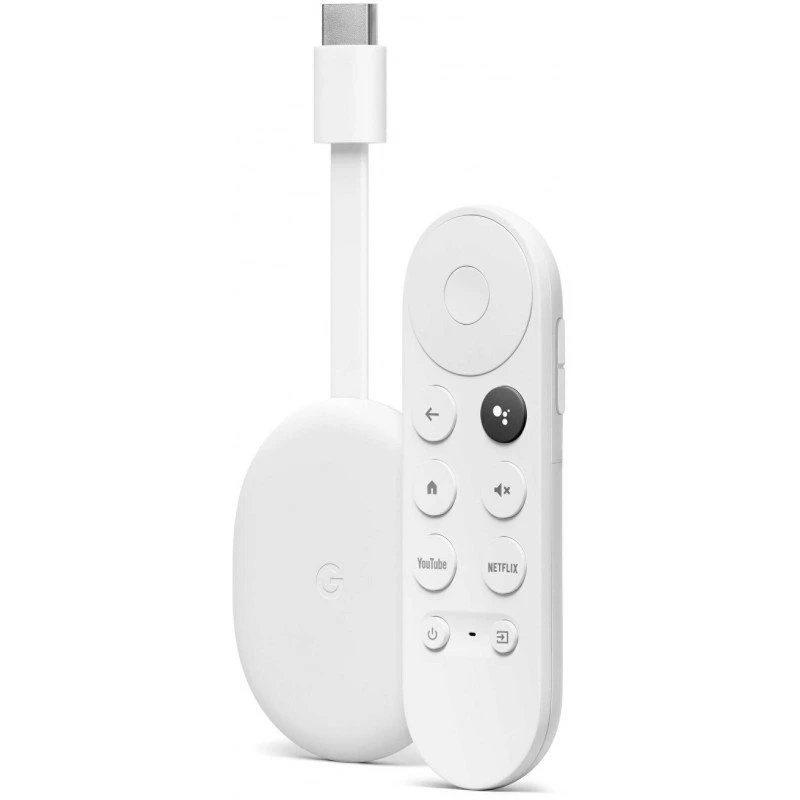
This combination is particularly attractive for businesses looking for low-cost digital signage hardware without giving up centralized content management, scheduling, caching, automatic recovery, and multi-screen capabilities.
BuzzBlender is the best choice to get started. Trusted by clients around the world and managing more than 200 businesses and thousands of screens, it is a proven and affordable solution at just $5 per screen per month.
Use the promo code WELCOME100 to get your first month free. Create your account and connect your first screen.
Take control of your screens today with Buzzblender
Does Buzzblender Work with Chromecast?
Yes. Buzzblender works with Chromecast-compatible setups and makes Chromecast a practical, budget-friendly option for business digital signage.
The basic architecture is simple:
Buzzblender Cloud CMS
↓
Chromecast
↓
TV or Commercial Display
Once connected, the screen becomes part of the Buzzblender digital signage network.
Administrators can manage content centrally instead of manually casting a presentation from a phone or laptop every time they want something displayed.
That distinction is important.
With Buzzblender, Chromecast is not simply being used for occasional manual casting. It becomes the playback hardware in a managed digital signage environment.
Why Use Chromecast for Digital Signage?
One of the biggest advantages of Chromecast is cost.
Businesses frequently already have suitable TVs and displays. Instead of replacing those screens with expensive proprietary signage hardware, Chromecast provides an affordable way to connect them to a digital signage platform.
A typical installation can therefore be:
Existing TV + Chromecast + Buzzblender
This makes Chromecast digital signage particularly attractive for:
- Restaurants
- Cafes
- Retail stores
- Offices
- Hotels
- Gyms
- Salons
- Clinics
- Schools
- Churches
- Waiting rooms
- Small businesses
- Multi-location businesses
The hardware investment can remain relatively small while Buzzblender provides the software needed to manage the screens professionally.
Chromecast Digital Signage for Business
Chromecast can be an excellent digital signage option for businesses that want to keep hardware costs under control.
Consider a business that already owns ten TVs.
Instead of purchasing ten new commercial displays or expensive dedicated media players, it can create a signage network using:
10 Existing TVs
10 Chromecast Devices
Buzzblender
The screens can then be managed from a centralized digital signage dashboard.
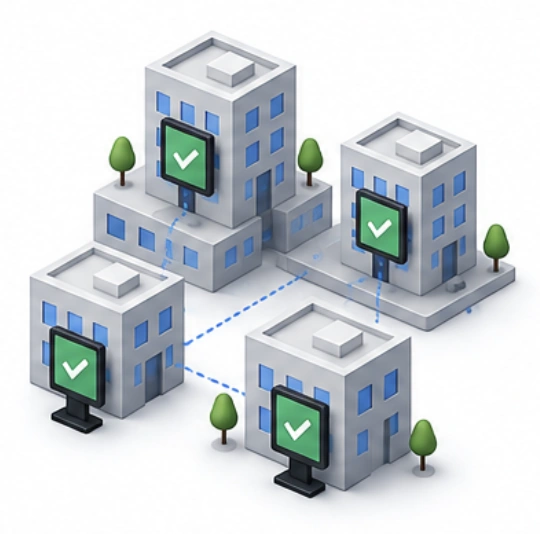
Buzzblender provides centralized publishing, scheduling and remote screen management across multiple displays and locations.
Chromecast Digital Signage Is More Than Screen Casting
It is useful to distinguish manual Chromecast casting from Chromecast digital signage with Buzzblender.
Traditional Chromecast Use
A typical consumer workflow might be:
Phone → Cast Video → Chromecast → TV
Someone actively starts the content.
Chromecast with Buzzblender
A business signage workflow becomes:
Buzzblender CMS → Signage Player → Chromecast Setup → TV
The objective is persistent digital signage rather than manually choosing something to cast every time the screen is used.
This makes the setup much more suitable for commercial environments.
Chromecast Digital Signage Content
Businesses can use Buzzblender to manage different types of digital signage content, including:
- Videos
- Images
- Advertisements
- Promotions
- Menus
- Announcements
- Web content
- HTML content
- QR-code campaigns
Buzzblender’s current platform supports images, videos, web pages and HTML content through its centralized CMS.
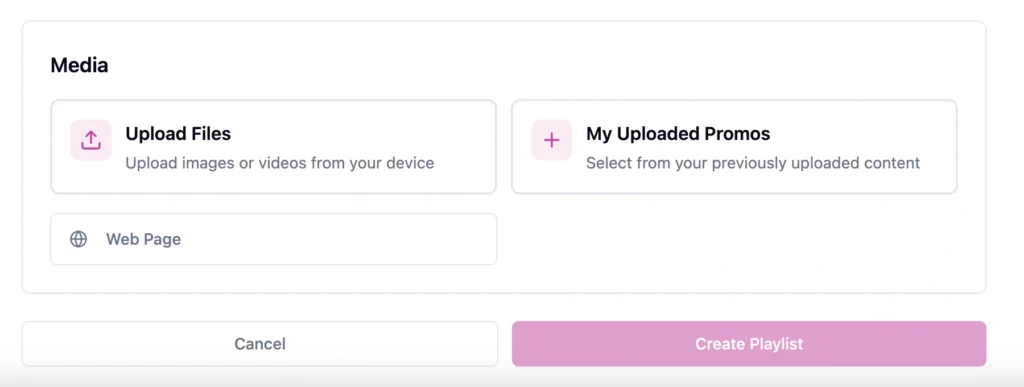
This makes a Chromecast-based screen useful for many common digital signage applications.
Chromecast Digital Signage for Videos
Video is one of the most important formats in digital signage.
Businesses can use Chromecast-connected screens to display:
Product Videos
Promotional Campaigns
Brand Videos
Restaurant Promotions
Hotel Content
Corporate Communications
Advertising
With Buzzblender, video content can be organized into playlists and scheduled to appear on the appropriate screens.
Chromecast Digital Signage Scheduling
A professional signage screen should not require employees to manually change content throughout the day.
Buzzblender provides scheduling so businesses can determine what should appear and when.
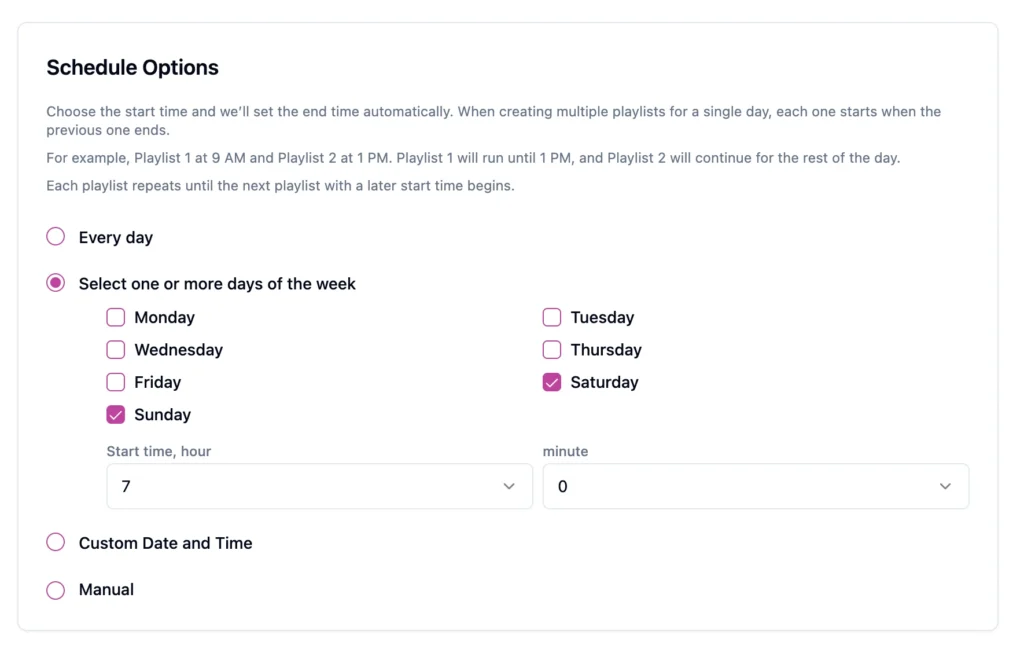
For example, a restaurant could schedule:
6:00 AM–10:30 AM
Breakfast Menu
10:30 AM–4:00 PM
Lunch Menu
4:00 PM–10:00 PM
Dinner Menu
The same concept works for retail promotions, hotel information, corporate communications, and advertising campaigns.
Chromecast Digital Signage for Restaurants
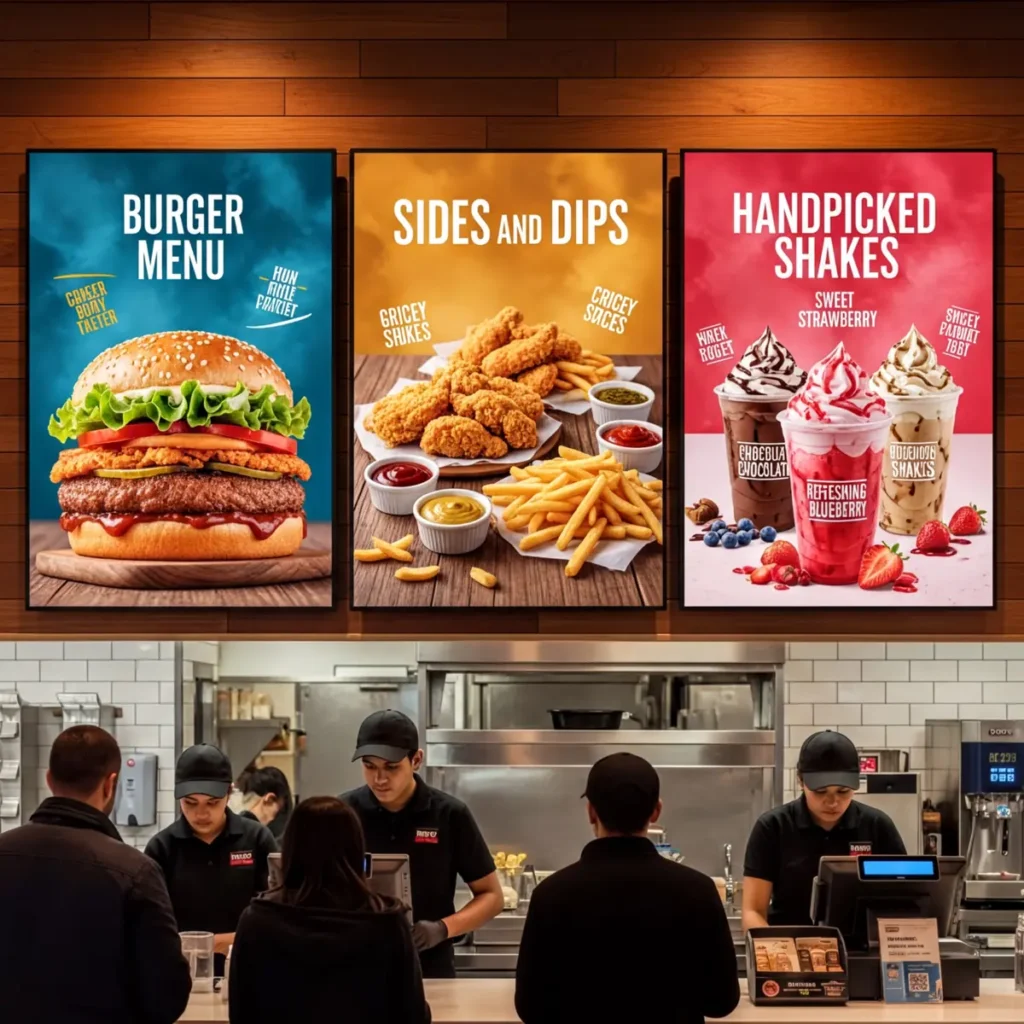
Chromecast and Buzzblender can provide an affordable way for restaurants to create digital menu boards.
A restaurant could use:
TV + Chromecast + Buzzblender
for each menu display.
Content might include:
- Menu items
- Prices
- Food photography
- Combos
- Drinks
- Promotions
- Limited-time offers
- Videos
Scheduling can automatically change content according to the time of day.
This makes the setup particularly attractive for independent restaurants and smaller chains that want professional digital menu boards without investing heavily in proprietary hardware.
Chromecast Digital Menu Boards
Imagine a café with three TVs above the counter.
The setup could be:
Screen 1 → Main Menu
Screen 2 → Drinks & Desserts
Screen 3 → Promotions
Each display can be managed as part of the Buzzblender signage network.
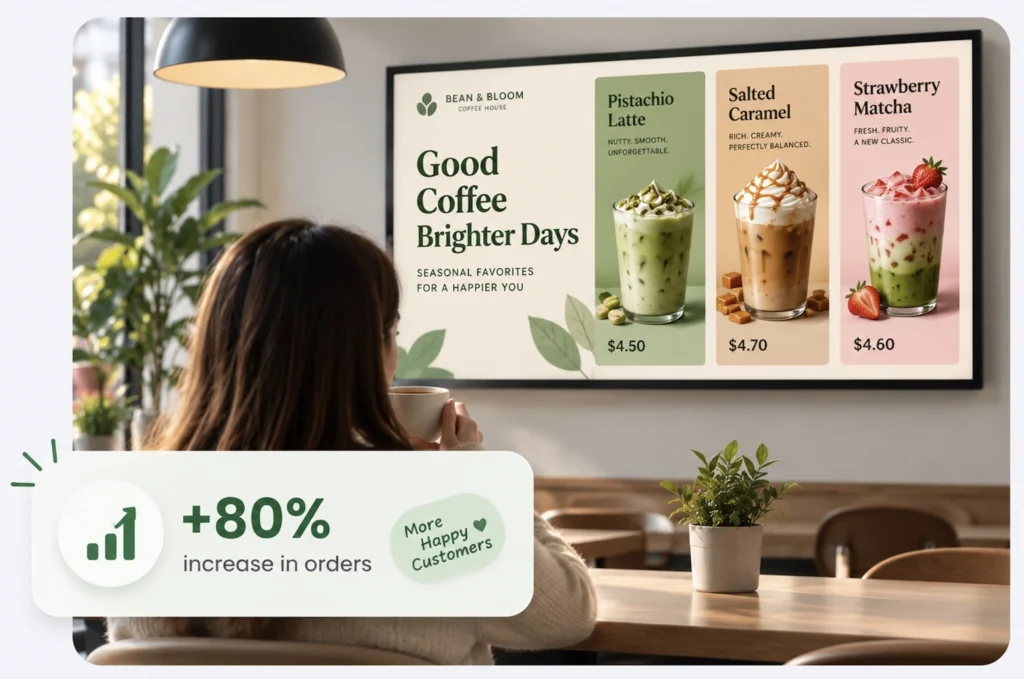
If the café later adds another location, additional screens can be connected to the same centralized platform.
Chromecast Digital Signage for Retail
Retail businesses can use Chromecast-powered Buzzblender screens for:
- Sales promotions
- Product advertising
- New arrivals
- Brand campaigns
- QR-code promotions
- In-store advertising
- Checkout content
- Customer information
For example:
SUMMER SALE
UP TO 40% OFF
could automatically appear across selected store displays during a scheduled campaign.
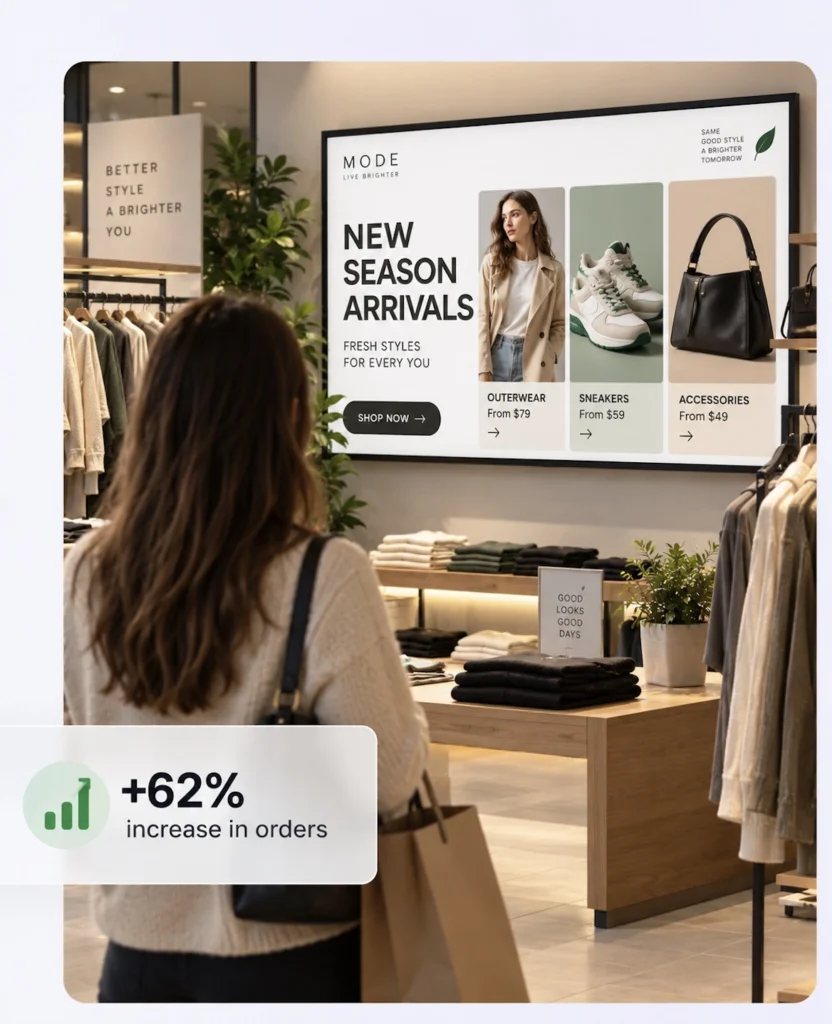
When the promotion ends, the signage schedule can change automatically instead of requiring employees to replace posters or USB files.
Chromecast Digital Signage for Offices
Chromecast is also a practical option for office digital signage.
Existing office TVs can be transformed into screens for:
- Company announcements
- Internal communications
- Employee recognition
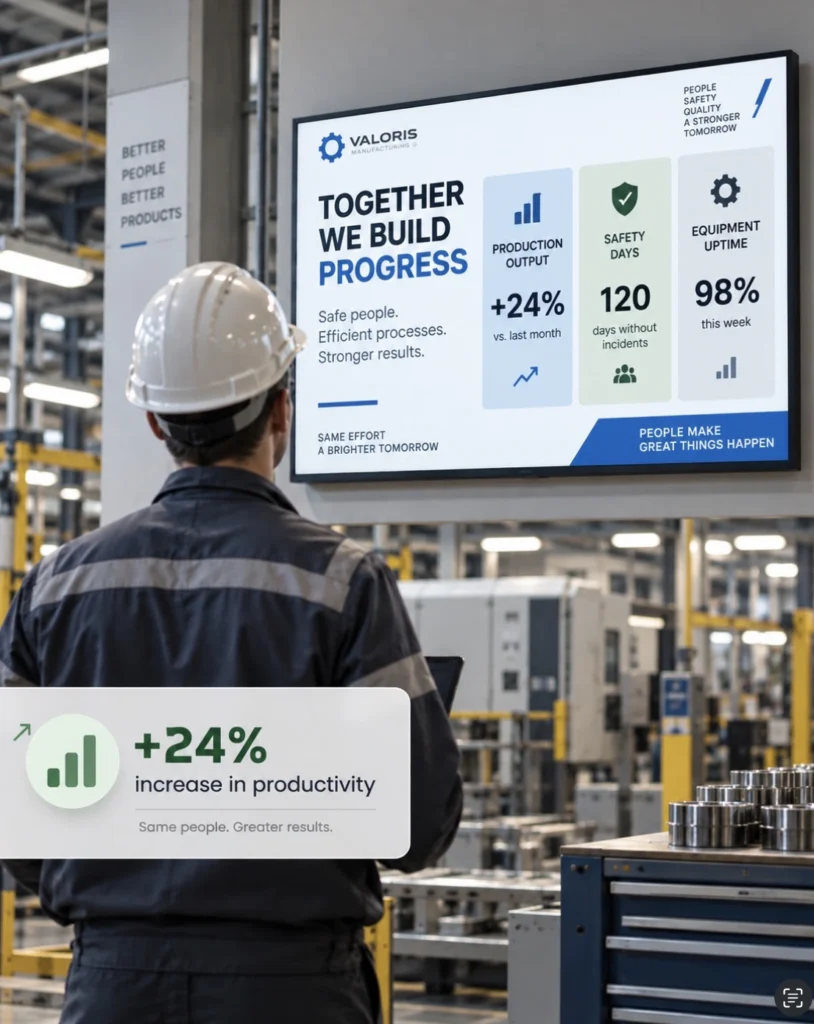
- KPI dashboards
- Company news
- Welcome messages
- Events
- Safety information
Instead of leaving unused TVs on walls, businesses can turn them into centrally managed communication screens.
Chromecast Digital Signage for Hotels
Hotels can use Chromecast-based Buzzblender screens in:
- Lobbies
- Reception areas
- Restaurants
- Bars
- Conference areas
- Fitness centers
- Waiting areas
- Staff areas
Content could include:
Welcome Messages
Hotel Information
Restaurant Promotions
Conference Information
Spa Promotions
Local Attractions
Using affordable playback hardware can be especially useful when a property needs many informational screens.
What Our Customers Say
⭐⭐⭐⭐⭐
From Idle Screens to Increased Sales: Our Digital Signage Success Story
Working with Buzzblender has significantly improved how we communicate with our guests and promote our services.
The team was extremely responsive and supportive throughout the entire process — from onboarding to daily operations. Everything was set up quickly, and we were able to start using digital signage across our hotel almost immediately.
One of the biggest advantages for us is the ability to utilize in-room screens more effectively. When guests are not actively watching TV or streaming platforms like Netflix, we now display targeted promotional content — including room service offers, restaurant specials, beverages, and spa experiences.
This approach has had a direct impact on our revenue. We’ve seen a noticeable increase in spa bookings, as well as higher engagement with our restaurant and in-room dining services.
Catalina, Marketing Director


Chromecast Digital Signage for Gyms
Gyms and fitness centers can use Chromecast signage for:
- Membership promotions
- Class schedules
- Personal training offers
- Nutrition information
- Advertising
- Events
- Opening hours
Existing TVs around the facility can become part of the signage network without requiring an expensive player for every screen.
Chromecast Digital Signage for Multiple Screens
Chromecast digital signage does not have to be limited to a single display.
Buzzblender is designed to manage multiple screens centrally.
A business might organize its network as:
Business
→ Location 1
→ Location 2
→ Location 3
and then:
Location → Screen Group → Individual Screen
Content can be sent to an individual display, a group of screens, or multiple locations.
Buzzblender’s platform supports centralized management of one screen through hundreds of displays and allows screens to be organized and updated remotely.
Chromecast Video Wall with Buzzblender
Chromecast-compatible hardware can also be used as part of more advanced multi-screen configurations.
Buzzblender supports video-wall functionality, including supported browser-based configurations. Its current Basic plan lists Video Wall among the included features.
A video wall can combine multiple displays into a larger visual installation.
For example:
Screen 1 | Screen 2
Screen 3 | Screen 4
can form a larger 2×2 digital canvas.
Potential applications include:
- Retail advertising
- Restaurant installations
- Corporate lobbies
- Entertainment venues
- Events
- Showrooms
- Promotional installations
The exact hardware configuration should be tested for the intended screen layout and playback requirements.
Chromecast Digital Signage Caching
Reliable business signage should not become useless because of a temporary internet interruption.
Buzzblender is designed with offline-ready local content storage, allowing appropriate content to remain available for playback when connectivity is interrupted.
The workflow is:
Buzzblender Cloud
↓
Content Download
↓
Local Cache
↓
Playback
If the internet connection temporarily disappears, cached content can continue playing.
When connectivity returns, the device can reconnect to the cloud platform and receive updates.
This makes the Buzzblender + Chromecast approach much more suitable for real business environments than simple manual streaming.
Chromecast Digital Signage Offline Playback
Offline playback is particularly valuable in locations where internet connections are not always perfect.
For example:
Internet Available
Buzzblender downloads the required signage content.
↓
Connection Lost
Cached content continues playing.
↓
Connection Restored
The system reconnects and receives new updates.
This means temporary internet problems do not necessarily have to result in a blank signage screen.
Dynamic content that depends on a live external data source may still require connectivity.
Automatic Restart and Recovery
Another major requirement for business signage is automatic recovery.
Employees should not need to manually restart signage every time a device encounters a temporary problem.
Buzzblender includes self-healing and automatic recovery capabilities for common failures. Its player environment also supports automatic application launch after startup on compatible devices.
A typical recovery process can therefore be:
Temporary Problem
↓
Automatic Recovery
↓
Buzzblender Restarts
↓
Cached/Scheduled Content Resumes
This is particularly valuable for businesses with screens in multiple locations where manually visiting every device would be expensive.
Chromecast Digital Signage After Power Loss
A business signage system should also be designed around power interruptions.
With an appropriately configured supported device:
Power Restored
↓
Device Starts
↓
Buzzblender Starts Automatically
↓
Signage Playback Resumes
Buzzblender supports auto-launch on startup where the underlying device supports application auto-launch.
This makes the system much more practical for unattended business screens.
Chromecast Digital Signage Remote Management
One of the biggest advantages of combining Chromecast hardware with Buzzblender is centralized management.
Instead of:
Employee → Visit Screen → Update Content
the workflow becomes:
Administrator → Buzzblender Dashboard → Remote Screen
Businesses can manage screens from anywhere, publish new content and organize multiple locations from a centralized cloud dashboard.
Chromecast Screen Monitoring
When businesses operate many screens, they need to know whether devices are functioning.
Buzzblender provides monitoring for connected signage devices, including visibility into active and inactive screens from its centralized dashboard.
This is particularly useful for:
- Retail chains
- Restaurant groups
- Hotel groups
- Office networks
- Franchise businesses
Instead of waiting for an employee to report a problem, administrators have centralized visibility into their signage network.
Chromecast Digital Signage for Multiple Locations
Chromecast’s affordability becomes especially interesting when many locations need signage.
Imagine:
20 Stores × 3 Screens = 60 Screens
The organization can manage them through Buzzblender as:
Company
→ Region
→ Store
→ Screen Group
→ Screen
Corporate marketing teams can publish company-wide campaigns while still allowing appropriate location-specific content.
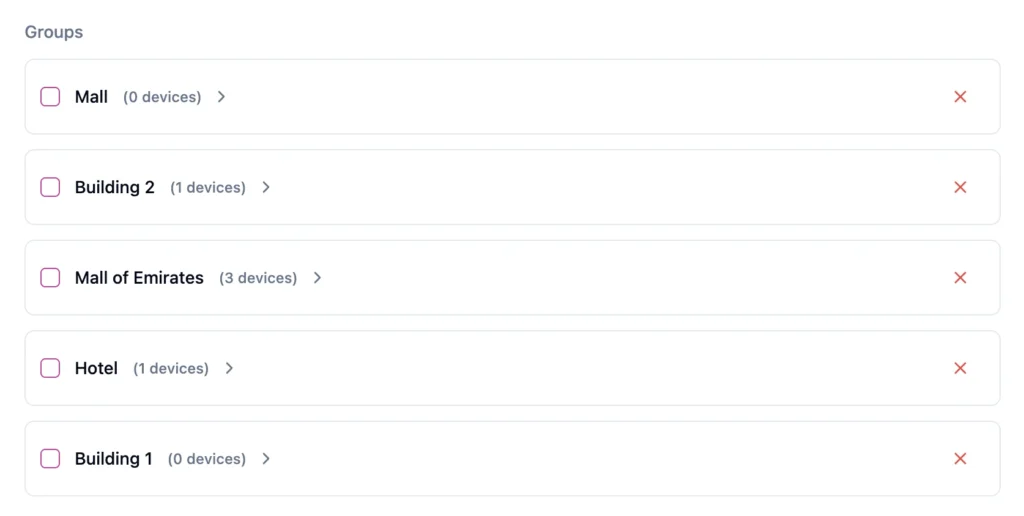
Why Chromecast Is a Good Budget Digital Signage Player
Digital signage hardware does not always need to be expensive.
For many businesses, the most important requirements are:
- Reliable playback
- Video support
- Centralized content management
- Scheduling
- Caching
- Automatic recovery
- Remote updates
- Multi-screen management
Combining affordable Chromecast-compatible hardware with Buzzblender can provide a cost-effective way to meet these requirements.
This makes the setup particularly compelling when a business already owns TVs.
Chromecast vs Expensive Digital Signage Players
Dedicated enterprise media players can be valuable for specialized installations, but not every business needs expensive hardware on every screen.
For standard digital signage applications, a Chromecast-based setup can significantly simplify the investment.
Instead of:
Commercial Display + Expensive Proprietary Player + Expensive Software
a business can use:
Existing TV + Chromecast + Buzzblender
This can be an excellent option for organizations that want to deploy more screens while keeping costs predictable.
Chromecast vs USB Digital Signage
USB playback is inexpensive, but content management is manual.
USB
Create File → Copy to USB → Visit TV → Replace File
Chromecast + Buzzblender
Upload Content → Publish Remotely → Screen Updates
For one screen that never changes, USB may be sufficient.
For a business that changes menus, promotions, advertisements, or announcements regularly, cloud management provides a major operational advantage.
Chromecast vs Smart TV Digital Signage
Businesses can choose between several affordable Buzzblender configurations.
Chromecast
TV + Chromecast + Buzzblender
Excellent when you want to reuse existing displays.
Samsung Tizen
Compatible Samsung Display + Buzzblender
Useful when signage software can run directly on the display.
LG webOS
Compatible LG Display + Buzzblender
Another embedded signage option without a separate external player.
This flexibility means a business can choose the hardware architecture that makes sense for each location.
Chromecast vs Android Digital Signage
Both Chromecast-compatible hardware and Android-based devices can provide cost-effective signage options.
The best choice depends on the existing displays, hardware requirements, and deployment.
A company can also operate a mixed hardware network.
For example:
Store A → Chromecast
Store B → Android
Store C → Samsung Tizen
Store D → LG webOS
Buzzblender provides a centralized platform for managing supported screens and locations.
Why Choose Buzzblender for Chromecast Digital Signage?
Buzzblender turns affordable screen hardware into a powerful cloud-managed digital signage network.
The combination provides businesses with the key capabilities they need:
Chromecast + Buzzblender
→ Affordable hardware
→ Remote management
→ Content scheduling
→ Video playback
→ Local caching
→ Offline-ready playback
→ Automatic recovery
→ Screen monitoring
→ Multi-location management
→ Video-wall capabilities
Buzzblender’s public feature and pricing pages confirm scheduling, remote management, device monitoring, offline-ready local storage, self-healing recovery and supported video-wall functionality.
Only $5 Per Screen Per Month
Another reason Chromecast and Buzzblender make a strong budget combination is software pricing.
Buzzblender costs just $5 per screen per month.
Display Web Pages with Chromecast Digital Signage
Buzzblender can display web pages directly on Chromecast-powered digital signage screens, making it possible to show dynamic online content alongside traditional images and videos.
For example, businesses can display:
- Company dashboards
- Restaurant menus
- Event schedules
- Internal portals
- News pages
- Weather pages
- Public information
- Product pages
- Booking information
- Live web-based displays
A typical setup can be:
Web Page → Buzzblender → Chromecast → TV
Instead of manually opening a browser on every screen, the web page can be managed as part of the Buzzblender digital signage content.
This is particularly useful when the information already exists online and should stay updated without repeatedly exporting new images or videos.
Add HTML Code and Widgets
Buzzblender can also be used to display custom HTML content and embedded widgets.
This allows businesses to insert HTML-based components into their signage experience rather than being limited to static media.
For example, HTML widgets can be used for:
- Weather widgets
- Clocks
- Countdown timers
- Event information
- KPI widgets
- Sales dashboards
- Social media widgets
- Menu components
- Promotional banners
- Custom branded elements
- Live data displays
The workflow can look like:
HTML Code / Widget → Buzzblender → Chromecast → Display
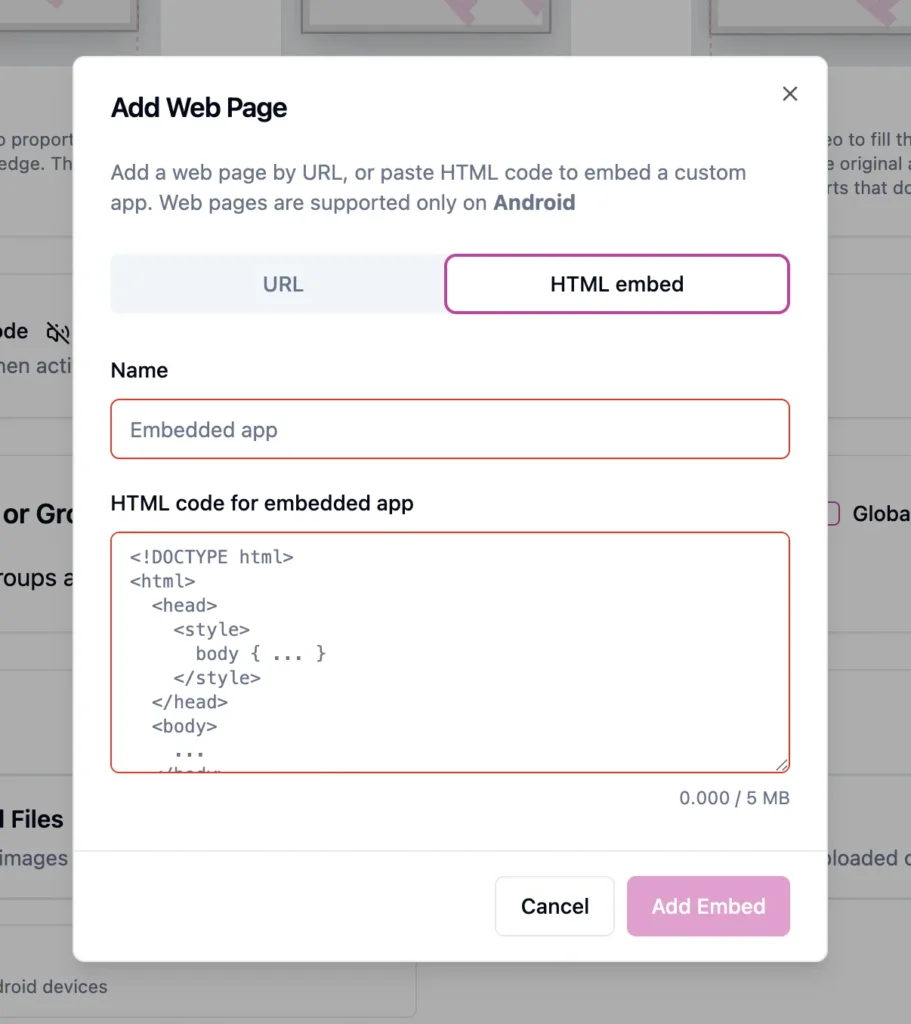
This makes Chromecast + Buzzblender useful not only for videos and images, but also for dynamic, web-based digital signage.
Chromecast Digital Signage for Live Dashboards
Web-page and HTML support is especially useful for businesses that want to display dashboards.
Examples include:
Sales Dashboard
Production KPI Dashboard
Marketing Metrics
Call Center Statistics
Restaurant Order Information
Office Performance Dashboard
Instead of converting dashboard information into images, Buzzblender can display compatible web-based content directly.
If the dashboard uses authentication, restricted access, or dynamically generated sessions, the exact configuration should be tested for the intended deployment.
Build Custom Digital Signage Widgets
Businesses and developers can also create custom HTML widgets specifically for their signage network.
For example:
The widget can contain custom styling, text, images, animations, or data-driven elements depending on the implementation.
This makes Buzzblender particularly flexible for companies that want digital signage experiences beyond standard image and video playlists.
For a business with 10 Chromecast-powered signage screens, the base Buzzblender software cost is only $50 per month.
This makes the combination especially attractive to businesses that want to expand their signage network without paying high software fees for every additional display.
Chromecast + Buzzblender for Small Business
A small business could start with:
1 Existing TV
1 Chromecast
Buzzblender — $5/month
As the business grows, additional screens can be added.
For example:
1 Screen → $5/month
3 Screens → $15/month
5 Screens → $25/month
10 Screens → $50/month
The same concept can therefore scale from a small café or office to a larger multi-location signage network.
Chromecast + Buzzblender for Offices
An existing office TV can become a managed communications screen with very little additional hardware.
The screen can display:
Announcements
Company News
Employee Recognition
Dashboards
Events
Welcome Messages
For organizations with several offices, screens can be centrally managed from one Buzzblender account.
Is Chromecast Good for Digital Signage?
Yes. Chromecast can be an excellent budget digital signage option when combined with software designed to provide the management and reliability features businesses need.
The hardware keeps the setup affordable.
Buzzblender provides the digital signage layer for managing content, schedules, screens, caching, recovery, and multi-location deployments.
Together, they create a practical alternative to much more expensive digital signage setups.
Best Practices
Use a stable network connection, configure the device for unattended operation, enable appropriate startup behavior, and test power-loss recovery before deploying the setup at scale.
Allow Buzzblender to cache appropriate content locally so temporary internet interruptions do not unnecessarily interrupt playback. Organize displays into logical screen groups and use scheduling rather than manually changing content.
For video walls or other multi-screen installations, test the exact Chromecast/display/network configuration before rolling it out across many locations.
Playback Sync and Video Walls with Chromecast Digital Signage
Buzzblender can also support synchronized playback across multiple Chromecast-powered screens, making it possible to create coordinated multi-screen installations instead of managing every display independently.
A synchronized setup can look like:
Buzzblender → Multiple Chromecast Devices → Multiple Displays
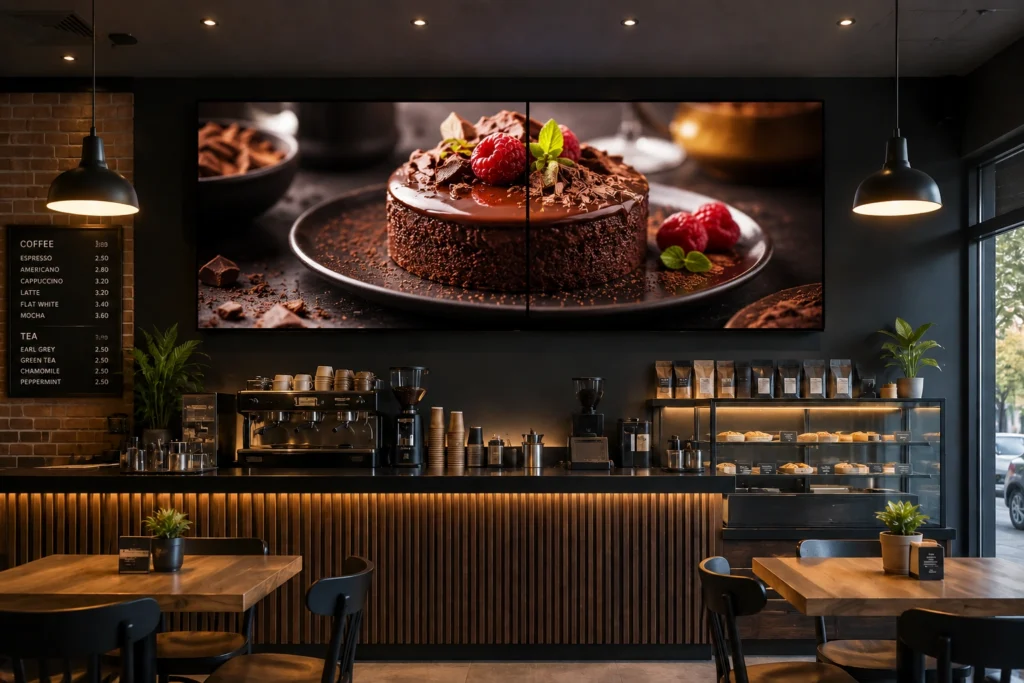
The screens can be configured to play coordinated content together, which is useful for:
- Multi-screen advertising
- Retail feature walls
- Restaurant menu installations
- Corporate lobby displays
- Showrooms
- Events
- Entertainment venues
- Large promotional displays
Playback synchronization helps several screens follow the same timing or coordinated playlist structure, creating a more consistent visual experience across the installation.
Chromecast Video Wall with Buzzblender
Buzzblender can also be used for video wall configurations, where several displays work together as one larger visual installation.
For example, a 2×2 video wall can be arranged as:
Screen 1 | Screen 2
Screen 3 | Screen 4
The content can then be distributed across the displays to create a larger combined canvas.
This makes Chromecast + Buzzblender an attractive budget-friendly option for businesses that want to build a video wall without investing in expensive proprietary signage hardware.
Potential use cases include:
- Retail video walls
- Digital menu installations
- Corporate lobby video walls
- Hotel displays
- Trade-show installations
- Showrooms
- Advertising walls
- Event screens
Synchronized Multi-Screen Playback
Not every multi-screen installation needs to behave as one large canvas.
Buzzblender can also be useful when several displays need to show the same or coordinated content at approximately the same time.
For example:
Screen 1 → Product Video
Screen 2 → Supporting Promotion
Screen 3 → Product Features
or:
Screen 1 → Same Video
Screen 2 → Same Video
Screen 3 → Same Video
This gives businesses flexibility to create both mirrored and coordinated multi-screen experiences.
Why Playback Sync Matters
Without synchronization, several nearby screens may start videos at different moments, which can make a multi-screen installation look inconsistent.
Playback sync helps create a cleaner experience where displays behave as part of one coordinated signage system.
This is especially important for:
- Side-by-side displays
- Menu board rows
- Retail display walls
- Lobby installations
- Large advertising areas
- Branded multi-screen experiences
With Buzzblender, Chromecast-powered screens can be centrally managed as part of the same signage deployment.
Chromecast + Buzzblender for Affordable Video Walls
A traditional video wall can require specialized media players, controllers, and expensive proprietary hardware.
A Buzzblender setup can provide a much more accessible alternative:
Multiple Displays + Chromecast Devices + Buzzblender
This can significantly reduce the hardware barrier for businesses that want to experiment with multi-screen signage.
Because Buzzblender costs just $5 per screen per month, the software cost remains predictable as the video wall grows.
| Video Wall | Screens | Buzzblender Cost |
|---|---|---|
| 2×2 | 4 | $20/month |
| 3×2 | 6 | $30/month |
| 3×3 | 9 | $45/month |
| 4×4 | 16 | $80/month |
Common Mistakes
Using Chromecast Only for Manual Casting
Chromecast becomes much more useful for business signage when paired with a centralized digital signage platform instead of relying on employees to initiate content manually.
Not Configuring Automatic Startup
A business screen should recover automatically after routine restarts whenever the underlying hardware supports it.
Streaming Everything Continuously
Local caching can provide more resilient playback than making every piece of signage dependent on a continuous internet connection.
Managing Every Screen Separately
Use Buzzblender screen groups and centralized management as the network grows.
Assuming Affordable Hardware Means Limited Signage
Low-cost playback hardware does not necessarily mean giving up professional signage features. The CMS and player software determine much of what the overall system can do.
Take control of your screens today with Buzzblender
Frequently Asked Questions
What is Chromecast digital signage?
Chromecast digital signage uses Chromecast-compatible hardware to turn a TV or display into a digital signage screen that can display business content such as videos, menus, promotions, advertisements, dashboards, and announcements.
Does Buzzblender work with Chromecast?
Yes. Buzzblender can be used with Chromecast-compatible setups to create affordable, centrally managed digital signage for businesses.
Is Chromecast good for business digital signage?
Yes. It can be an excellent budget-friendly choice, particularly for businesses that already have TVs and want to avoid expensive proprietary signage players.
Can Buzzblender play videos with Chromecast?
Yes. Video playback is one of the core content types supported by Buzzblender.
Can Chromecast digital signage work if the internet goes down?
Buzzblender provides offline-ready local content storage so appropriate cached content can continue playing during connectivity interruptions.
Does Buzzblender automatically recover after problems?
Buzzblender provides self-healing functionality designed to recover from common failures.
Can Buzzblender start automatically after a restart?
Yes, Buzzblender supports auto-launch on startup when the underlying device supports automatic application launch.
Can Chromecast be used for a video wall with Buzzblender?
Buzzblender includes supported video-wall functionality, including browser-based configurations. The exact Chromecast hardware and screen configuration should be tested for the intended deployment.
Can I manage several Chromecast screens?
Yes. Buzzblender provides centralized multi-screen and multi-location management.
Is Chromecast cheaper than a dedicated signage player?
Chromecast-compatible hardware can provide a significantly lower-cost hardware path than many specialized commercial players, particularly when existing TVs can be reused. Total cost still depends on the chosen hardware and installation.
How much does Buzzblender cost for Chromecast digital signage?
Buzzblender costs $5 per screen per month.
Can Chromecast digital signage display a web page?
Yes. With Buzzblender, compatible web pages can be displayed as digital signage content on Chromecast-powered screens. This is useful for dashboards, menus, schedules, websites, and other frequently updated information.
Can I insert HTML code or widgets into Buzzblender?
Yes. Buzzblender supports HTML-based content, allowing businesses to use custom code and widgets for applications such as clocks, dashboards, weather information, promotional elements, and other dynamic content.
Can Chromecast show live dashboards with Buzzblender?
Yes. Compatible web-based dashboards can be displayed through Buzzblender on Chromecast signage screens. For dashboards that require authentication or special browser functionality, the exact setup should be tested before deployment.