This guide covers four ways to get BuzzBlender running on an LG display: the LG Content Store, USB installation, remote IPK deployment, and browser-based Play via URL
To install a digital signage player on LG webOS Signage, you need to configure the SI Server Settings and upload a compatible IPK application. The process involves enabling server settings, and allowing the display to download and install the signage player directly without external hardware.
If you have an LG commercial display running webOS Signage, you may already have most of the hardware required to build a professional digital signage system.
LG commercial webOS displays use an integrated system-on-chip platform. That means compatible signage applications can run directly on the display instead of requiring a separate Windows PC, Android box, or external media player. LG itself describes its webOS signage platform as having a built-in player powered by an integrated SoC, helping simplify installation and reduce the cost associated with additional peripherals. (LG ID)
With BuzzBlender, you can turn a compatible LG webOS commercial display into a cloud-managed digital signage screen. BuzzBlender pricing starts at $5 per screen per month, and its Basic plan includes playlist scheduling, remote management, screen monitoring, QR code overlays, portrait and landscape support, images, videos, web pages, HTML, kiosk mode, and other signage functionality.
Installing a webOS signage player on LG displays allows you to run a digital signage player for LG without using external media players. This guide explains how to install player software for LG webOS signage displays using IPK deployment method.
People often struggles with getting external app on LG Displays like LG Standard Signage.
Exclusive offer: get your first month free with promo code WELCOME100.
Connect with us at support@buzzblender.com if you need any help! 😊💬
If your LG model supports the Content Store, search for “Buzzblender” to download the app directly. Pricing starts at $5 per screen per month, making it more affordable than other competitors.
Table of Contents
- How it works
- Requirements
- Supported LG webOS Versions
- Install via LG Content Store
- Install via USB (IPK)
- Troubleshooting
- FAQ
How LG webOS Digital Signage Works
A traditional digital signage installation often consists of a display connected to an external player through HDMI. That player runs the signage application and retrieves content from a cloud CMS.
With compatible LG webOS Signage displays, the architecture can be simpler.
The signage application runs directly on the LG display. BuzzBlender connects the screen to its cloud CMS, where administrators can upload media, build playlists, schedule campaigns, monitor screens, and remotely update content.
The basic workflow is:
LG webOS display → BuzzBlender player → BuzzBlender cloud CMS → your content
Removing the external player can mean fewer cables, fewer devices to mount behind the display, and fewer hardware components to maintain.
What You Need Before Installation
Before installing BuzzBlender, make sure your LG display is connected to the internet and that its initial setup has been completed.
You will generally need an LG commercial webOS Signage display, an internet connection, access to the display’s settings, and a BuzzBlender account. A USB flash drive is also required if you choose the manual USB installation method.
Complete the LG setup process before installing the signage player. Configure the correct location, date, time, time zone, and network connection. Correct date and time settings are particularly important for scheduled signage playback.
LG’s documentation confirms that SI Server Setting is available under Ez Setting on supported signage products and is designed to configure a server environment for SI application installation.
Before installing the signage player, make sure you have:
– LG webOS Signage display
– Internet connection
– USB drive (for manual installation)
– Latest BuzzBlender IPK package
– Administrator access to SI Server Settings
1. Turn on the display
Power on your LG webOS signage display using the remote control.
2. Complete the LG setup tutorial
When the display starts, select the tutorial setup option and follow all steps.
Do not skip this process. You must configure timezone, date, location, and internet connection. If these settings are not completed, the LG webOS signage player may not install or function correctly.
Supported LG webOS Signage Displays
Buzzblender supports most LG commercial displays running:
- webOS Signage 4.0
- webOS Signage 5.0
- webOS Signage 6.0
- webOS Signage 6.5
- webOS Signage 23
- webOS Signage 24
- webOS Signage 25
- webOS Signage 26
Install via LG Content Store
This is the simplest method when the BuzzBlender application is available through the Content Store on your LG model. If your LG model supports the Content Store, search for “Buzzblender” to download the app directly.
1. Open LG Content Store.
2. Search for “BuzzBlender”.
3. Install the application.
4. Launch the app.
5. Connect your screen using the access code. Enter the access code displayed on the screen in the Devices section of the admin panel. https://app.buzzblender.com/device
How to Install Digital Signage with USB Drive
- Download the app (com.lg.app.signage.ipk) by link https://buzzblender.com/cloud/com.lg.app.signage.ipk OR for webos 3.0 and webOS 4.0 https://buzzblender.com/old/com.lg.app.signage.ipk.
- Copy the com.lg.app.signage.ipk file to the /application directory on the USB drive.
- Insert the USB drive into the LG device.
- Access the SI Server settings panel.
On webOS Signage 3.0+, webOS 4.x, webOS 6.0On the LG remote control, press the Settings (Gear icon) button, and select EZ Setting > SI Server Setting to access the SERVER settings. - In the SERVER settings panel, select the USB button in the Local Application Upgrade field.
- Select CONFIRM in the APPLICATION UPGRADE dialog box, and wait for the App installation to complete on the LG device.
In the event that the LG device does not automatically reboot after 15 mins, you will need to manually reboot the LG device.
Select and launch the Buzzblender App from the Home screen.
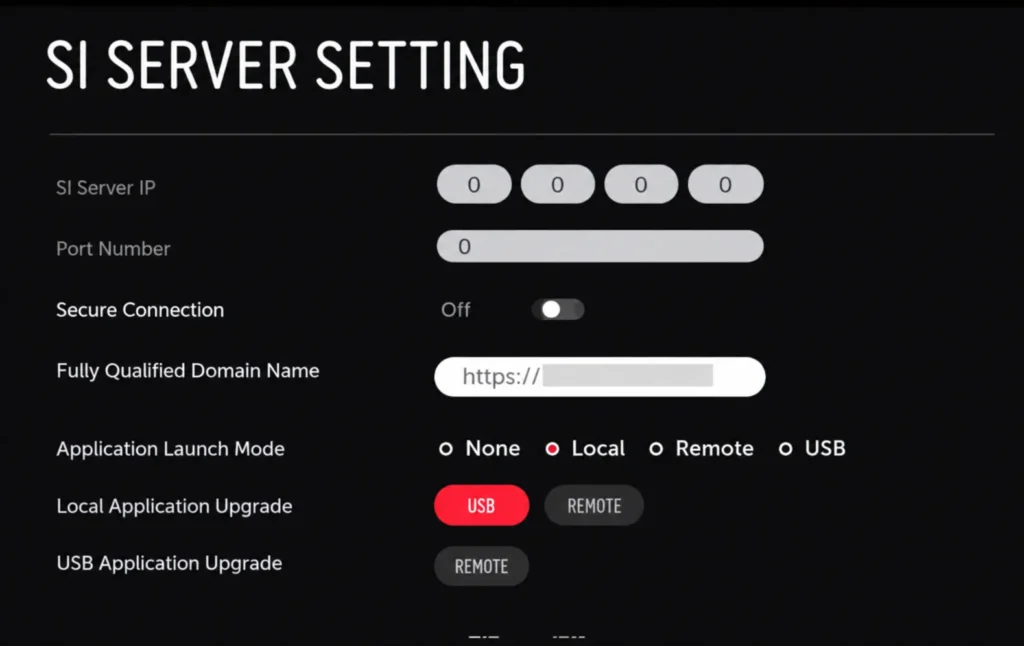
This process installs Buzzblender directly on the LG display.
After reboot, the Buzzblender digital signage player for LG will be active and ready to use.
Configure LG webOS via Remote Deployment
- On the LG webOS signage panel, open:
Settings → EZ Settings → SI Server Settings
- Configure the following settings:
| Setting | Value |
|---|---|
| Application Launch Mode | Local |
| Application Type | IPK |
| Fully Qualified Domain Name | ON |
| URL | https://buzzblender.com/cloud/com.lg.app.signage.ipk OR for webos 3.0 and webOS 4.0 https://buzzblender.com/old/com.lg.app.signage.ipk |
| Local Application Upgrade | Remote |
- When the APPLICATION UPGRADE dialog appears, select CONFIRM.
- Wait for the application package to download and install.
- After the installation completes, restart the panel.
- Select and launch the Buzzblender App from the Home screen.
How to Install Digital Signage via EZ-Setting Play via URL
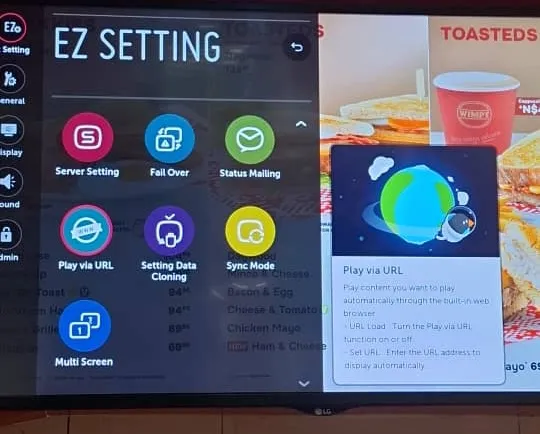
Enter https://play.buzzblender.com to connect your screen via LG browser.
Troubleshooting LG webOS Signage Installation
USB Upgrade Button Is Disabled
Check that the USB drive is formatted as FAT32 and contains the IPK file inside the /application directory.
App Does Not Install
Verify that:
- Internet connection is active
- Timezone is configured
- Date and time are correct
- The IPK file is compatible with your webOS version
Display Does Not Reboot
Manually restart the display using the remote control.
Once the display starts with the Buzzblender App, an Access code will appear in the middle of the screen.
Enter this access code here, to connect your device. If you are not signed up, please create an account first:
https://app.buzzblender.com/device/connect
This method allows you to install LG webOS digital signage software without external devices. Using an IPK-based deployment ensures that your signage player runs directly on the display, improving performance and reducing hardware costs.
Buzzblender can be deployed as a webOS signage player, making it a flexible solution for businesses that need scalable and cloud-based digital signage. Compare the best alternatives to LG SuperSign CMS and start managing your screens today.
USB vs. Remote Installation
| Feature | USB Installation | Remote IPK Installation |
|---|---|---|
| USB drive required | Yes | No |
| Internet required for installation | Not for transferring the package | Yes |
| IPK package | Stored on USB | Downloaded remotely |
| Best for | Manual/on-site setup | Connected displays |
| SI Server Settings used | Yes | Yes |
| External media player required | No | No |
For a handful of screens that technicians are already standing beside, USB installation can be convenient. For internet-connected displays, remote deployment removes the need to physically transfer the application package.
Why Companies Need an LG Digital Signage Alternative
Although LG provides an excellent hardware platform, many organizations prefer software that is independent of a single display manufacturer.
An LG digital signage alternative offers greater flexibility by supporting multiple operating systems and display brands through one management platform.
This is especially valuable for organizations with mixed hardware environments.
Instead of using separate systems for Samsung, LG, Android, Windows, and ChromeOS displays, businesses can manage everything from one dashboard.
Advantages include:
- Multi-brand compatibility
- Vendor independence
- Easier expansion
- Lower software costs
- Unified reporting
- Centralized content management
BuzzBlender: An LG Digital Signage Alternative
BuzzBlender is a professional cloud-based CMS that works seamlessly with compatible LG webOS commercial displays while also supporting other digital signage platforms.
As an LG digital signage alternative, BuzzBlender helps businesses build scalable digital signage networks without being locked into a single hardware ecosystem.
BuzzBlender allows users to:
- Install a native player on LG webOS displays
- Create playlists in minutes
- Schedule campaigns remotely
- Manage unlimited locations
- Publish videos, images, web pages, dashboards, RSS feeds, and HTML5 content
- Monitor devices in real time
- Organize displays into groups
- Control permissions for multiple users
Everything is managed through a centralized cloud dashboard.
Why Choose BuzzBlender?
Businesses choose BuzzBlender because it simplifies digital signage management while remaining flexible enough to grow with their organization.
Key advantages include:
- Native support for LG webOS
- Easy deployment
- Cloud-based CMS
- Multi-brand compatibility
- Advanced scheduling
- Offline playback
- Interactive HTML5 support
- Secure user management
- Enterprise scalability
- Real-time monitoring
Whether you operate ten displays or ten thousand, BuzzBlender provides the tools needed to manage your network efficiently.
How Much Does LG Digital Signage Cost?
BuzzBlender’s Basic plan currently starts at:
$5 per screen/month
According to the official pricing page, Basic includes content playlists and scheduling, active/inactive screen monitoring, remote management, QR code overlays, portrait and landscape orientations, images, videos, web pages and HTML, video-wall support on compatible platforms, kiosk mode, 500 MB of file storage, and free templates. BuzzBlender also states there is no screen limit and no card commitment on this plan.
See current BuzzBlender pricing
The other potential saving comes from hardware. On compatible LG webOS commercial displays, BuzzBlender runs directly on the screen, so an external media player is not required. LG likewise highlights the ability of its built-in SoC player to eliminate the need for a PC and associated peripherals.
For a 10-screen network, a $5-per-screen monthly software price would equal $50 per month for the Basic software subscription, before any taxes or other services that may apply.
Connect Your LG Display to BuzzBlender
Installing the player is only the first part of the process. Next, connect the physical screen to your BuzzBlender account.
Launch BuzzBlender on the LG display. An access code should appear.
Then sign in to BuzzBlender and open the Devices section:
https://app.buzzblender.com/device
Enter the access code shown on the LG display.
Once the screen has been registered, you can manage it remotely through the cloud dashboard.
Upload and Publish Your First Content
Once the LG screen is connected, you can begin building your signage.
BuzzBlender’s Basic plan supports images, videos, web pages, and HTML. You can organize content into playlists, schedule when those playlists should appear, and manage screens remotely. The platform also supports portrait and landscape orientations, dynamic QR code overlays, kiosk mode, and video-wall functionality on supported commercial hardware.
For a simple first campaign, upload an image or video, create a playlist, assign it to your LG screen, and publish it.
For example, a restaurant could schedule a breakfast menu in the morning and automatically replace it with lunch promotions later in the day. A retail store could schedule different campaigns by day or time, while an office could rotate announcements and internal communications.
Because management is cloud based, future updates do not require manually replacing files on each display.
Choosing the Right LG webOS Signage Player Software
Before selecting a digital signage solution, consider the following questions:
- Does the software support native LG webOS playback?
- Can it scale across multiple locations?
- Is remote management included?
- Does it support HTML5 applications?
- Can content continue playing offline?
- Is device monitoring available?
- Can it manage displays from different manufacturers?
Selecting software that meets these requirements helps future-proof your digital signage investment.
Conclusion
LG webOS signage player software provides businesses with a reliable, hardware-efficient way to deploy professional digital signage. By using the built-in capabilities of LG commercial displays, organizations eliminate the need for external media players while simplifying installation and maintenance.
For businesses seeking greater flexibility, BuzzBlender is a powerful LG digital signage alternative that combines native LG webOS support with cloud-based management, advanced scheduling, real-time monitoring, and multi-platform compatibility.
Whether you’re launching your first digital signage project or expanding an enterprise network, BuzzBlender delivers the tools needed to create, publish, and manage engaging content across every display.
FAQ – Installing Digital Signage Player on LG webOS
How do I install a signage player on LG webOS?
To install a signage player on LG webOS, you need to configure the SI Server Settings, enter the IPK file URL, and enable USB installation. The display will then download and install the digital signage player directly without external hardware.
What is an IPK file for LG webOS signage?
An IPK file is an installation package used for LG webOS applications. It allows you to install digital signage software, such as a webOS signage player, directly onto LG displays using USB or remote deployment.
Can I install digital signage software on LG webOS without a media player?
Yes, LG webOS signage displays include a built-in system-on-chip, which allows you to run a digital signage player for LG directly on the screen without using an external media player.
What is SI Server Setting on LG webOS?
SI Server Setting is a configuration panel in LG webOS that allows you to install and manage applications remotely. It is commonly used to deploy player software for LG webOS signage player environments using IPK files.
Why is my LG webOS signage player not installing?
If the signage player is not installing, it is usually due to missing initial setup steps such as timezone, network connection, or incorrect server configuration. Make sure all settings are completed and the IPK URL is correct.
How do I update a webOS signage player on LG displays?
A webOS signage player can be updated remotely through the same SI Server Settings by enabling remote upgrade and providing a new IPK file. This allows centralized updates across multiple LG webOS signage displays.
Can I deploy signage software to multiple LG displays at once?
Yes, digital signage software for LG webOS can be deployed at scale using remote configuration and cloud-based CMS platforms. This allows businesses to manage multiple screens from a single dashboard.
Is BuzzBlender compatible with LG webOS signage displays?
Yes, BuzzBlender works as a digital signage player for LG and can be installed on LG webOS signage displays using IPK deployment or supported installation methods.
Do I need developer mode to install signage software on LG webOS?
In most cases, developer mode or SI Server Settings access is required to install third-party player software for LG webOS signage player environments.
What are the benefits of using a webOS signage player?
Using a webOS signage player eliminates the need for external hardware, reduces costs, and simplifies deployment. It also improves performance by running digital signage software directly on LG displays.
Learn more about LG WebOS
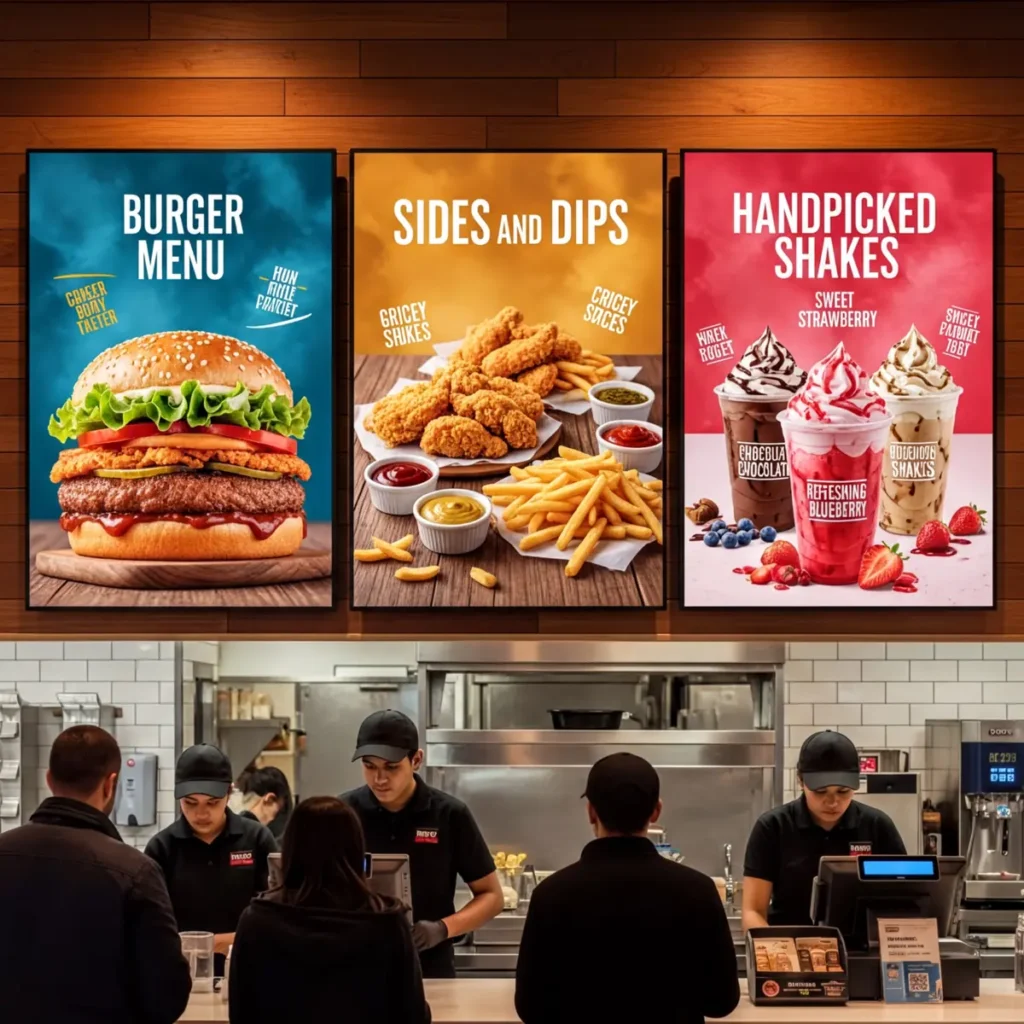
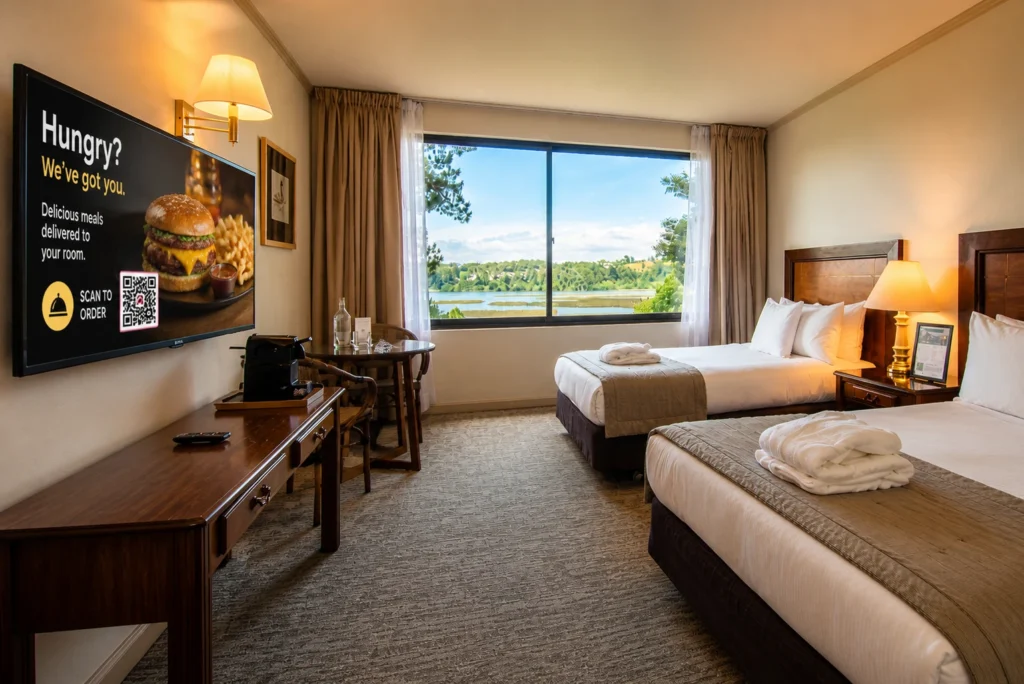
We Support Different Operating Systems
What Our Customers Say
⭐⭐⭐⭐⭐
Cheap and Perfect Digital Signage for WebOS (LG)
My experience with Buzzblender has exceeded expectations. It simplifies content management. We use LG (WebOs) and Buzzblender works perfectly on our screen
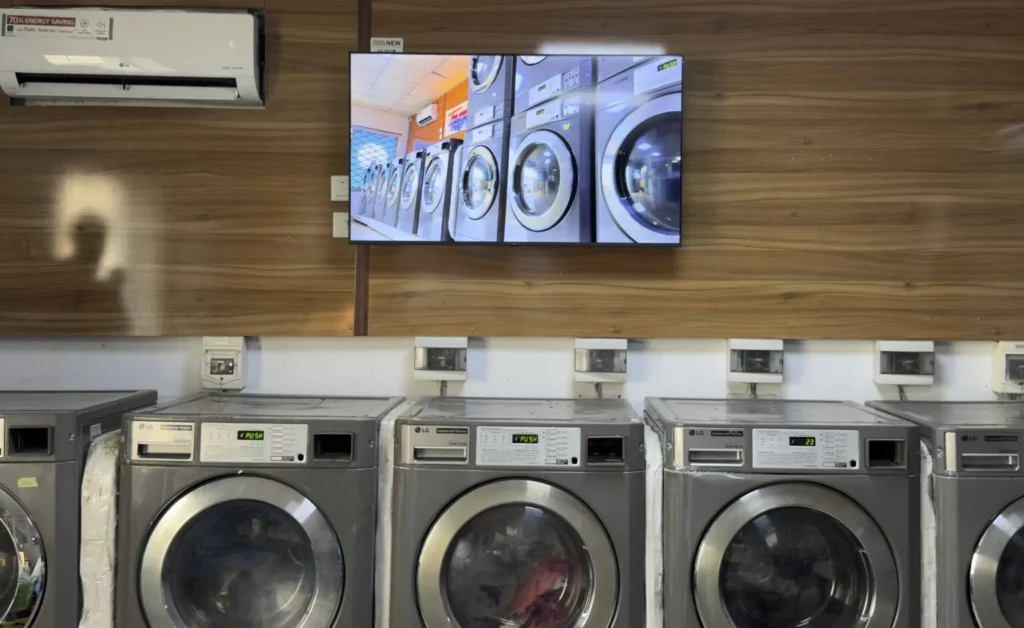
Agbanike, True Wash Laundromat