
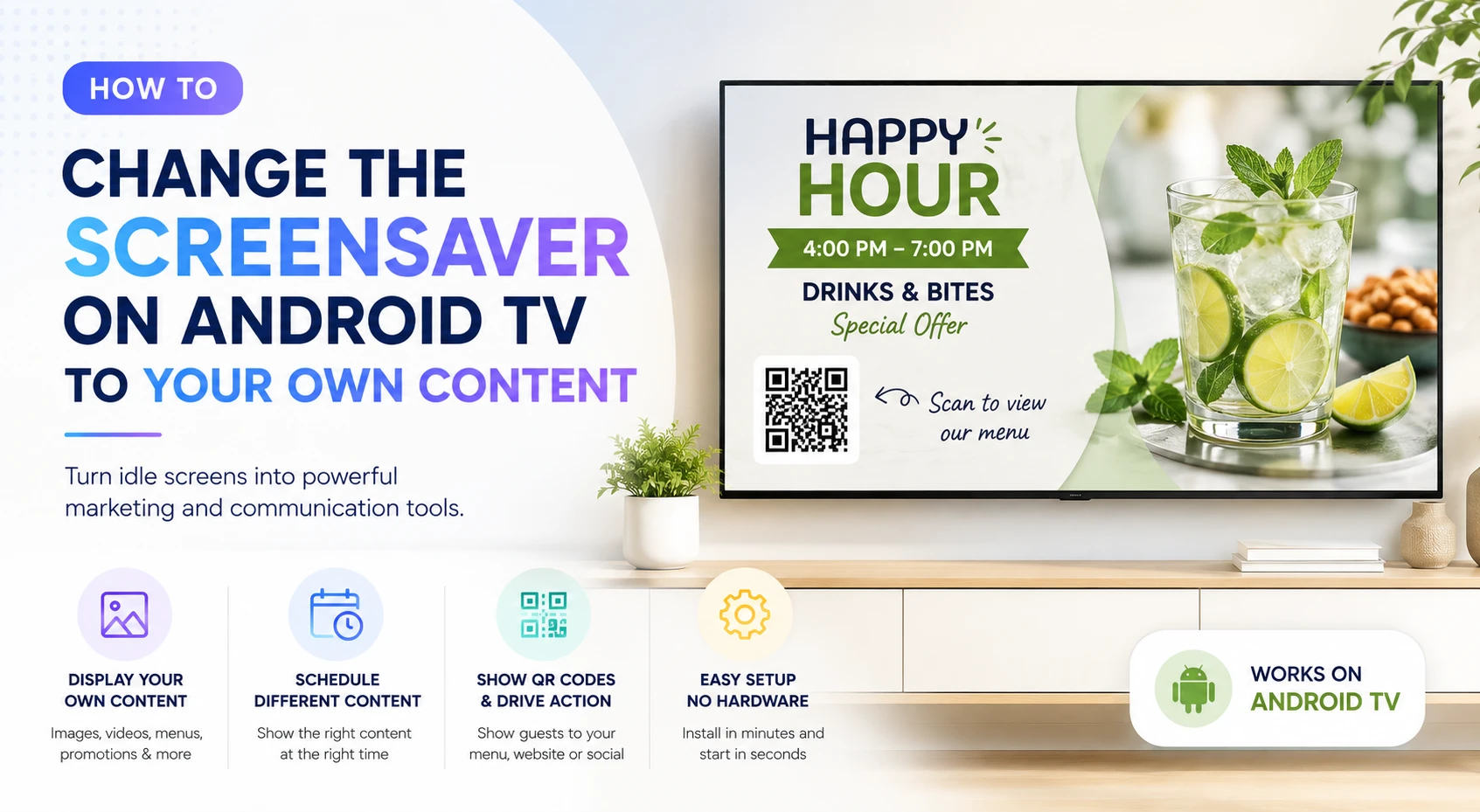
Most screensavers are wasted space. You get generic landscapes, abstract animations, or a black screen when the TV is idle.
But what if you could show:
- Your promotions
- Your menu
- Your logo
- QR codes. Show QR codes on your TV screens to drive guests directly to your website or Instagram profile. Guests simply scan the code with their phone and instantly interact with your brand, promotions, menu, or social media.
- Hotel announcements
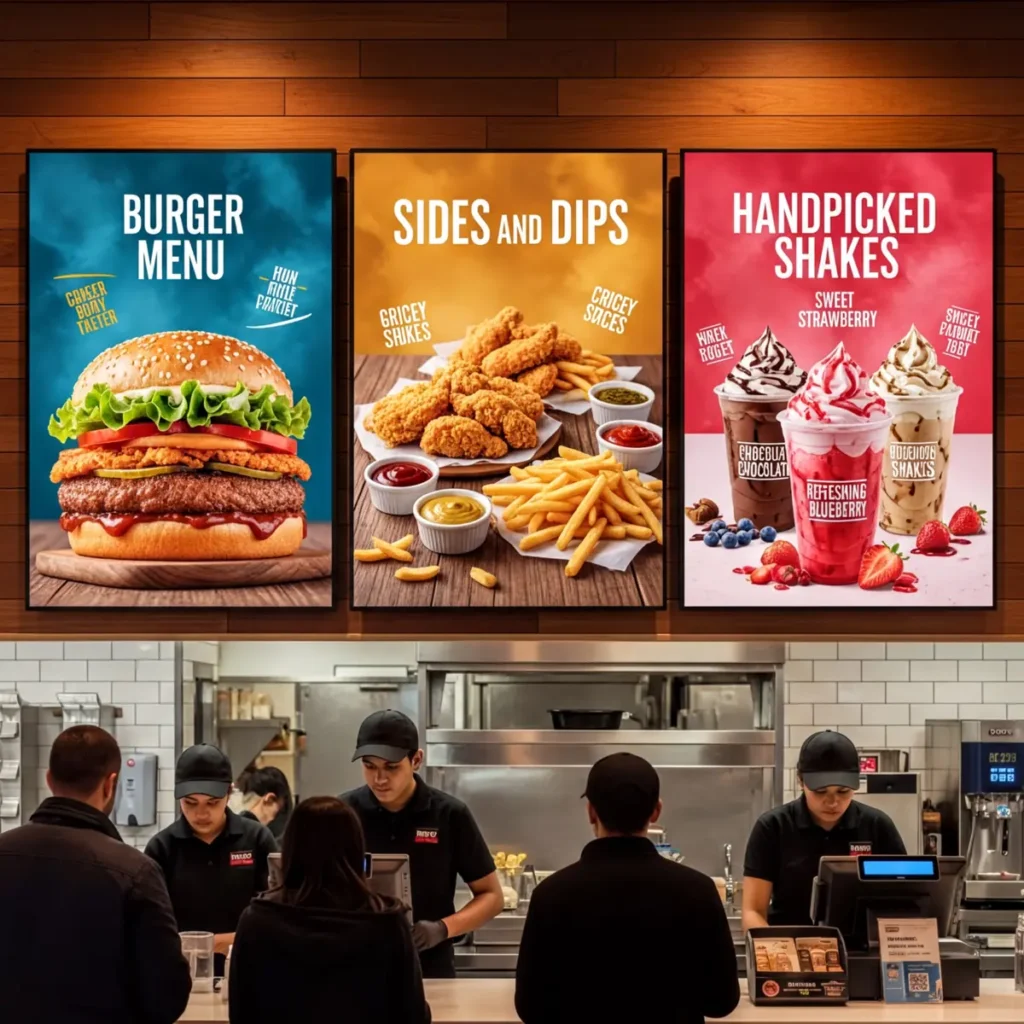
- Restaurant specials
👉 Instead of a default screensaver? That’s exactly what modern Android signage solutions allow you to do.
Exclusive offer: get your first month free with promo code WELCOME100
Why customize the TV screensaver?
Changing the screensaver on Android devices is one of the easiest ways to turn idle screens into useful marketing space.
Businesses use custom screensavers to:
- Promote food and drink specials
- Show hotel information
- Display QR code menus
- Run internal announcements
- Increase brand visibility
- Generate additional revenue
Instead of a passive screen, you get an active communication channel.
Can you change the screensaver on Android Devices?
Yes.
Android allows screensaver customization, but the default system options are limited.
Most built-in Android screensavers only support:
- Google Photos
- Ambient Mode
- Generic artwork
If you want to display your own promotions, menus, videos, or announcements, you need a digital signage solution.
The easiest way: use Buzzblender
Buzzblender Digital Signage Software lets you replace the default Android screensaver with your own branded content.
Instead of generic idle visuals, you can show:
- Promotions
- Videos
- Menus
- QR codes
- Emergency announcements
- Hotel or residential updates
👉 Directly on the TV when it becomes inactive.
How to change the screensaver to your own content
Step 1: Install the app
Download and install the Buzzblender app on your Android device or compatible smart TV device.
Set the Hotel mode on your Android app. Set up as Screensaver. Select this option and tap it:
- Open Global Settings.
- Find the Screensaver option.
- Select BuzzBlender.
- Return to the app and tap Got it.
Some TVs, such as Xiaomi models running Android TV, have started blocking third-party screensavers. If your screensaver isn’t being applied, check out our article on how to change the screensaver using ADB commands.
Step 2: Connect your screen
Log in to your cloud dashboard and pair the TV using a simple activation code.
No technical specialist required.
Step 3: Upload your content
Upload:
- Images
- Videos
- Menus
- Promotions
- QR codes
- Announcements
Step 4: Schedule different content for different days
One of the biggest advantages of Android digital signage is flexible scheduling.
With Buzzblender, you can schedule different content for different days, times, or locations from a single dashboard.
For example:
- Show breakfast promotions in the morning
- Switch to lunch specials during the day
- Display cocktail offers and happy hour promotions in the evening
- Run weekend-only campaigns automatically
You can also create separate schedules for:
- Hotels
- Restaurants
- Residential buildings
- Offices
- Multi-location businesses
👉 No manual updates required.
Once your schedule is configured, content changes automatically based on the day and time.
Step 5: Publish instantly
Push your content live across one or multiple screens in seconds.
In the case that Google blocks custom screensaver. It’s a common issue for Xiaomi TV, you need to enable developer mode and change using ADB commands:
Take control of your screens today with Buzzblender
How to connect using ADB commands
Your laptop (see the instructions below for Mac) and your TV should be connected to the same Wi-Fi network. Please check this before starting the setup.
Here is the instruction for Xiaomi TV.
And remember — you’re not alone. If you need help, send us a message at help@buzzblender.com, and we’ll schedule a call to set it up together.
Completely free!
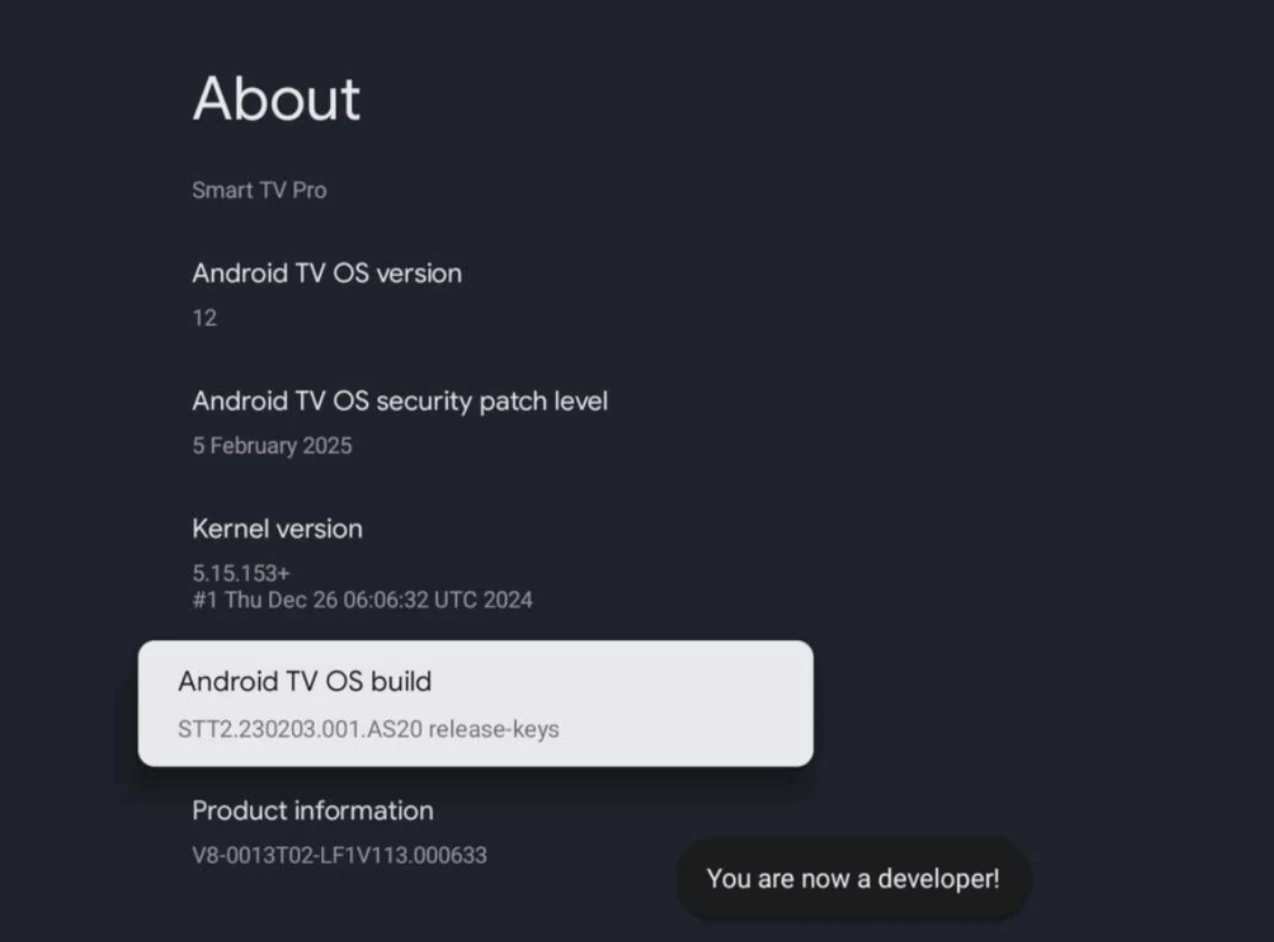
Enable Developer Options:
- On your TV, go to the Settings menu (represented by a gear icon).
- Navigate down to System (or About on some system versions).
- Find Android OS build (or Build number).
- Click on this option 7 to 8 times rapidly. A message will appear confirming, “You are now a developer!”.
Activate Wireless Debugging (ADB over Wi-Fi):
- Go back to the main Settings menu.
- Proceed to System > Developer options.
- Locate and turn on USB Debugging, MiTV Debugging, Wireless Debugging
- Enable It and take note of the pairing code, IP address, and port number displayed on the TV screen.
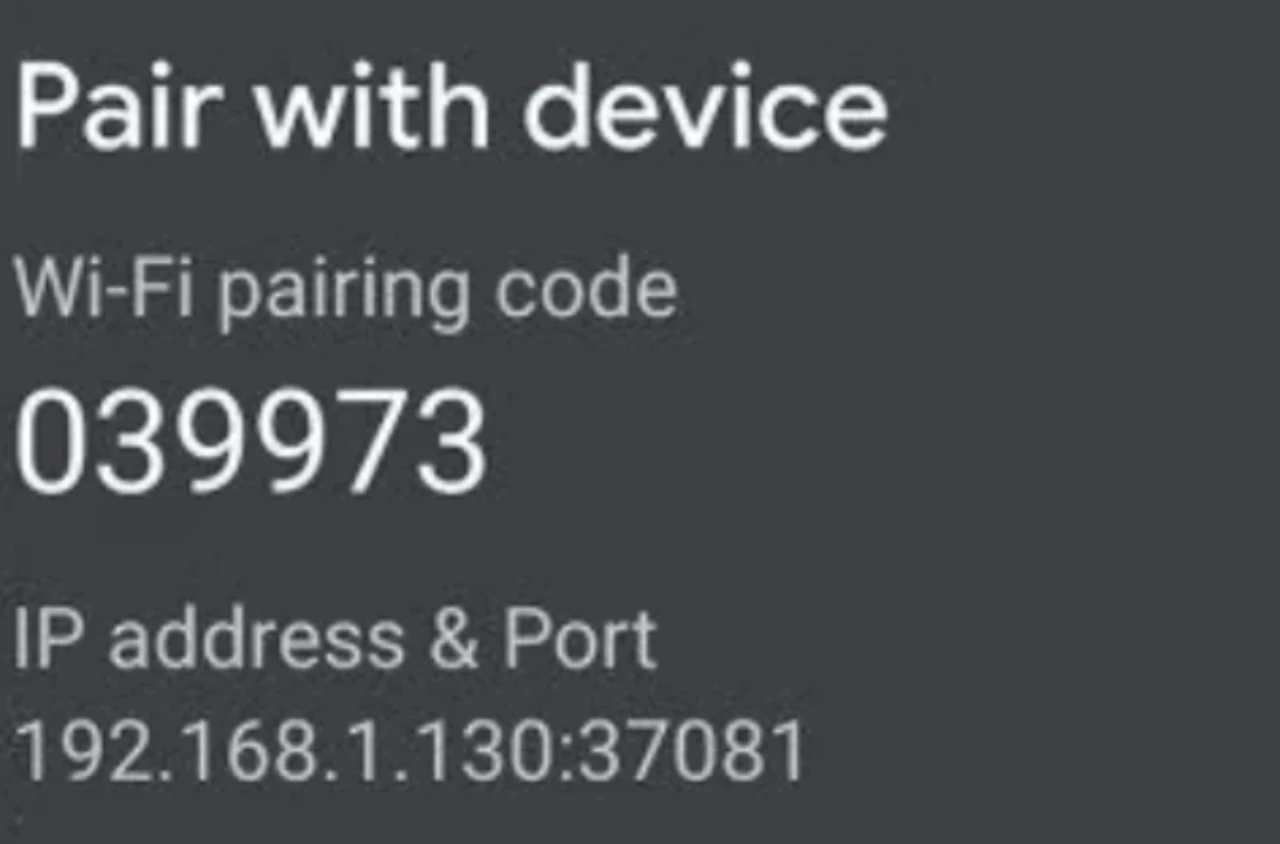
Initiate Pairing from Your Computer:
- In your Terminal window type:
adb pair IP:PORT
Example:
adb pair 192.168.1.130:37081
- Enter the code from TV
- After successful paring, go Back in the TV Menu and find a new Port:
Fox example:
192.168.1.50:5555
- Type:
adb connect 192.168.1.50:5555
Installing Buzzblender and Setting It as Your Screensaver
- install Buzzblender
- Enter in the terminal these command one by one
adb shell settings put secure screensaver_enabled 1
adb shell settings put secure screensaver_activate_on_sleep 1
adb shell settings put secure sleep_timeout -1
3. Now, execute the command to set Buzzblender as the default screensaver. This is the command that Google removed from the UI:
adb shell settings put secure screensaver_components com.buzzblender.tv/.playback.PlaybackDreamService
4. Change Screensaver Timeout
30 seconds →
adb shell settings put system screen_off_timeout 30000
Real-world examples
Hotels
Show:
- Room service QR codes
- Bar promotions
- Spa offers
- Event announcements
Restaurants & bars
Display:
- Margarita specials 🍸
- Happy hour promotions
- Digital menus
- Upsell offers
Residential buildings
Use screensavers for:
- Building announcements
- Community updates
- Emergency alerts
- Facility information
Why businesses are replacing screensavers
Traditional Android screensavers do nothing for your business.
Custom digital signage screensavers:
- Increase engagement
- Improve communication
- Generate additional revenue
- Create brand consistency
- Turn idle screens into marketing tools
How much does it cost?
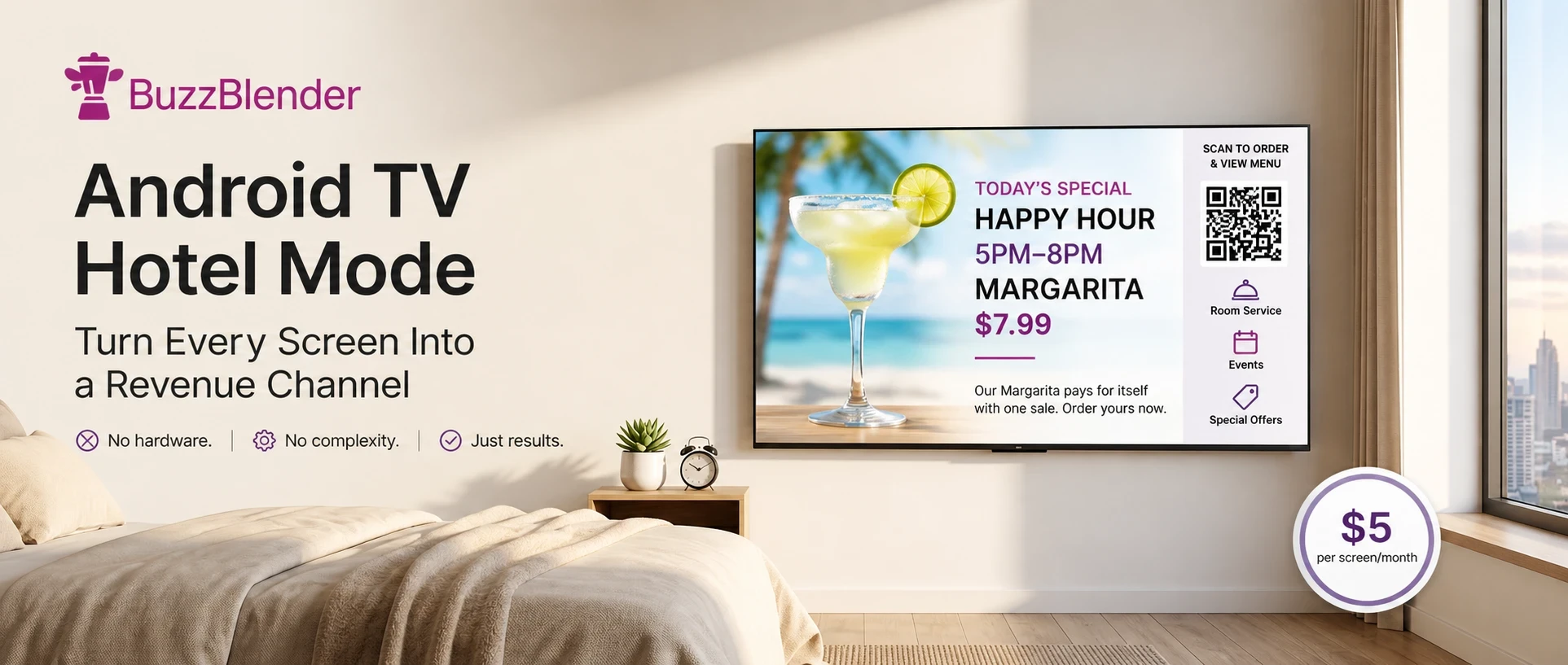
Buzzblender pricing starts at:
And even lower pricing is available for large deployments.
For many businesses, it pays for itself with the first upsell.
No hardware required
One of the biggest advantages of Android devices signage solutions is simplicity.
With Buzzblender:
- No external media player required
- No complicated installation
- No technician needed
- Setup takes minutes
Final thoughts
If you’re searching for:
- how to change screensaver on Android device
- Android TV custom screensaver
- Android signage screensaver
- show promotions on Android device
- Android TV hotel mode screensaver
👉 The answer is simple:
Use a digital signage platform designed for custom idle screen content.
With Buzzblender, you can turn every idle Android TV screen into a branded, revenue-generating display.
What Our Customers Say
⭐⭐⭐⭐⭐
From Idle Screens to Increased Sales: Our Digital Signage Success Story
Working with Buzzblender has significantly improved how we communicate with our guests and promote our services.
The team was extremely responsive and supportive throughout the entire process — from onboarding to daily operations. Everything was set up quickly, and we were able to start using digital signage across our hotel almost immediately.
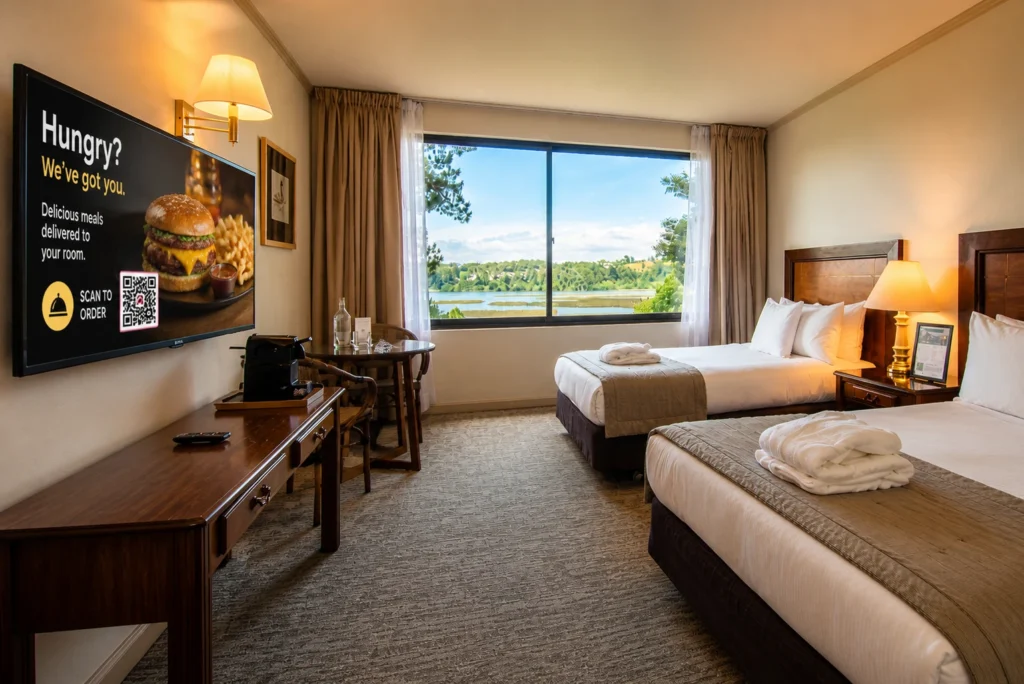
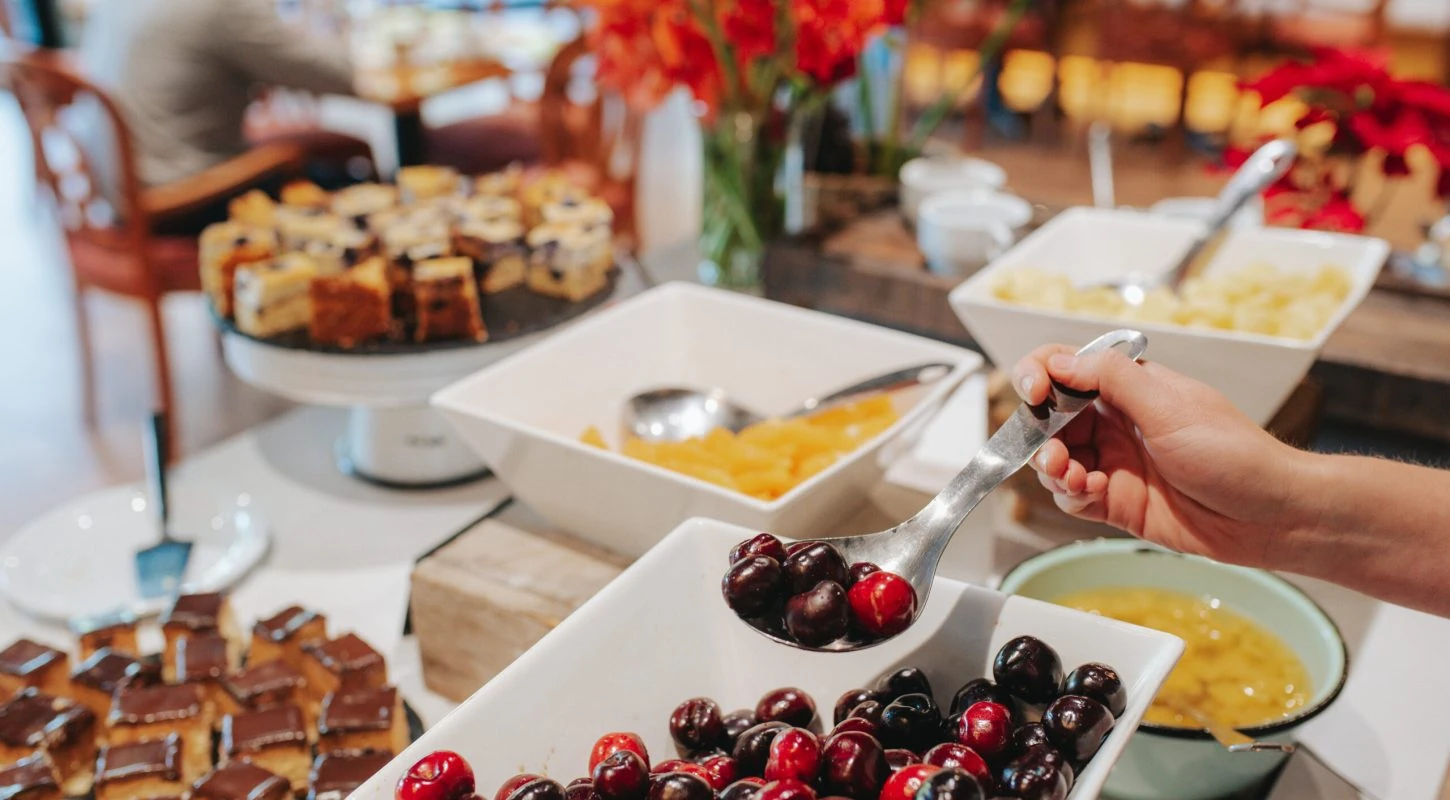
One of the biggest advantages for us is the ability to utilize in-room screens more effectively. When guests are not actively watching TV or streaming platforms like Netflix, we now display targeted promotional content — including room service offers, restaurant specials, beverages, and spa experiences.
This approach has had a direct impact on our revenue. We’ve seen a noticeable increase in spa bookings, as well as higher engagement with our restaurant and in-room dining services.
Catalina, Marketing Director
Manage Your Screens Smart
FAQ
How do I change the screensaver on Android TV?
You can change the screensaver on Android TV through the device settings, but default options are limited. To display your own promotions, menus, videos, or announcements, you can use a digital signage platform like Buzzblender.
Can I use my own images and videos as an Android TV screensaver?
Yes. With Android TV digital signage software, you can upload your own images, videos, menus, QR codes, and promotional content to display when the TV is idle.
Can Android TV display promotions when Netflix is paused?
Yes. Advanced Android TV signage solutions like Buzzblender can display promotions, QR codes, and announcements when Netflix or other streaming apps are paused or inactive.
Do I need extra hardware to run a custom Android TV screensaver?
No. Buzzblender works directly on Android TVs without requiring an external media player or additional hardware.
How much does Android TV digital signage cost?
Pricing starts at $5 per screen per month, with lower pricing available for large deployments.
Can I schedule different content for different days?
Yes. You can schedule different promotions, menus, videos, and announcements based on the day, time, or location from a single dashboard.
Can I show QR codes on Android TV screens?
Yes. You can display QR codes on Android TV screens to drive guests to menus, websites, booking pages, Instagram profiles, or promotional offers.
Is Android TV digital signage only for hotels?
No. Android TV digital signage can also be used in restaurants, bars, residential buildings, offices, retail stores, and other commercial spaces.
Do I need a technician to set up Android TV signage?
No. Buzzblender can be installed and configured in minutes without any technical specialist.
What can I display on an Android TV screensaver?
You can display promotions, menus, videos, QR codes, announcements, event information, emergency alerts, branding, and other custom content.
We Support Different Operating Systems


Leave a Reply