
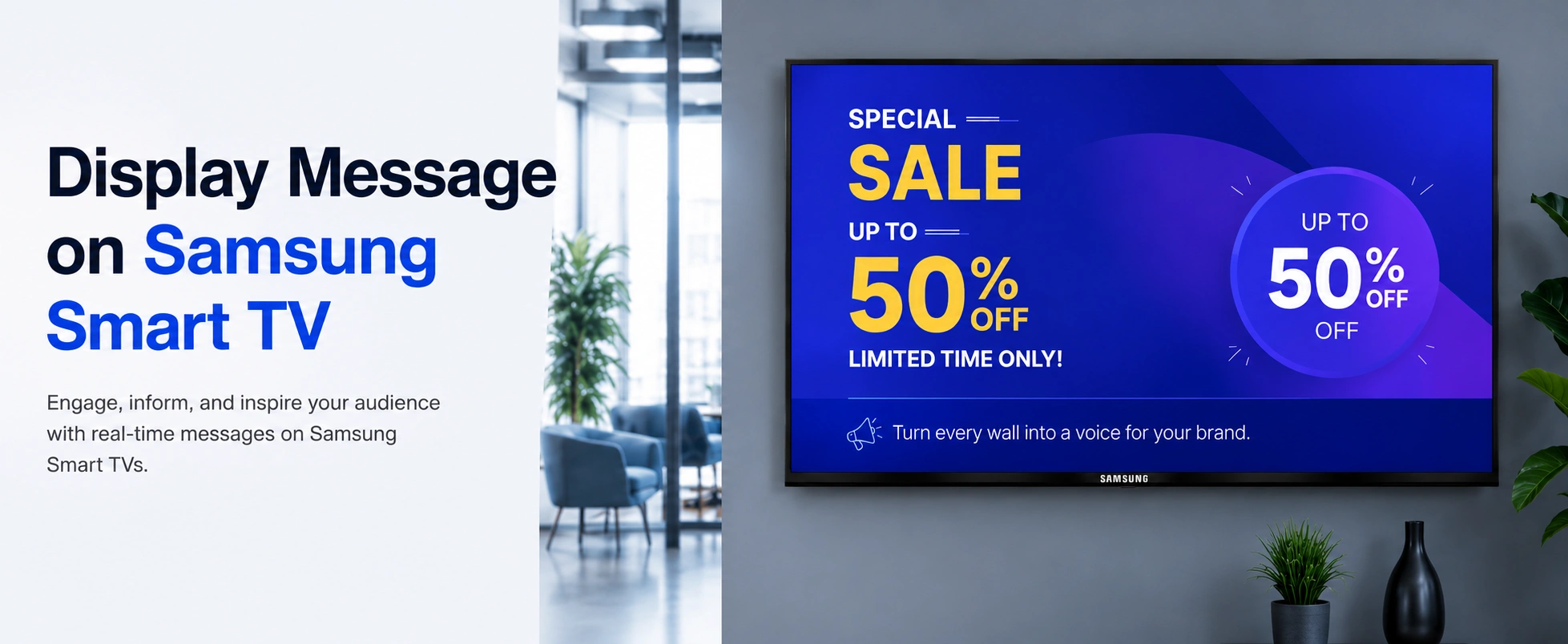
A Samsung Smart TV can do much more than stream movies or television. It can also become an information screen for displaying announcements, promotions, menus, schedules, welcome messages, safety notices, and internal company communications.
The best way to display a message on a Samsung Smart TV depends on what you are trying to accomplish. For a one-time message at home, screen mirroring may be enough. For a business that needs messages to stay on screen throughout the day or change automatically, digital signage software is generally a much more practical solution.
In this guide, we’ll explain several ways to display a message on a Samsung Smart TV and show how businesses can manage Samsung screens remotely using digital signage.
BuzzBlender is the best choice to get started. Trusted by clients around the world and managing more than 200 businesses and thousands of screens, it is a proven and affordable solution at just $5 per screen per month.
Use the promo code WELCOME100 to get your first month free.
Quick Answer: How Do You Display a Message on a Samsung Smart TV?
There are four practical approaches:
| Method | Best For | Remote Management | Scheduling | Multiple TVs |
|---|---|---|---|---|
| Digital signage software | Businesses and permanent displays | Yes | Yes | Yes |
| Screen mirroring | Temporary messages and presentations | Limited | No | Limited |
| Image or presentation | Simple static notices | No | No | No |
| Samsung commercial signage | Professional deployments | Yes | Yes | Yes |
For occasional use, mirroring a phone or computer can be the quickest solution. Samsung officially supports screen mirroring through compatible devices, including Smart View and SmartThings, while compatible Apple devices can use AirPlay. (Samsung pl)
For ongoing business communication, digital signage software such as BuzzBlender provides centralized content management, scheduling, playlists, screen monitoring, and remote updates.
Method 1: Display a Message Using Digital Signage Software
Digital signage is the most scalable method when your Samsung TV is being used as a business display.
Instead of connecting a laptop every time you want to change an announcement, you connect the screen to a cloud-based signage platform. Messages and media can then be managed through an online dashboard.
With BuzzBlender, the basic workflow consists of connecting a device, uploading media, and publishing it to the screen. The platform also supports scheduling, playlists, remote screen management, QR code overlays, and monitoring screen status.
For example, imagine a reception TV displaying:
Welcome to Our Office
Please check in at reception.
Today’s meeting starts at 10:00 AM.
Instead of leaving a computer permanently connected to the television, the message can be prepared as screen content and published through the signage system.
The same principle works for restaurants displaying daily specials, retailers announcing promotions, offices communicating with employees, clinics providing visitor instructions, and hotels showing guest information.
Why Digital Signage Works Better for Permanent Messages
The biggest advantage is control.
If the message changes tomorrow, you don’t necessarily need someone standing beside the television. An administrator can update content through the dashboard and publish the new material remotely.
Scheduling makes this particularly useful.
A cafe could show a breakfast promotion in the morning, lunch specials around midday, and an evening offer later in the day. An office could schedule different internal announcements for different days of the week.
BuzzBlender’s official feature information confirms support for centralized cloud management and flexible content scheduling.
Method 2: Display a Message Using Screen Mirroring
If you only need to display something temporarily, screen mirroring may be simpler than installing a digital signage system.
You can create your message on your phone, tablet, or computer and mirror the device to a compatible Samsung TV.
Samsung states that compatible devices can use Smart View or the SmartThings app for screen mirroring. Typically, the mobile device and television need to be connected to the same Wi-Fi network, and availability can depend on the TV and device model.
A typical process is:
- Connect the Samsung TV and mobile device to the same Wi-Fi network.
- Open the message, image, presentation, or webpage you want to display.
- Open Smart View on a compatible Samsung device.
- Select the Samsung TV.
- Approve the connection on the television if prompted.
- Display your message full-screen.
Samsung’s SmartThings app can also provide access to screen mirroring on supported configurations.
Pros
Screen mirroring is quick and requires relatively little setup. It is useful for meetings, presentations, temporary announcements, classroom information, and situations where the content only needs to appear briefly.
Cons
The main limitation is that your source device remains part of the setup.
For permanent business signage, relying on an employee’s phone or computer is inconvenient. Connections can be interrupted, and scheduling or managing a large network of screens becomes difficult.
That makes mirroring useful for temporary content but less suitable for a dedicated digital signage installation.
Samsung’s official screen-mirroring instructions
Method 3: Create the Message as an Image or Presentation
Another simple approach is to turn the message into visual content.
For example, instead of trying to display raw text directly on the television, create a 1920 × 1080 graphic containing your announcement.
A message could look like:
TODAY ONLY
20% OFF SELECTED ITEMS
Ask our team for details.
This approach gives you much greater control over typography, colors, backgrounds, branding, and layout.
BuzzBlender recommends a 16:9 aspect ratio for standard screen content and supports common image and video formats for digital signage.
Once the design is ready, you can show it using an appropriate playback method or upload it to digital signage software for continuous display.
For businesses, the second approach is more convenient because the design can later be replaced without rebuilding the physical TV setup.
Method 4: Use a Samsung Commercial Signage Display
There is an important difference between a normal Samsung Smart TV and a Samsung commercial signage display.
Consumer Smart TVs are primarily designed for home entertainment. Commercial signage displays are designed for professional applications such as retail stores, corporate offices, hospitality venues, restaurants, and public information displays.
Samsung commercial displays using Tizen can run compatible digital signage applications directly on the display. BuzzBlender describes its Samsung Tizen implementation as running without an additional external media player on compatible displays.
This can create a cleaner installation because there is no separate player box mounted behind the display.
For permanent, high-usage business installations, a commercial signage display is generally the more purpose-built choice. For smaller or budget-conscious installations, an existing compatible Samsung Smart TV may still be sufficient.
How to Display Messages on a Samsung TV With BuzzBlender
For compatible Samsung TVs running Tizen OS, BuzzBlender provides a dedicated signage option.
According to the official BuzzBlender installation instructions, users of compatible Samsung TVs can search for Buzzblender in the Samsung Content Store. Samsung commercial signage displays use a separate SSSP installation process.
The general setup is straightforward.
Step 1: Install BuzzBlender
On a compatible Samsung Tizen TV, search for BuzzBlender in the Samsung Content Store and install the application.
For Samsung commercial signage displays, use the dedicated SSSP installation procedure instead.
Step 2: Connect the Screen
Open BuzzBlender on the Samsung screen.
The display provides the information needed to associate it with your account. BuzzBlender’s Samsung guidance describes connecting the screen using the activation code displayed on the device.
Step 3: Create Your Message
Prepare your announcement as an image or video.
For example:
Meeting Room Closed
Available again after 2:00 PM.
For better readability, use large text, high contrast, and minimal wording.
Step 4: Upload the Content
Upload the finished media to your BuzzBlender account.
The platform supports media management through its centralized cloud dashboard.
Step 5: Create a Playlist
Add the message to a playlist.
A playlist can contain a single announcement or multiple pieces of content that rotate throughout the day.
For example, a retail playlist might cycle between a welcome message, promotion, new product announcement, QR-code campaign, and store information.
Step 6: Schedule the Message
Decide when the message should appear.
You might schedule a lunch promotion only around lunchtime or an employee announcement during working hours.
BuzzBlender supports scheduling content for different days and times, which eliminates the need to manually change the TV every time the message changes.
Step 7: Publish to the Samsung TV
Publish the playlist to the connected screen.
Once configured, future content changes can be managed through the centralized dashboard instead of physically accessing each TV.
Samsung Tizen digital signage with BuzzBlender
Display the Same Message on Multiple Samsung TVs
Managing several TVs is where dedicated digital signage becomes significantly more useful than screen mirroring.
Suppose a company operates ten stores and wants every location to display:
Summer Sale Starts Friday — Save Up to 30%
With screen mirroring or locally stored files, someone may need to manage content at each location.
A cloud-based signage platform provides centralized screen management instead. BuzzBlender supports multi-location screen control and lets administrators manage connected displays through one dashboard.
You can therefore publish content across a signage network without manually visiting every screen.
Samsung Smart TV vs. Samsung Commercial Display
Choosing the right hardware matters if you plan to keep messages running for long periods.
| Feature | Samsung Smart TV | Samsung Commercial Signage |
|---|---|---|
| Primary purpose | Home entertainment | Business signage |
| Good for occasional messages | Yes | Yes |
| Professional signage deployment | Possible on compatible models | Purpose-built |
| Extended business operation | Depends on model | Better suited |
| Digital signage software | Depends on compatibility | Designed for signage ecosystems |
| Best use | Small/simple installations | Professional deployments |
BuzzBlender positions standard Samsung Smart TVs as an option for smaller, temporary, or budget-conscious deployments, while Samsung commercial signage displays are more appropriate for retail, corporate, hospitality, and other long-term signage environments.
How Much Does Samsung TV Digital Signage Cost?
Software cost depends on the platform you choose.
As of August 2026, BuzzBlender’s official pricing page lists its Basic plan at $5 per screen per month. The plan includes content playlists and scheduling, remote screen management, active/inactive screen monitoring, dynamic QR code overlays, image and video uploads, and support for different screen orientations.
The Premium plan is listed at $10 per screen per month and adds features including active/inactive screen statistics and role-based access for multi-user teams. Enterprise pricing is available by contacting BuzzBlender.
View current BuzzBlender pricing
Best Practices for Messages on Samsung TVs
Putting text on a large television doesn’t automatically make it readable.
People often view digital signage from several meters away and may only look at the display for a few seconds. Your message therefore needs to communicate its purpose quickly.
Use a short headline rather than a paragraph. Make the most important words the largest elements on the screen, and create strong contrast between the text and background.
A promotion reading “20% OFF TODAY” is much easier to absorb at a distance than several sentences explaining the promotion.
You should also design for the orientation and resolution of the screen. For a typical landscape television, 16:9 content is a sensible starting point and is also the aspect ratio recommended in BuzzBlender’s content guidance.
If viewers need more information than can comfortably fit on the screen, consider using a QR code that leads to a landing page. BuzzBlender supports dynamic QR code overlays, allowing signage to connect an on-screen message with a digital destination.
Which Method Should You Choose?
The best method depends on how often the message changes.
Use screen mirroring when you need to show something temporarily from a phone, tablet, or computer.
Use a prepared image when you have a simple static message and don’t need centralized management.
Use digital signage software when the Samsung TV functions as a permanent business communication screen.
Use Samsung commercial signage hardware when you’re building a larger or long-term professional signage network.
For businesses, digital signage is usually the most manageable approach because it turns the television from a passive display into a remotely controlled communication channel.
Key Takeaways
Displaying a message on a Samsung Smart TV can be as simple as mirroring your phone, but permanent business messaging benefits from a dedicated signage setup.
Samsung supports screen mirroring on compatible devices, making it useful for quick and temporary content.
For ongoing signage, BuzzBlender supports compatible Samsung Tizen screens and provides centralized content publishing, scheduling, playlists, remote screen management, QR codes, and multi-location management.
Its Basic plan is currently listed at $5 per screen per month.
Pros and Cons of Using a Samsung TV for Messages
| Pros | Cons |
|---|---|
| Uses a screen you may already own | Consumer TVs are not designed specifically for commercial signage |
| Large, highly visible message area | Compatibility varies by model |
| Supports temporary mirroring | Mirroring is inconvenient for permanent displays |
| Compatible Tizen models can support signage solutions | Professional installations may benefit from commercial hardware |
| Digital signage enables remote updates | Requires initial software configuration |
Why Display Messages on a Samsung Smart TV?
Businesses increasingly use Samsung Smart TVs as digital signage because they’re affordable, widely available, and capable of displaying dynamic content.
Instead of printing posters or manually updating information boards, organizations can display messages on Samsung Smart TV screens remotely and update content in real time.
Common use cases include:
- Retail promotions and offers
- Employee communications
- Reception and lobby displays
- Restaurant menu boards
- Event schedules
- Hotel guest information
- Educational announcements
- Healthcare waiting room content
A Samsung Smart TV paired with digital signage software becomes much more than a television—it becomes a communication platform.
Why to Choose Buzzblender
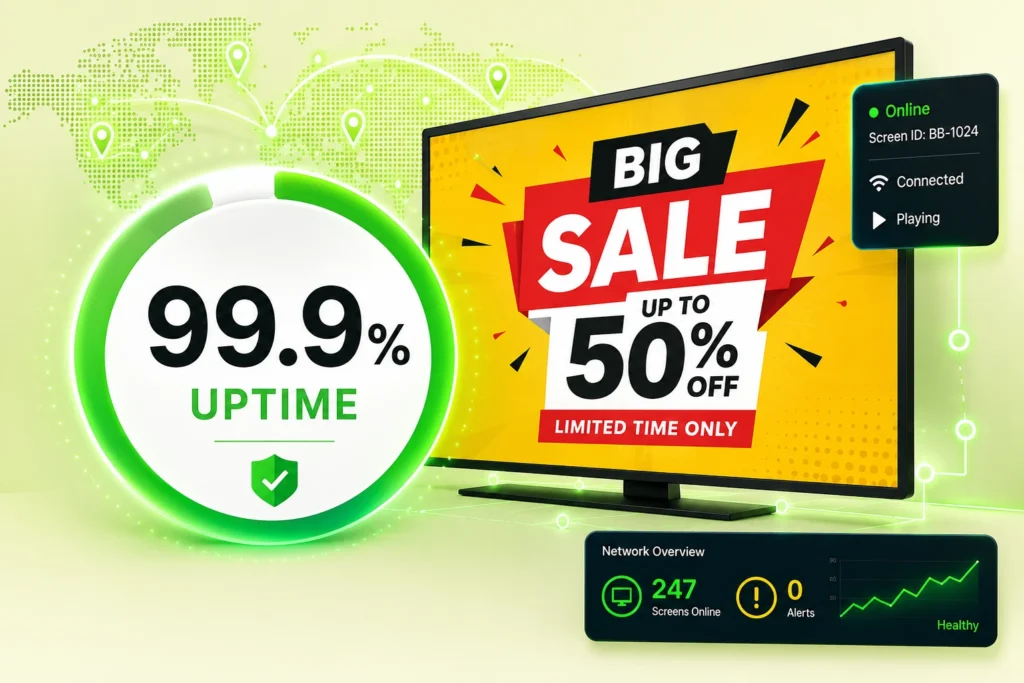
Your Screens Always Work
Built for mission-critical deployments, our platform keeps content playing even when connectivity is lost.
Self-Healing Devices — Automatic recovery from common failures
Offline-Ready — Local content storage for uninterrupted playback
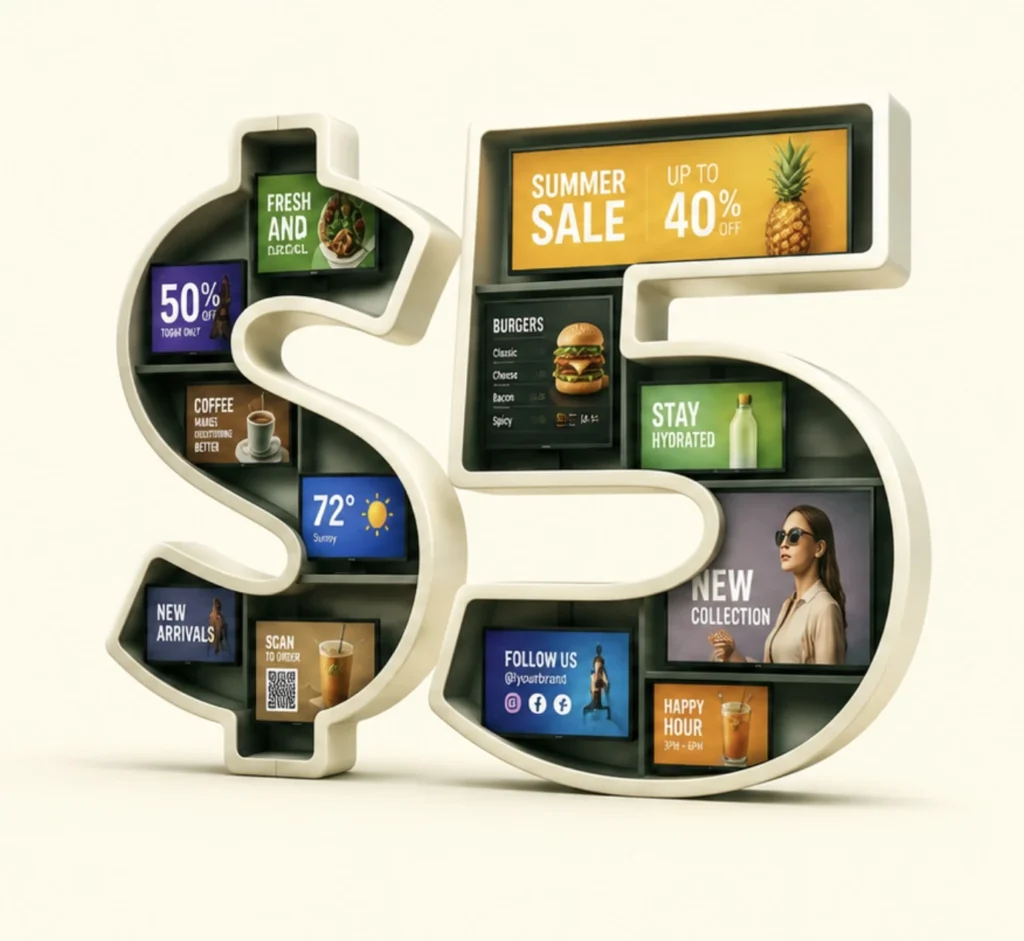
$5 per Screen / Month
One platform. All features included.
Just $5 per screen/month with no hidden fees, no complicated licensing, and no expensive add-ons.
Deploy more screens while keeping costs under control
The guide covers device preparation, activation, troubleshooting, and best practices for commercial deployments. We also have the Public Distributor Certificate which ensures a smooth installation process.
How to Install BuzzBlender on Samsung Regular TV
Open your Content Store and search for “Buzzblender”. Sign up in the admin panel and connect your device using the access code: https://app.buzzblender.com/device
Benefits of Using Digital Signage Instead of Static Messaging
Organizations that switch from printed materials to digital signage typically gain:
- Faster communication
- Reduced printing costs
- Improved customer engagement
- Real-time updates
- Better brand consistency
- Centralized content control
The ability to instantly display a message on Samsung Smart TV screens can significantly improve communication efficiency across locations.
Final Thoughts
If you’re looking for the best way to display a message on Samsung Smart TV screens, digital signage software offers the most flexibility and long-term value.
BuzzBlender stands out thanks to its Samsung compatibility, cloud-based management, flexible scheduling, and support for multi-screen deployments.
Whether you’re managing a single display or an enterprise-wide signage network, BuzzBlender provides the tools needed to create, schedule, and manage content efficiently.
For organizations seeking a scalable digital signage solution for Samsung Smart TVs and Samsung Signage Displays, BuzzBlender is a platform worth serious consideration.
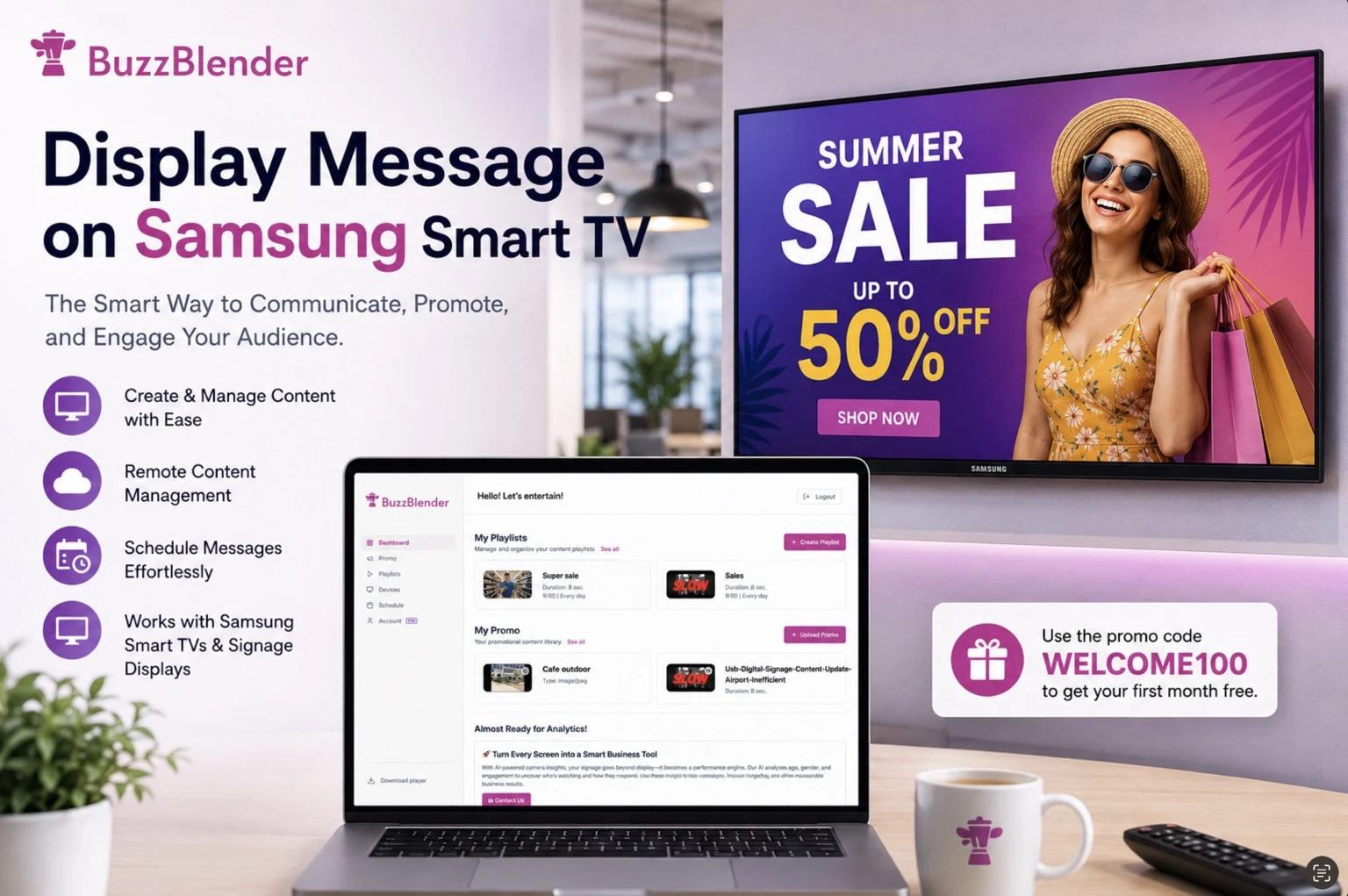
Take control of your screens today with Buzzblender
FAQ
How do I display a message on a Samsung Smart TV?
There are several ways to display a message on a Samsung Smart TV. You can use a USB drive to play images or videos, mirror content from a laptop or mobile device, or use digital signage software. For businesses that need remote management, scheduling, and multi-screen support, a cloud-based platform like BuzzBlender is the most efficient solution. BuzzBlender allows you to update content instantly across one or hundreds of Samsung displays from a single dashboard. New users can get started with promo code WELCOME100 and receive their first month free.
What is the best way to display content on a Samsung Smart TV for business use?
The best way to display content on a Samsung Smart TV depends on your needs. USB playback works for basic, single-screen installations, while screen mirroring is useful for presentations and temporary content. However, for professional digital signage deployments, digital signage software provides the most flexibility. With BuzzBlender, businesses can schedule content, manage multiple displays remotely, create playlists, and publish updates in real time without visiting each screen.
Can Samsung Smart TVs be used for digital signage?
Yes, Samsung Smart TVs can be used for digital signage in retail stores, restaurants, offices, hotels, schools, and healthcare facilities. By installing digital signage software such as BuzzBlender, businesses can transform a Samsung TV into a professional communication and advertising display. Content can include promotions, announcements, menus, videos, images, dashboards, and social media feeds.
Why choose BuzzBlender for Samsung digital signage?
BuzzBlender is designed to simplify Samsung digital signage management. The platform offers centralized content management, cloud-based deployment, flexible scheduling, playlist creation, and support for multi-screen networks. Businesses can remotely manage displays across multiple locations while ensuring consistent messaging and branding. Additional features such as offline-ready playback, automated scheduling, and self-healing device monitoring make BuzzBlender suitable for both small businesses and enterprise deployments.
How do I install BuzzBlender on a Samsung Signage Display?
Installing BuzzBlender on a Samsung Signage Display is straightforward. First, connect the display to the internet and configure the Samsung signage settings. Next, activate the display inside your BuzzBlender account and assign content to the screen. Once connected, you can publish and schedule content remotely from the BuzzBlender dashboard. For detailed instructions, follow the official Samsung signage installation guide provided by BuzzBlender.
Does BuzzBlender support Samsung Smart Signage Platform (SSSP)?
Yes. BuzzBlender supports Samsung Smart Signage Platform (SSSP) displays, allowing organizations to deploy digital signage without requiring additional media players. This reduces hardware costs, simplifies installation, and enables centralized management across multiple Samsung commercial displays.
What is the difference between a Samsung Smart TV and a Samsung Smart Signage Display?
A Samsung Smart TV is typically designed for home entertainment and small-scale business use. It offers a lower upfront cost and is suitable for occasional content playback. A Samsung Smart Signage Display, on the other hand, is built specifically for commercial environments. Signage displays support extended operating hours, enhanced reliability, remote management capabilities, and commercial-grade components, making them ideal for retail, hospitality, corporate communications, and high-traffic public spaces.
Can I manage multiple Samsung TVs from one dashboard?
Yes. With BuzzBlender, you can manage multiple Samsung Smart TVs and Samsung Signage Displays from a single cloud-based dashboard. This allows administrators to update content, schedule campaigns, monitor device status, and control screens across multiple locations without being physically present.
What content can I display on a Samsung Smart TV?
Samsung Smart TVs can display a wide range of content, including promotional videos, images, advertisements, menus, announcements, event schedules, company communications, social media feeds, weather widgets, dashboards, and interactive content. Using digital signage software makes it easy to organize, schedule, and update this content remotely.
Is digital signage software better than using a USB drive?
For business use, digital signage software offers significant advantages over USB playback. It enables remote content management, automated scheduling, centralized control, analytics, and real-time updates. While USB playback may work for a single screen, digital signage platforms such as BuzzBlender provide a scalable solution for growing organizations and multi-location deployments.
Samsung User Guides
What Our Customers Say
⭐⭐⭐⭐⭐
The Easiest and Most Affordable Digital Signage We’ve Used
We tested several digital signage solutions before switching, and BuzzBlender has been the simplest and most reliable by far.
Setup on our Samsung displays was fast, and managing content is incredibly easy—even for non-technical staff. We can update screens in real time, run promotions, and control everything remotely without extra hardware.
Compared to other systems, it stands out for both ease of use and pricing. Just five dollars.
Vasiliy, co-founder of Ecomind



Leave a Reply