
Looking for a game-changing marketing tool for screens? Discover BuzzBlender – the smarter way to manage, schedule, and measure content on your displays. Transform your marketing today! Let’s get your device ready in just a few simple steps. Follow the instructions below to start creating dynamic displays effortlessly:
1. Select Your Device
Choose the screen or device you’ll use with BuzzBlender.
2. Install the BuzzBlender App
Download and install the app on your device from your TV Content Store. The process is quick and straightforward.
3. Log In to Your Account
Use your BuzzBlender login credentials to access the dashboard. Don’t have an account? Sign up in minutes! Connect the screen to your admin panel using Access code displaying on the TV screen.
4. Create and Schedule Content
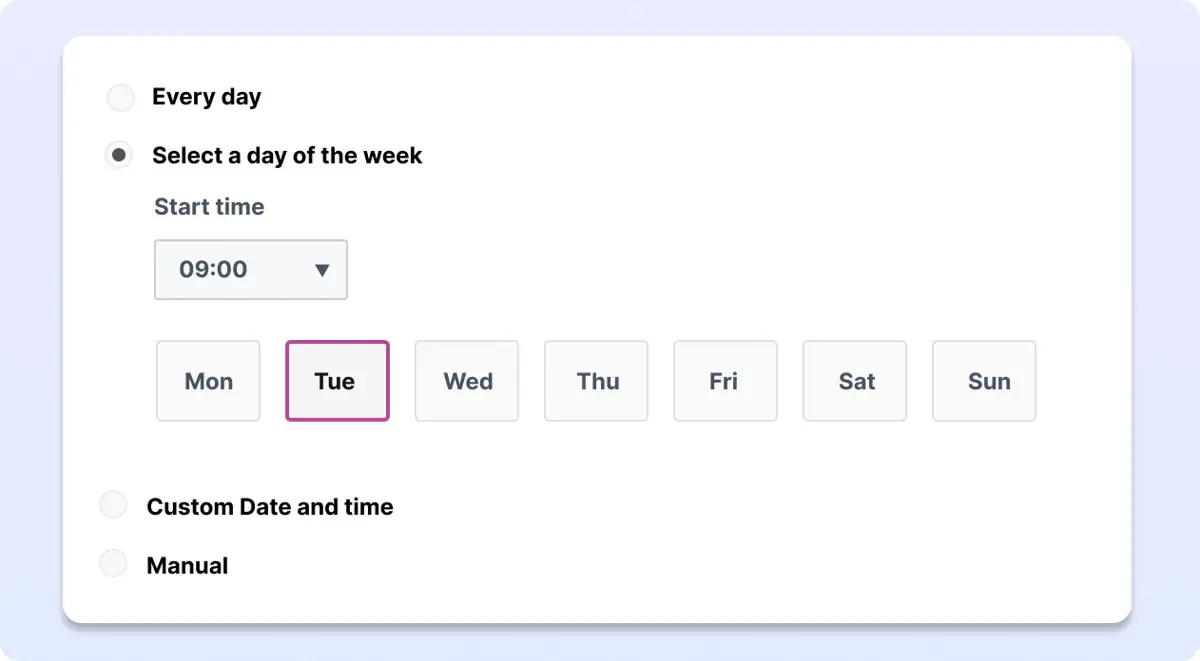
Upload your promotional material, arrange it into playlists, and schedule them to play at the perfect time. Don’t forget to add QR code overlay to measure efficiency of your campaigns.
5. Go Live
Enjoy effortless screen management with BuzzBlender. Your marketing, simplified!
Explore more about Buzzblender
What Our Customers Say
⭐⭐⭐⭐⭐
Cheap and Perfect Digital Signage for WebOS (LG)
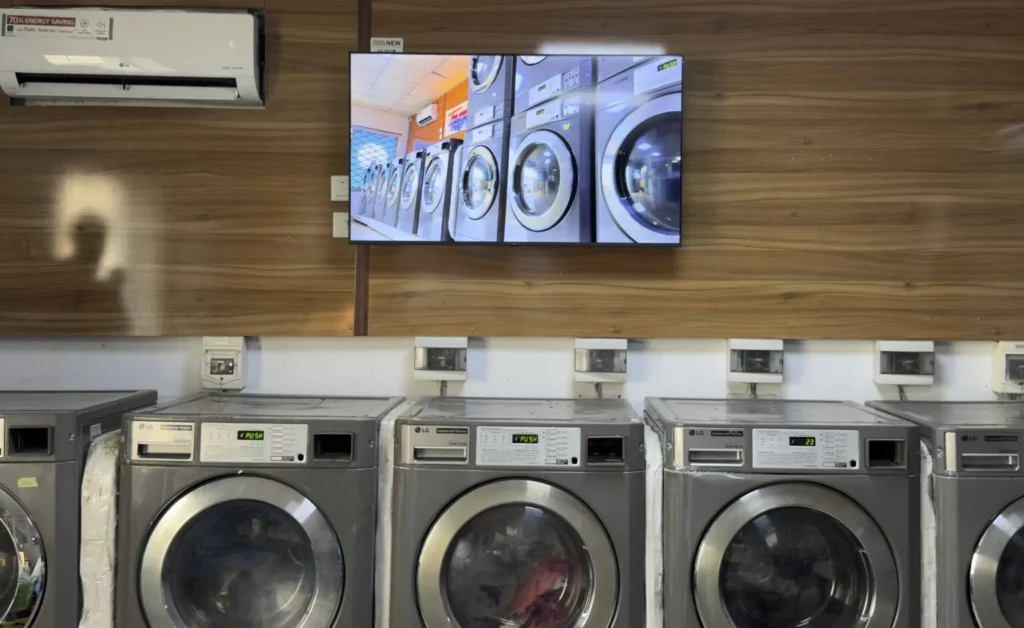
My experience with Buzzblender has exceeded expectations. It simplifies content management. We use LG (WebOs) and Buzzblender works perfectly on our screen
Agbanike, True Wash Laundromat
FAQ
What is BuzzBlender digital signage software?
BuzzBlender is a digital signage platform that allows businesses to manage, schedule, and display content on screens. It helps turn displays into powerful marketing tools with real-time updates and performance tracking.
How do I set up BuzzBlender on my device?
To set up BuzzBlender, you need to select your device, install the app from your TV content store, log in to your account, connect your screen using an access code, and start creating and scheduling content.
Do I need special hardware to use BuzzBlender?
No, BuzzBlender works with a variety of devices, including smart TVs and supported displays, so you can use your existing hardware without additional equipment.
How do I install the BuzzBlender app?
You can install the BuzzBlender app directly from your TV content store. The installation process is simple and takes just a few minutes.
How do I connect my screen to BuzzBlender?
After installing the app, you can connect your screen by entering the access code displayed on your TV into the BuzzBlender admin panel.
Can I schedule content on my screens?
Yes, BuzzBlender allows you to create playlists and schedule content to play at specific times, days, or dates to match your marketing strategy.
Can I update my digital signage content remotely?
Yes, BuzzBlender is a cloud-based platform, which means you can update and manage your content remotely from anywhere.
Can I add QR codes to my digital signage content?
Yes, BuzzBlender allows you to add QR code overlays to your content, helping you measure engagement and track campaign performance.
What type of content can I display with BuzzBlender?
You can display images, videos, promotional content, menus, announcements, and other marketing materials to engage your audience.
Is BuzzBlender easy to use for beginners?
Yes, BuzzBlender is designed to be user-friendly, allowing anyone to set up and manage digital signage quickly without technical skills.


Leave a Reply