Displaying announcements on a TV is one of the simplest ways to turn an ordinary screen into a useful communication channel. Instead of relying on printed notices, emails, posters, or someone manually changing a PowerPoint presentation, you can use digital signage software to publish announcements directly to TVs and update them remotely.
This approach works particularly well in offices, schools, clinics, retail stores, restaurants, gyms, hotels, factories, reception areas, and other locations where people regularly pass a screen.
The basic process is straightforward: connect your TV to a digital signage platform, create or upload your announcement, add it to a playlist, and publish it to the screen. With cloud-based software such as BuzzBlender, announcements can also be scheduled and managed across multiple TVs from one dashboard.
This guide explains how to display announcements on a TV, what equipment you need, how to create effective announcement screens, and how to manage multiple displays without manually updating every TV.
BuzzBlender is the best choice to get started. Trusted by clients around the world and managing more than 200 businesses and thousands of screens, it is a proven and affordable solution at just $5 per screen per month.
Use the promo code WELCOME100 to get your first month free. Create your account and connect your first screen.
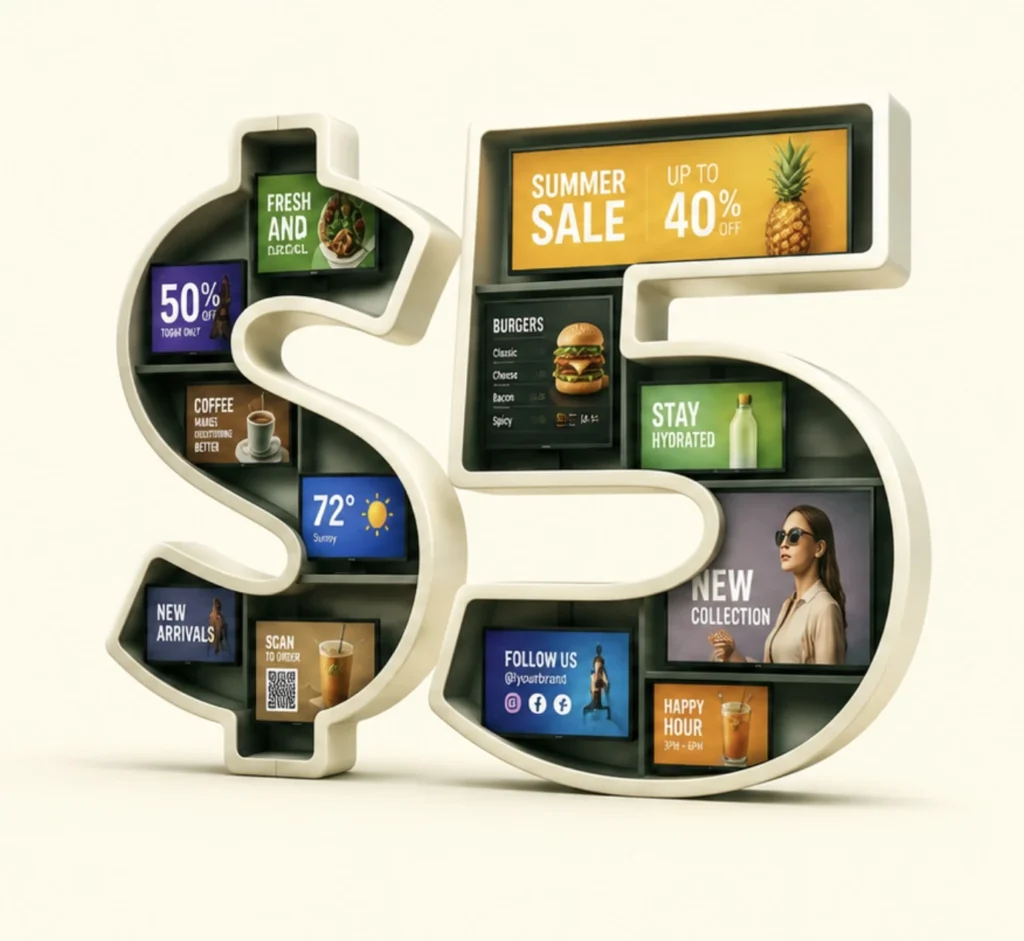
$5 per Screen / Month
One platform. All features included.
Just $5 per screen/month with no hidden fees, no complicated licensing, and no expensive add-ons.
Deploy more screens while keeping costs under control
What Is a TV Announcement System?
A TV announcement system uses a television or digital display to communicate information visually. Instead of showing regular television programming, the screen displays content such as company news, safety messages, upcoming events, promotions, schedules, visitor information, reminders, or emergency notices.
A basic setup could be as simple as connecting a laptop to a TV with an HDMI cable. However, this becomes inconvenient when announcements change regularly or when several TVs need to display the same information.
Digital signage provides a more scalable solution.
Digital signage software connects TVs to a centralized content management system. An administrator can upload content, organize it into playlists, schedule when it appears, and publish updates remotely.
BuzzBlender, for example, provides cloud-based screen management and supports content including images, videos, web pages, and HTML. Its official feature documentation also lists scheduling, screen grouping, remote management, device monitoring, QR-code overlays, and multi-screen management capabilities.
What Do You Need to Display Announcements on a TV?
The exact setup depends on the TV you already own.
At minimum, you need a display, a way for that display to receive digital signage content, an internet connection for remote management, and the announcement content itself.
Some compatible smart TVs can run digital signage software directly. In other situations, you can connect a compatible media player or computer to the television.
BuzzBlender supports multiple platforms, including Windows, Linux, Android, LG displays, macOS, smart TVs, and media players. BuzzBlender’s current pricing page additionally lists remote content management for LG, Samsung, Android, Philips, Windows, and Linux devices.
That flexibility means businesses may be able to repurpose TVs they already own instead of building an entirely new display network.
Take control of your screens today with Buzzblender
How to Display Announcements on a TV in 5 Steps
Step 1: Connect Your TV
Start by connecting the television or its media player to your digital signage platform.
With BuzzBlender, the general workflow is to connect a device to your account so it can be controlled through the cloud dashboard. Once registered, the TV becomes part of your signage network.
The exact installation process depends on your television or operating system, so check the appropriate setup instructions for your device.
Step 2: Create Your Announcement
Next, prepare the content you want people to see.
An announcement might say:
Office Closed Friday
Our office will be closed on August 28 for scheduled maintenance. Normal hours resume Monday.
Or:
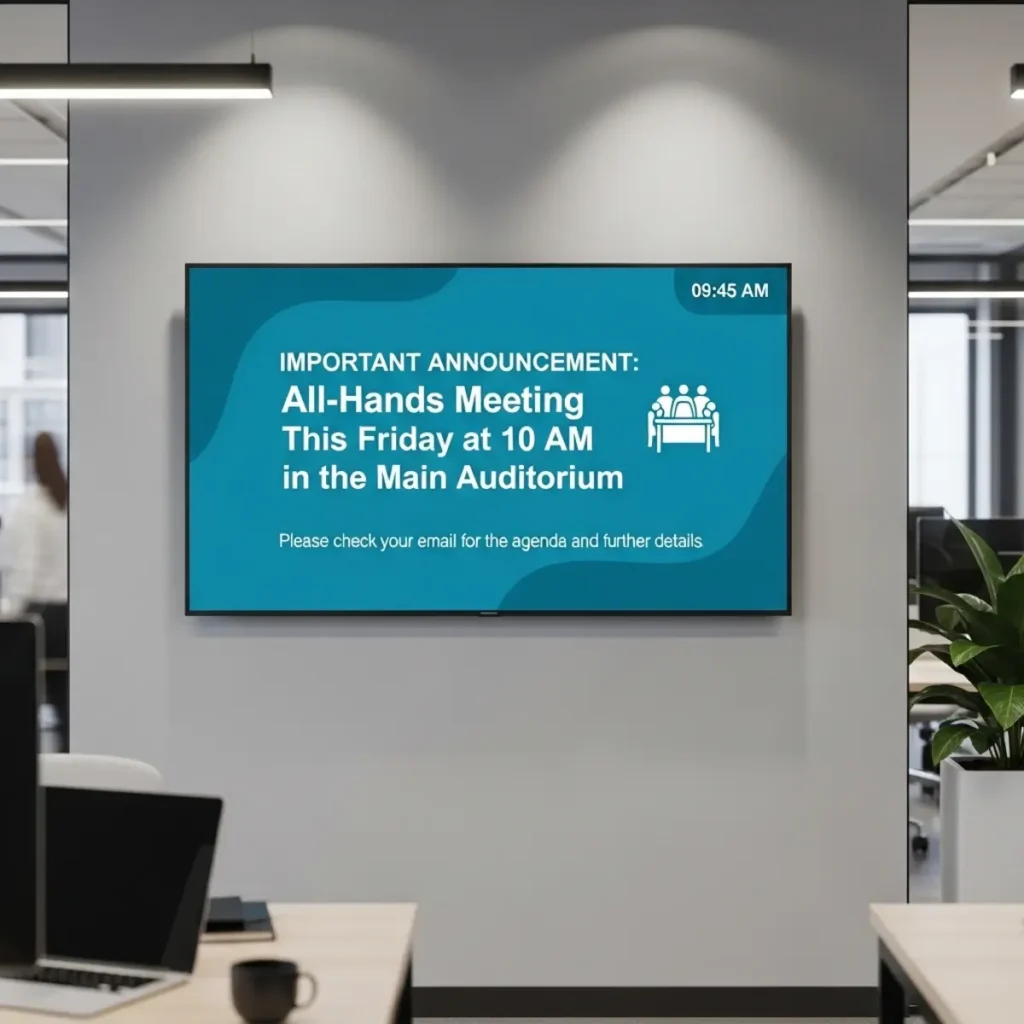
All-Hands Meeting — 2:00 PM
Please join us in Conference Room A. Remote employees can use the meeting link provided by email.
Announcements can be designed as images or videos. BuzzBlender also supports web-page and HTML content according to its current Basic plan.
For standard landscape televisions, a 16:9 design is usually the most natural format.
Step 3: Upload the Announcement
Upload the finished image, video, or other supported content to your digital signage account.
Instead of copying files onto USB drives and physically visiting TVs whenever something changes, cloud-based signage lets the content library be managed centrally.
This becomes particularly useful when announcements change every day or several people are responsible for communication.
Step 4: Add the Announcement to a Playlist
A playlist determines what appears on the TV and in what sequence.
For example, an office lobby playlist might rotate between:
Welcome message → company announcement → upcoming events → KPI dashboard → employee recognition → safety reminder
The announcement therefore does not necessarily need to occupy the TV continuously. It can become part of a broader communication loop.
For urgent information, the normal playlist can be changed so the important announcement receives greater visibility.
Step 5: Publish or Schedule the Announcement
Finally, send the playlist to the appropriate screen.
BuzzBlender supports scheduling based on time of day, day of the week, and screen group. Its scheduling tools can also target individual screens or groups of screens.
This makes it possible to prepare an announcement ahead of time.
Suppose employees need to be reminded about an all-hands meeting on Thursday. Rather than relying on someone to remember to update the TV Thursday morning, the announcement can be scheduled in advance.
Once the scheduled period is over, your regular content can continue.
Ways to Display Announcements on a TV
There are several ways to turn a TV into an announcement screen.
| Method | Remote Updates | Scheduling | Multiple Screens | Best For |
|---|---|---|---|---|
| USB drive | No | No | Difficult | Occasional static messages |
| Laptop + HDMI | Limited | Manual | Difficult | Temporary presentations |
| Screen mirroring | Limited | Usually manual | Limited | Short-term use |
| Presentation/slideshow | Limited | Basic | Limited | Simple rotating slides |
| Digital signage software | Yes | Yes | Yes | Ongoing professional communication |
USB Drives
A USB drive is inexpensive and may be sufficient if you have one TV and rarely change the content.
Its main disadvantage is management. Every update generally requires someone to edit the file, copy it to the drive, visit the screen, and replace or restart the content.
Multiply that process across 10, 50, or 100 screens and it quickly becomes impractical.
HDMI and a Computer
Connecting a computer to a TV is useful for presentations and temporary announcements.
However, leaving a computer permanently attached to every TV introduces additional hardware and administration. Updating screens in multiple locations can also become cumbersome.
Screen Mirroring
Casting or screen mirroring can work when you need to put something on a nearby TV quickly. It is less suitable for displays that need to operate continuously without someone actively controlling them.
Digital Signage Software
Digital signage is designed specifically for ongoing screen communication.
A centralized system can make it possible to change an announcement once and distribute it to the relevant screens without physically visiting them.
For organizations that update messages frequently or manage multiple TVs, this is usually the most practical approach.
How to Create Effective TV Announcements
Putting information on a TV is easy. Making sure people actually understand it requires more thought.
Make the Headline Large
The headline should communicate the subject almost immediately.
Instead of a generic headline such as Important Information, use something specific:
Office Closed Monday
Fire Drill at 11:00 AM
Welcome, Conference Guests
Staff Meeting — Room 204
Specific headlines reduce the amount of reading required.
Keep Text Short
A TV should not look like a webpage or email.
Use short headlines, a small amount of supporting information, and a clear call to action when one is necessary.
If the audience needs extensive details, the screen can direct them somewhere else.
Use Strong Contrast
Announcements need to remain readable from a distance.
Dark text on a similarly dark photograph can disappear. Decorative fonts may look attractive on a laptop but become difficult to read from several meters away.
Simple typography and strong contrast usually work better.
Design for Viewing Distance
Preview your announcement on an actual TV before rolling it out widely.
A design that looks perfectly readable on a computer monitor may be too small when displayed on a wall-mounted screen across a lobby.
The farther viewers are from the display, the simpler the layout should generally become.
Include a QR Code When People Need More Information
Sometimes an announcement cannot contain everything the viewer needs.
An event announcement, for example, might include the event name, date, and location on the TV while a QR code directs viewers to registration.
BuzzBlender allows QR codes to be overlaid on images and videos. A QR code can direct viewers to destinations such as websites, product pages, promotions, registration forms, menus, or landing pages. The platform also provides QR scan tracking through its dashboard.
This creates a useful division of labor: the TV attracts attention and communicates the essential message, while the viewer’s phone provides the detailed information.
How to Schedule TV Announcements
Scheduling is one of the biggest advantages of using digital signage instead of simply displaying an image from a USB drive.
Imagine an office TV with the following communication schedule:
| Time | Announcement |
|---|---|
| 8:00–10:00 AM | Welcome message and daily updates |
| 10:00 AM–12:00 PM | Employee announcements |
| 12:00–2:00 PM | Cafeteria or wellness information |
| 2:00–5:00 PM | Events, training, and company news |
| Friday afternoon | Next week’s reminders |
Once the schedules are configured, the screen can switch content automatically.
The same concept works outside offices. Restaurants can change content by meal period, retailers can schedule promotions, and organizations can stop event announcements after the event has finished. BuzzBlender’s scheduling tools are designed for time-based and day-of-week content delivery.
How to Display Announcements on Multiple TVs
The advantages of digital signage become even more noticeable when you manage multiple screens.
Instead of maintaining each television independently, a cloud-based system lets administrators control connected displays through one dashboard.
For example, a business with 20 locations might want a company-wide announcement on every screen while simultaneously displaying location-specific information at individual branches.
A centralized digital signage platform can make this kind of content management possible without sending files manually to every site.
BuzzBlender provides remote screen management, multi-screen deployment, content scheduling, and centralized administration. The platform also lets administrators monitor whether connected signage devices are active.
TV Announcement Ideas for Different Industries
Corporate Offices
Office TVs can function as internal communication channels.
Common content includes employee announcements, company news, KPI information, upcoming events, training reminders, visitor welcomes, workplace policies, and safety messages.
BuzzBlender specifically identifies internal announcements and KPI dashboards among corporate office use cases.
Schools and Educational Facilities
Digital screens can communicate class or room changes, event information, club activities, deadlines, visitor instructions, campus updates, and other announcements.
Scheduling can be particularly useful when information only needs to appear before or during a specific event.
Healthcare and Clinics
Waiting-room and facility screens can communicate service information, visitor guidance, operational notices, educational messages, and relevant announcements.
BuzzBlender identifies clinics and healthcare organizations as digital signage use cases, including information screens and waiting-room content.
Retail Stores
Retail screens can combine operational announcements with customer-facing promotions.
A retailer might display opening-hour changes, upcoming events, new products, seasonal campaigns, special promotions, or QR codes directing customers to online information.
Restaurants and Cafes
Restaurants can use TVs for menu information, daily specials, events, temporary announcements, and promotions.
A real BuzzBlender case study describes EcoMind Cafe in Dubai using the platform to announce wellness events, promote seasonal offers and menu specials, display branded content, and remotely update playlists.
Gyms and Fitness Centers
Gym TVs can display class schedules, instructor changes, facility notices, events, membership offers, and motivational content.
Because schedules change frequently, remotely managed screens can reduce the need to repeatedly replace printed notices.
TV Announcements vs. Traditional Notice Boards
| Feature | TV Announcements | Printed Notice Board |
|---|---|---|
| Remote updates | Yes, with cloud digital signage | No |
| Scheduled content | Yes | Manual |
| Video support | Yes | No |
| Multiple messages | Playlist rotation | Limited by physical space |
| Multi-location updates | Centralized with signage software | Manual distribution |
| QR codes | Yes | Possible, but static |
| Expiration of announcements | Can be automated | Must be removed manually |
| Screen monitoring | Available with some signage platforms | Not applicable |
Printed notice boards still make sense in certain environments, particularly when there is no available display or network connection. But for frequently changing communications, TVs provide considerably more flexibility.
Using a USB Drive vs. Digital Signage Software
You do not necessarily need digital signage software to put an announcement on a television.
For a single screen that changes only occasionally, placing an image or video on a USB drive may be sufficient.
The limitations become apparent when content changes frequently.
Every update requires someone to manage the TV physically. Scheduling is limited. Managing several displays becomes cumbersome. Ensuring every location is showing the latest version becomes increasingly difficult.
Digital signage software is more appropriate when you need remote updates, automated scheduling, multiple screens, multiple locations, playlists, centralized administration, or screen monitoring.
Pros and Cons of Displaying Announcements on TVs
Pros
- Announcements can be updated quickly.
- Cloud-managed signage can be controlled remotely.
- Multiple announcements can rotate through playlists.
- Time-sensitive messages can be scheduled.
- Images and videos make messages more visually noticeable.
- One dashboard can manage multiple screens and locations.
- QR codes can connect screen announcements with online information.
- All Operating systems
- external Android media players
- LG webOS displays – for LG TV
- Samsung Tizen displays – for Samsung TV
- Web browser opened on your TV
- Commercial digital signage screens
Cons
- Digital signage software adds an ongoing software cost.
- Some TVs may require a compatible app or external player.
- Screens need an appropriate network and device setup for remote management.
- Poorly designed announcements can still be difficult to read.
- Content needs to be kept current to maintain viewer trust.
How Much Does It Cost to Display Announcements on a TV?
Costs depend on whether you already own the television and compatible playback hardware.
If you already have suitable screens, your primary ongoing expense may simply be the digital signage software.
At the time of writing, BuzzBlender’s official pricing lists:
| Plan | Current Price | Key Features |
|---|---|---|
| Basic | $5 per screen/month | Playlists, scheduling, screen monitoring, remote management, QR overlays, images, videos, web pages and HTML |
| Premium | $10 per screen/month | Basic features plus active/inactive screen statistics and role-based multi-user teams |
| Enterprise | Contact BuzzBlender | Designed for organizations with more than 10 screens, with options including premium support, onboarding, dedicated account management and private/on-premise deployment |
Why Use BuzzBlender for TV Announcements?
BuzzBlender turns compatible TVs and displays into centrally managed digital signage.
The process follows a simple model:
Connect a device → Upload media → Publish to screens
From there, organizations can build playlists, schedule content, remotely update displays, group screens, monitor devices, and add QR-code overlays.
This makes the platform suitable for anything from a single reception TV to a larger network of displays across multiple locations.
More importantly, announcements no longer need to be treated as static files tied to individual televisions. They become centrally managed content that can be changed, scheduled, targeted, and reused.
Key Takeaways
Displaying announcements on a TV does not have to involve manually changing USB drives or replacing printed posters.
With digital signage software, a business can connect a TV, upload announcement content, organize it into playlists, publish it remotely, and schedule exactly when it should appear.
For one rarely updated screen, a USB drive may still be enough. But once announcements need frequent changes, scheduling, multiple locations, remote management, or centralized control, a cloud-based digital signage platform becomes much more practical.
BuzzBlender combines remote content management, scheduling, playlists, screen monitoring, QR code functionality, and broad device compatibility in a platform designed for managing digital signage screens.
Manage Your Screens with Ease
Best Practices
- Use large readable fonts.
- Keep announcements short.
- Display content for at least 10–15 seconds.
- Prioritize important messages.
- Use visuals to attract attention.
- Update content regularly.
- Maintain consistent branding.
- Schedule announcements strategically.
Common Mistakes
Too Much Text
Long paragraphs are difficult to read on TV screens.
Outdated Announcements
Expired content reduces trust and engagement.
Poor Screen Placement
Displays should be located in high-traffic areas.
Small Fonts
Messages should be readable from a distance.
Lack of Scheduling
Announcements should automatically expire when no longer relevant.
Take control of your screens today with Buzzblender
Frequently Asked Questions
How do I display announcements on a TV?
Use a digital signage platform to create, schedule, and publish announcements to connected displays.
Can I update TV announcements remotely?
Yes. Most cloud-based digital signage solutions allow remote content management.
What types of TVs can display announcements?
Smart TVs, commercial displays, Android TV devices, LG webOS screens, Samsung Tizen displays, and screens connected to media players.
Can announcements be scheduled in advance?
Yes. Most platforms support automated scheduling and recurring content.
How much does Buzzblender cost?
Buzzblender costs just $5 per screen per month.
Can multiple TVs show the same announcement?
Yes. Content can be distributed to one display or an entire screen network simultaneously.
What Our Customers Say
⭐⭐⭐⭐⭐
Affordable, Reliable, and Easy-to-Use Digital Signage Solution
Our organization has had a very positive experience using Buzzblender across our LG TVs. Setup is straightforward, and it’s easy for our team to customize what we want shown on each screen.
Saskia van Aart, M. van der Looy office manager