
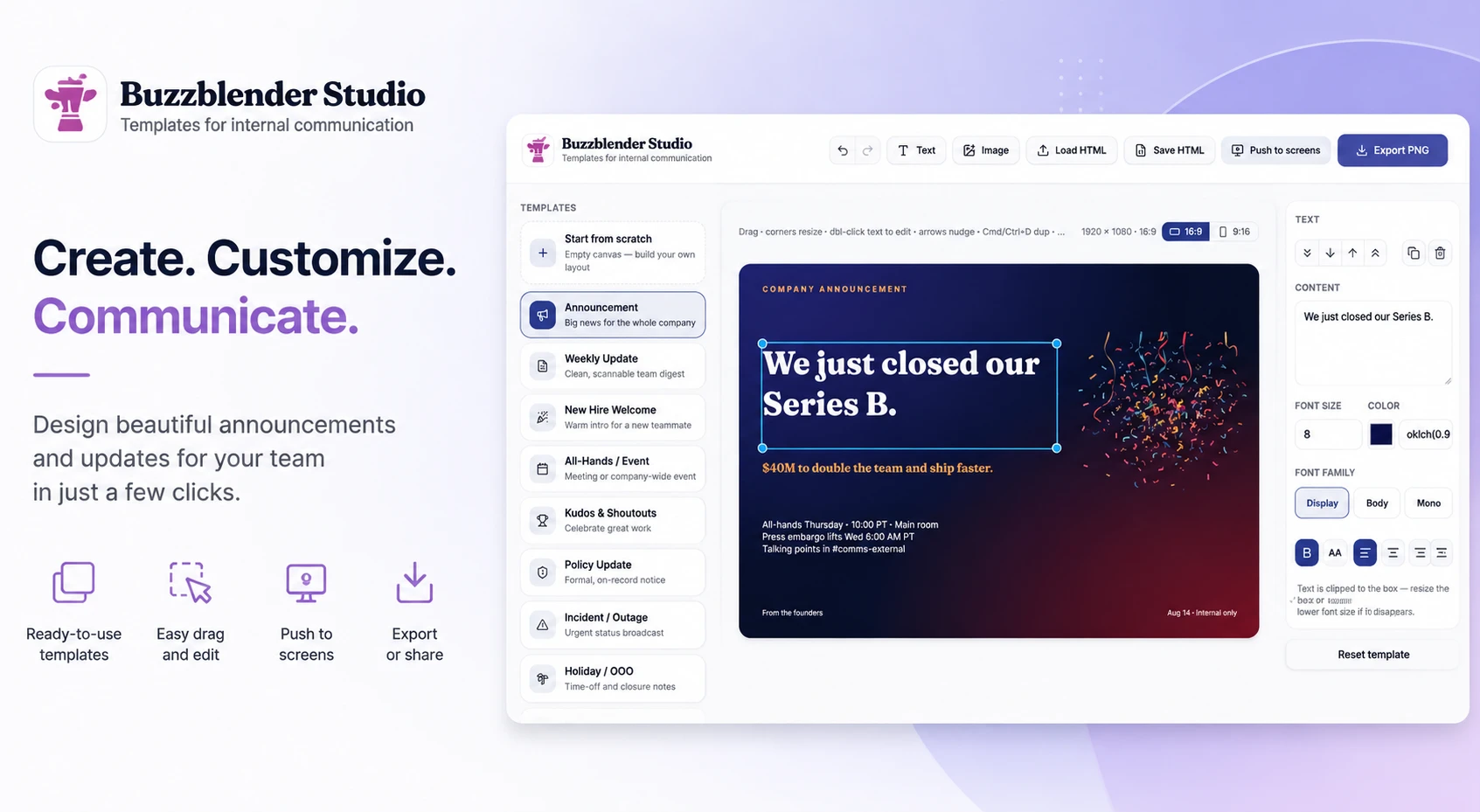
Free, ready-to-use digital signage templates for internal communication — announcements, weekly updates, kudos, all-hands, policy notices, incident alerts, holidays and office maps. Edit in your browser, export as PNG or HTML. Every template opens in a browser-based editor — no sign-up, no download. Pick a layout, edit in the Studio, and push it to your office screens.
Buzzblender supports different Operating systems including Samsung Signage, LG Signage, Samsung Regular TV, LG Regular TV, Android, Philips and Web-browser.
Buzzblender Studio makes it easy to create professional announcements, company updates, event notices, and other content for your office screens. Whether you’re sharing exciting company news or reminding employees about an upcoming event, you can build eye-catching slides in just a few minutes—no design experience required.
BuzzBlender is the best choice to get started. Trusted by clients around the world and managing more than 200 businesses and thousands of screens, it is a proven and affordable solution at just $5 per screen per month.
Use the promo code WELCOME100 to get your first month free. Create your account and connect your first screen.
Getting Started
When you open Buzzblender Studio, you’ll see three main sections:
- Templates on the left
- Editing Canvas in the middle
- Properties Panel on the right
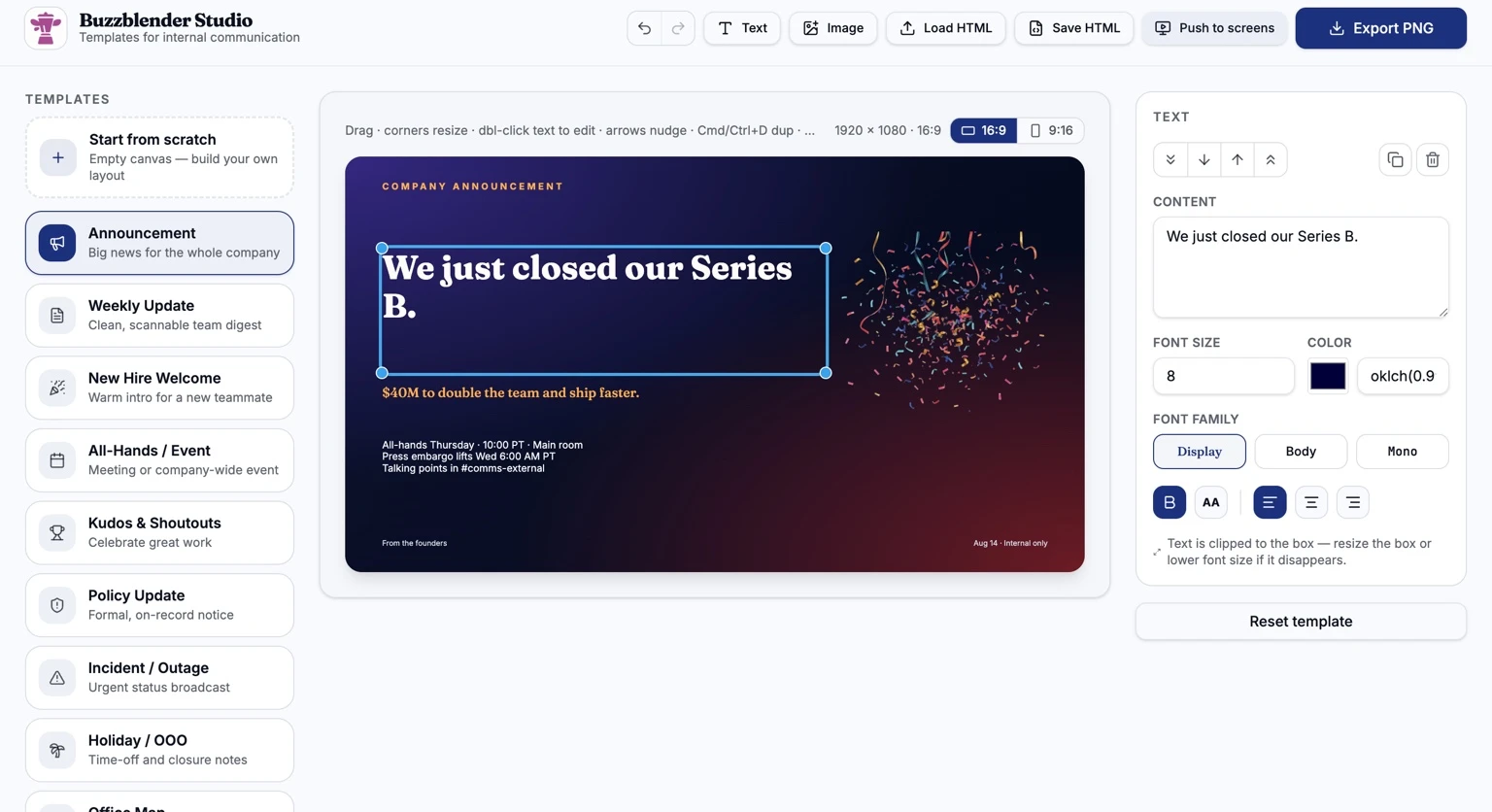
Each area has a specific purpose, making it easy to create and customize your announcement.
Choosing a Template
Start by selecting a template from the list on the left.
Templates are designed for common workplace communications, including:
- Announcement
- Weekly Update
- New Hire Welcome
- All-Hands Meeting
- Kudos & Shoutouts
- Policy Update
- Incident or Outage
- Holiday / Out of Office
If you’d rather design everything yourself, select Start from Scratch to begin with an empty canvas.
Tip: Choose the template that best matches your message. It will save you time and keep your communications consistent.
Editing Your Slide
The center of the screen is your workspace.
Everything you see on the slide can be edited.
Simply click on any text or image to select it.
To edit text
- Click the text you want to change.
- Double-click to edit it directly on the canvas, or update it in the Content box on the right.
- Your changes appear immediately.
For example, you might replace the default headline with:
We just closed our Series B.
Then update the supporting text with something like:
$40M to double the team and ship faster.
Moving and Resizing Elements
Designing your slide is as simple as moving things around.
- Click and drag to move an object.
- Drag any corner to resize it.
- Use the arrow keys for small adjustments.
- Use icons in the right side to duplicate the selected item.
If your text doesn’t fit, resize the text box or reduce the font size.
Customizing Text
Whenever you select a text box, the panel on the right displays formatting options.
You can easily adjust:
- Font size
- Text color
- Font style
- Alignment
- Bold formatting
Three font styles are available:
- Display – Ideal for headlines
- Body – Perfect for regular content
- Mono – Great for technical information or code
Keep your formatting consistent across all slides for a polished, professional look.
Working with Images
Need to add a logo, photo, or illustration?
Click Image in the toolbar and choose the image you want to upload.
Once added, you can move and resize it just like any other object on the slide.
Choosing the Right Screen Format
Different displays use different orientations.
Buzzblender Studio lets you switch between:
- 16:9 – Standard landscape displays
- 9:16 – Portrait displays
Select the correct format before you start designing to ensure your content fits perfectly on the target screen.
Toolbar Overview
The toolbar at the top gives you quick access to the most common actions.
| Button | What it does |
|---|---|
| Undo | Reverses your last change |
| Redo | Restores an undone change |
| Text | Adds a new text box |
| Image | Inserts an image |
| Load HTML | Opens an existing HTML design |
| Save HTML | Saves the current design as HTML. So you can edit later |
| Push to Screens | Open your Buzzblender account to display image on your screen |
| Export PNG | Downloads the slide as an image |
Starting Over
If you’ve made changes you’d like to discard, click Reset Template.
This restores the original template layout.
Note: Resetting a template removes all changes you’ve made since opening it.
Publishing Your Design
When you’re happy with your slide, you have three options.
Export as an Image
Click Export PNG to download the slide as a high-quality image that you can share or archive.
Save as HTML
Export your design, so you can continue editing later.
Publish to Office Screens
Click Push to Screens to send your announcement directly to connected Buzzblender displays.
Tips for Great Announcements
The best internal communications are simple and easy to read.
Here are a few recommendations:
- Keep headlines short and impactful.
- Focus on one message per slide.
- Use high-contrast colors for better readability.
- Leave enough white space around your content.
- Preview your design before publishing.
- Avoid overcrowding the slide with too much text.
Remember, people usually have only a few seconds to read a screen, so clarity is more important than quantity.
You’re Ready to Create
With just a few clicks, you can turn a template into a professional-looking announcement ready for your office screens.
Whether you’re welcoming a new employee, sharing exciting company news, or reminding everyone about an upcoming event, Buzzblender Studio helps you create clear, engaging communications in minutes.
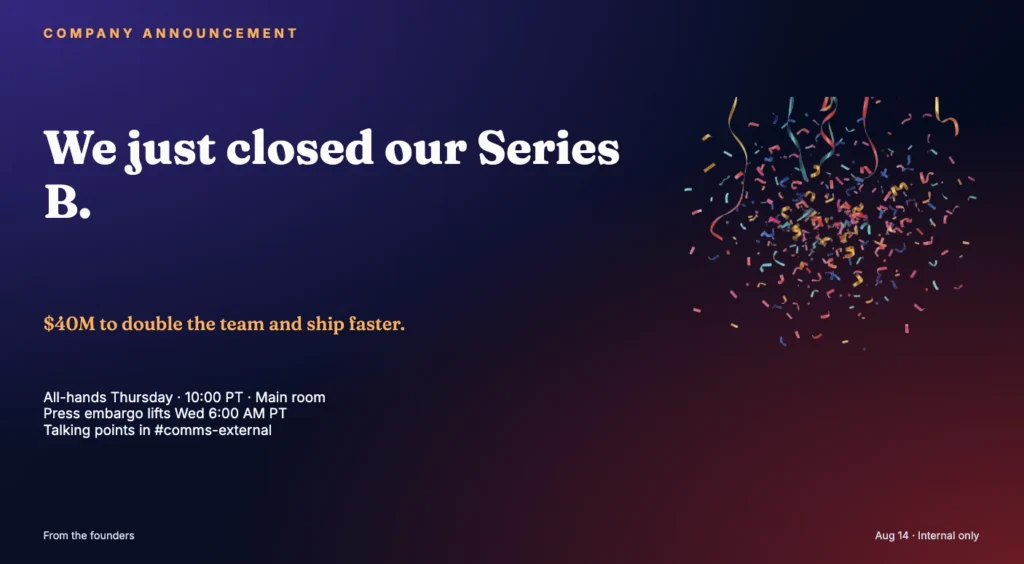
Company Announcement Signage Template
A high-contrast, celebratory layout for big news — launches, funding, milestones. Bold display type, confetti accent, hero-scale headline.
- Leadership updates
- Product launches
- Funding & milestones
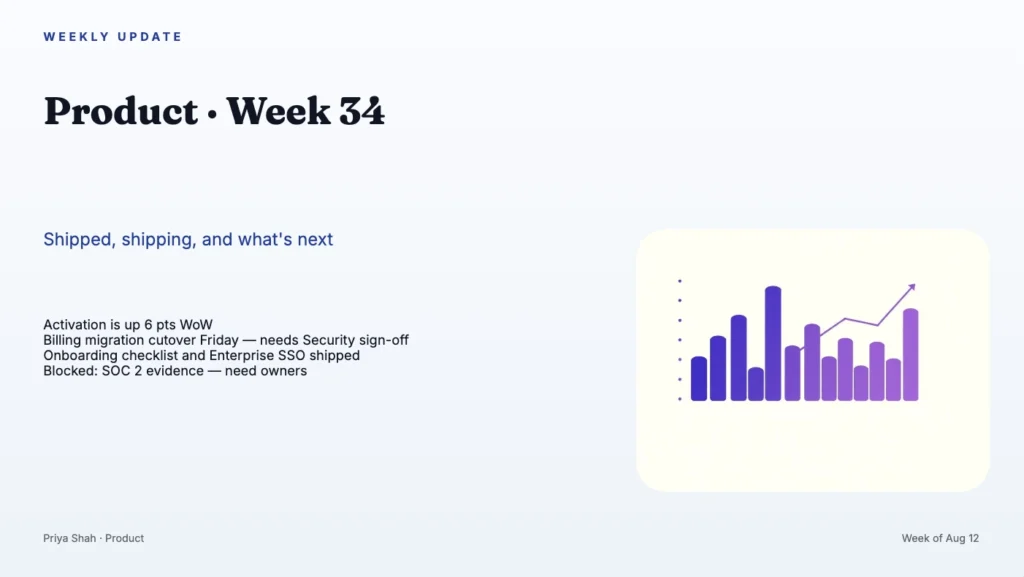
Weekly Internal Update Signage Template
A clean, scannable digest for recurring team news. Perfect for lobby screens and cafeteria loops that need to stay legible from across the room.
- Team standups on TV
- Weekly digests
- Department newsletters
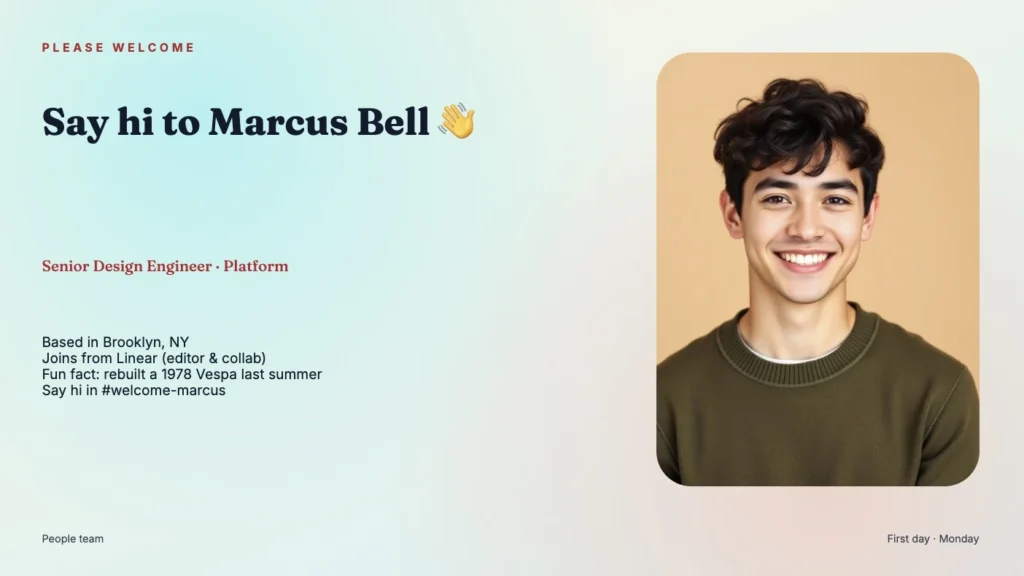
New Hire Welcome Signage Template
Warm, portrait-friendly layout for introducing a new teammate. Drop in the person’s photo, role and a short bio — swap the image with one click.
- First-day welcomes
- Team intros
- Onboarding screens
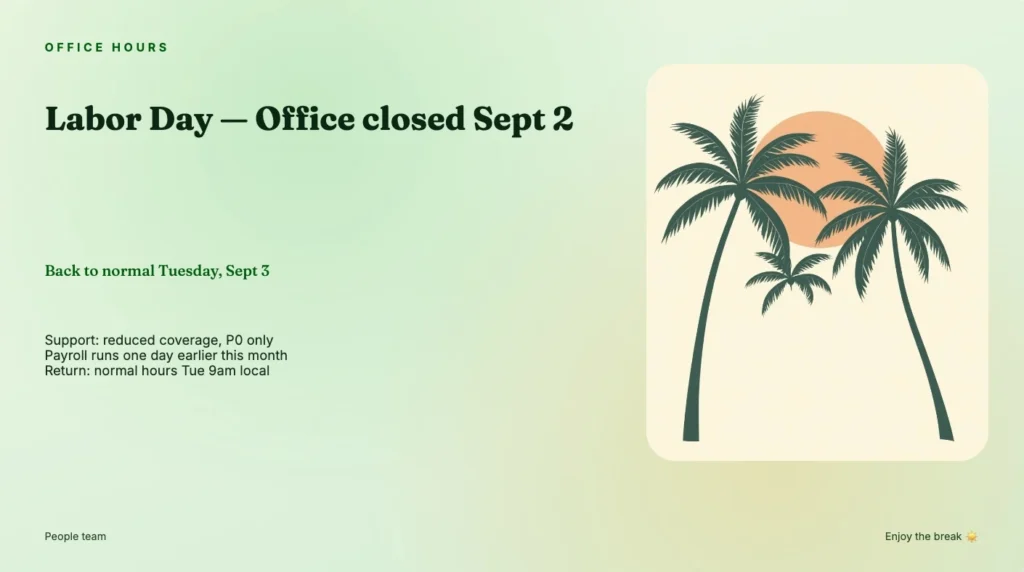
All-Hands & Company Event Signage Template
A soft, seasonal layout for closure notices, PTO reminders and holiday greetings. Warm palette that doesn’t feel corporate.
- Office closures
- Holiday greetings
- PTO reminders
Holiday & Office Closure Signage Template
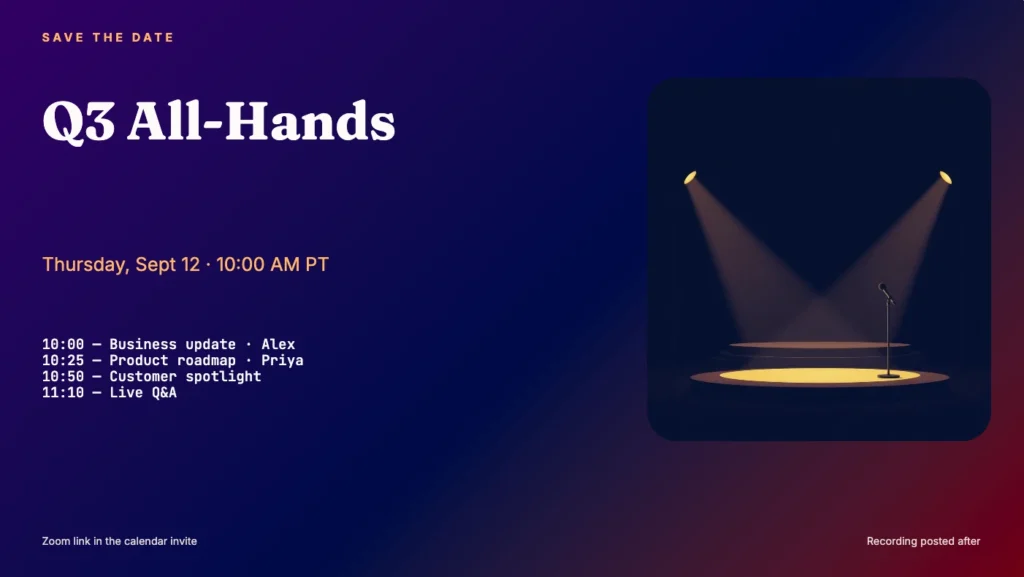
A punchy, gradient-heavy layout for events. Date, time and room stand out on any screen size — perfect for lobby wayfinding before a big meeting.
- All-hands meetings
- Company parties
- Training sessions
Incident & Outage Signage Template
A high-visibility red/mono layout for urgent status broadcasts. Optimized to grab attention on shared TVs during ongoing incidents.
- Service outages
- Security incidents
- Building alerts
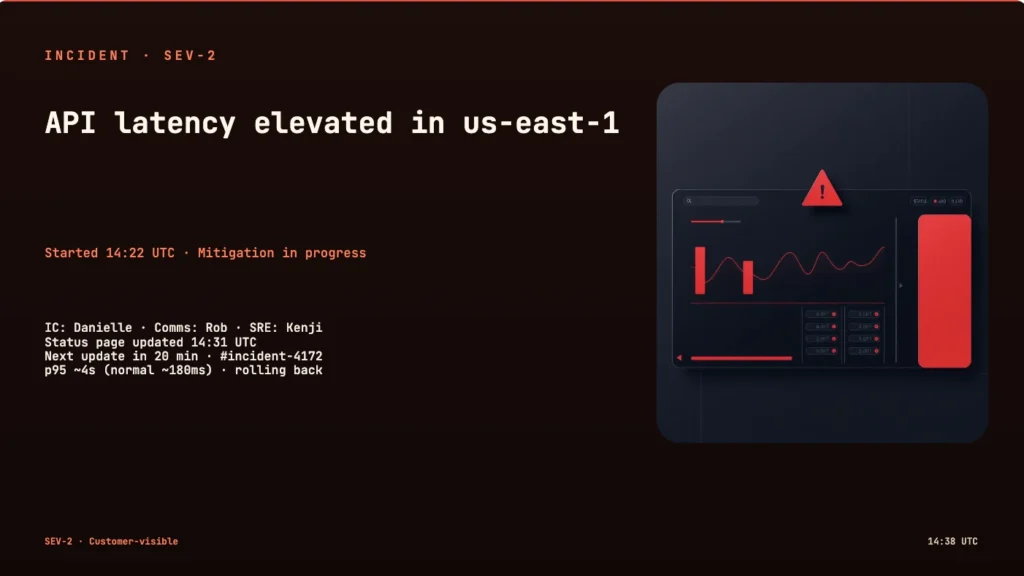
Policy Update Signage Template
A formal, on-record layout for HR, security or compliance updates. Serif display, quiet background — reads as an official notice, not marketing.
- HR policy changes
- Security notices
- Compliance reminders
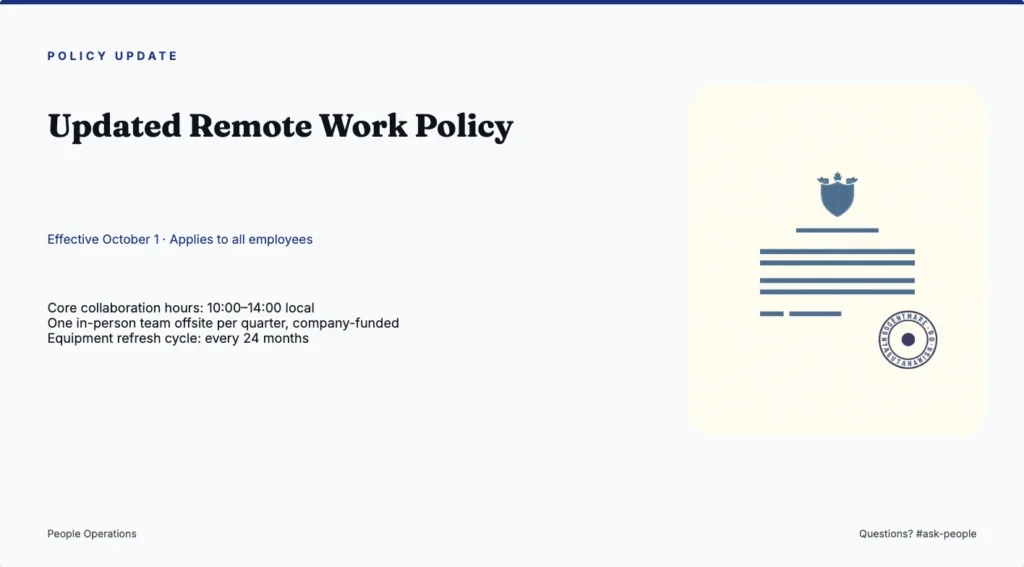
Employee Kudos & Recognition Signage Template
A warm, gold-orange recognition layout for public shoutouts. Great for values-based praise, milestone anniversaries and quarterly awards.
- Values shoutouts
- Anniversary recognition
- Quarterly awards
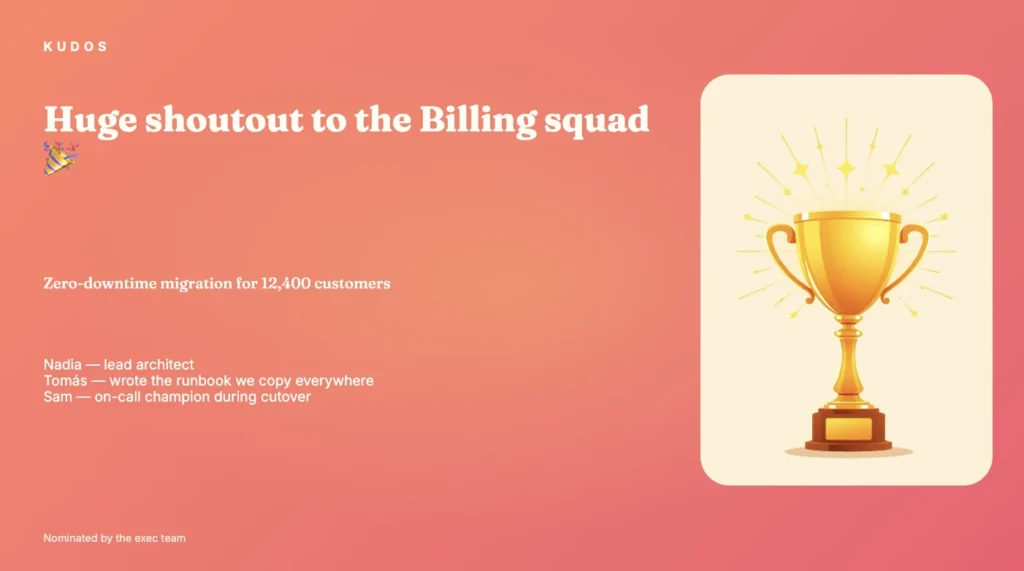
Office Map & Wayfinding Signage Template
A blueprint-style floor plan template with a legend. Ideal for lobby wayfinding, hot-desk zones and first-day tours.
- Lobby wayfinding
- Hot-desk maps
- First-day tours
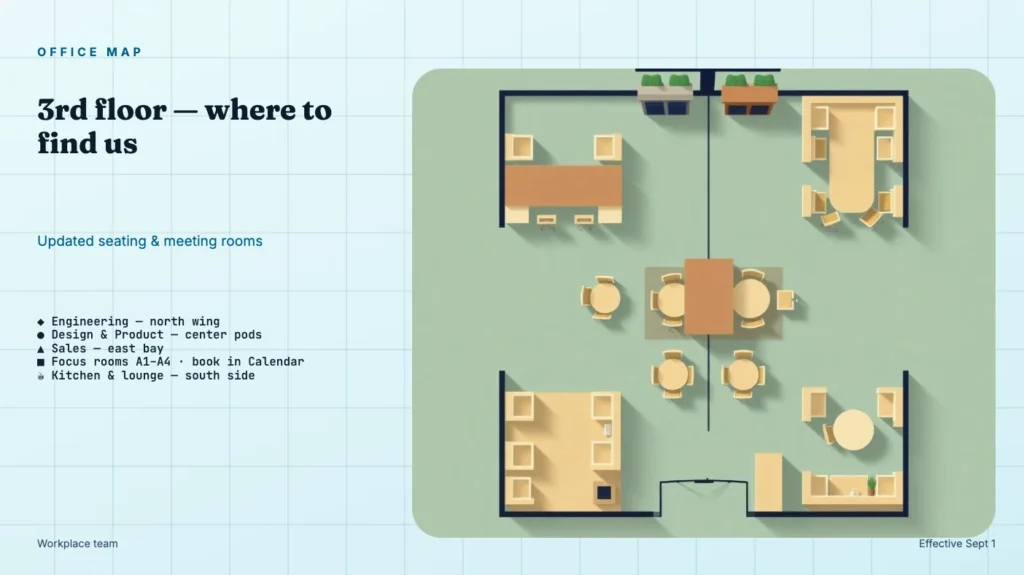
Blank Digital Signage Canvas
An empty 1920×1080 canvas with a light grid. Drag text and images, resize freely, and build any signage layout your team needs.
- Custom layouts
- Experiments
- One-off broadcasts
About these digital signage templates
Every template is designed at 1920×1080 (with a 1080×1920 portrait option) so it drops straight onto standard office TVs, lobby screens and elevator displays. Content is fully editable in your browser — drag, resize and swap images, then export as PNG for static screens or standalone HTML for live displays.
Take control of your screens today with Buzzblender
What Our Customers Say
⭐⭐⭐⭐⭐
The Easiest and Most Affordable Digital Signage We’ve Used
We tested several digital signage solutions before switching, and BuzzBlender has been the simplest and most reliable by far.
Setup on our Samsung displays was fast, and managing content is incredibly easy—even for non-technical staff. We can update screens in real time, run promotions, and control everything remotely without extra hardware.
Compared to other systems, it stands out for both ease of use and pricing. Just five dollars.
Vasiliy, co-founder of Ecomind

Frequently Asked Questions
What is Buzzblender Studio?
Buzzblender Studio is a web-based editor that helps you create professional announcements, digital signage, and other internal communication content for office displays.
Do I need design experience to use Buzzblender Studio?
No. Buzzblender Studio includes ready-to-use templates and an intuitive drag-and-drop editor, making it easy for anyone to create professional-looking content.
How do I start a new design?
Simply select a template from the Templates panel on the left or choose Start from Scratch to begin with a blank canvas.
How do I edit text?
Click on any text box to select it, then double-click to edit it directly on the canvas or update the content using the properties panel on the right.
Can I move or resize objects?
Yes. Select any object and drag it to a new position. Resize it by dragging the corner handles, or use the arrow keys for more precise adjustments.
How can I change fonts, colors, or text formatting?
After selecting a text box, the formatting options appear in the properties panel. From there, you can adjust the font size, font family, text color, alignment, and bold styling.
What should I do if my text doesn’t fit?
Try increasing the size of the text box, reducing the font size, or shortening your message. Keeping content concise improves readability on digital displays.
Can I upload my own images?
Yes. Click the Image button in the toolbar to upload an image from your computer. Once added, you can move and resize it as needed.
What is the difference between the 16:9 and 9:16 layouts?
The 16:9 layout is intended for landscape displays, while the 9:16 layout is designed for portrait screens. Select the layout that matches the display where your content will be shown.
What happens if I click Reset Template?
Reset Template restores the original version of the selected template and removes any unsaved changes you’ve made.
What is the difference between Export PNG and Push to Screens?
Export PNG saves your design as a high-quality image on your computer. Push to Screens publishes the design directly to connected Buzzblender displays.
Can I save my work as HTML?
Yes. Use Save HTML to export your design as an HTML file. You can reopen it later using the Load HTML option.
Can I duplicate an object?
Yes. Select the object, then click the Duplicate icon in the right-hand panel.
Can I undo changes?
Yes. The Undo and Redo buttons in the toolbar allow you to reverse or restore your recent edits.
What types of content can I create?
Buzzblender Studio is suitable for creating company announcements, weekly updates, employee recognition slides, new hire welcomes, event promotions, policy updates, incident notifications, and holiday messages.
How can I create more effective announcements?
Focus on one clear message per slide, use large readable text, keep headlines short, maintain strong contrast between text and the background, and preview your design before publishing.
Can I start over if I make a mistake?
Yes. You can undo individual changes at any time, or use Reset Template to return the selected template to its original layout and start again.


Leave a Reply